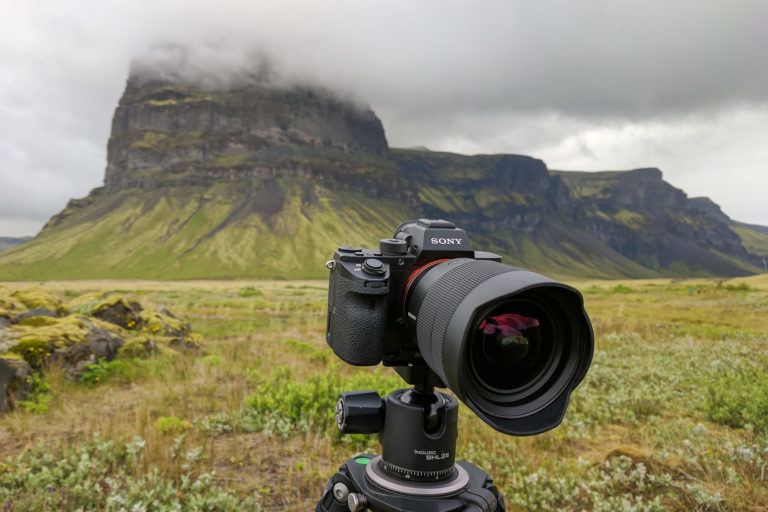
With the release of the Sony a7R VI, Sony has completely revolutionized high-resolution photography. Its predecessor, the popular a7R V, was celebrated for its extreme detail but was limited to a modest 10 fps burst speed. With the Sony a7R VI, Sony has shattered those limitations by introducing a groundbreaking 66.8-megapixel fully stacked Exmor RS CMOS sensor capable of blistering, blackout-free continuous shooting at up to 30 fps.
Sony took everything creators loved about the previous generation’s detail and packed it with flagship action features—including an adjustable RAW Pre-Capture system, a next-generation BIONZ XR2 image processing engine with a dedicated AI deep learning unit, and crop-free full-frame 4K 120p and 8K 30p video recording. Combined with a premium, multi-angle tilting and articulating rear LCD screen, optimized body ergonomics, and an improved 8.5-stop in-body image stabilization (IBIS) system, this camera is a powerhouse for both landscape masters and fast-action wildlife shooters.
Whether this is your very first upgrade or you have been mastering the Sony mirrorless ecosystem for years, the advanced capabilities of this camera introduce a completely new set of menu options to master. This is why I have created The Complete Setup Guide to the Sony a7R VI. I will guide you through the camera menu settings from the very first moment you power on the body.
If you want a detailed blueprint of how I map my physical controls for field work, be sure to check out my companion article, Customizing Your Sony a7R VI, where I explain the exact logic behind my layouts and even share my personal settings file for you to download directly onto your memory card. I hope you find these setup guides incredibly helpful—if any questions pop up while you’re configuring your new body, leave a comment below and I will do my best to help you out!
Initial Setup
When you first turn on your brand-new Sony a7R VI, you will be presented with several options to start setting up your mirrorless camera right off the bat. In this section, you will find step-by-step instructions to walk you through each of those choices.
Picking Your Language
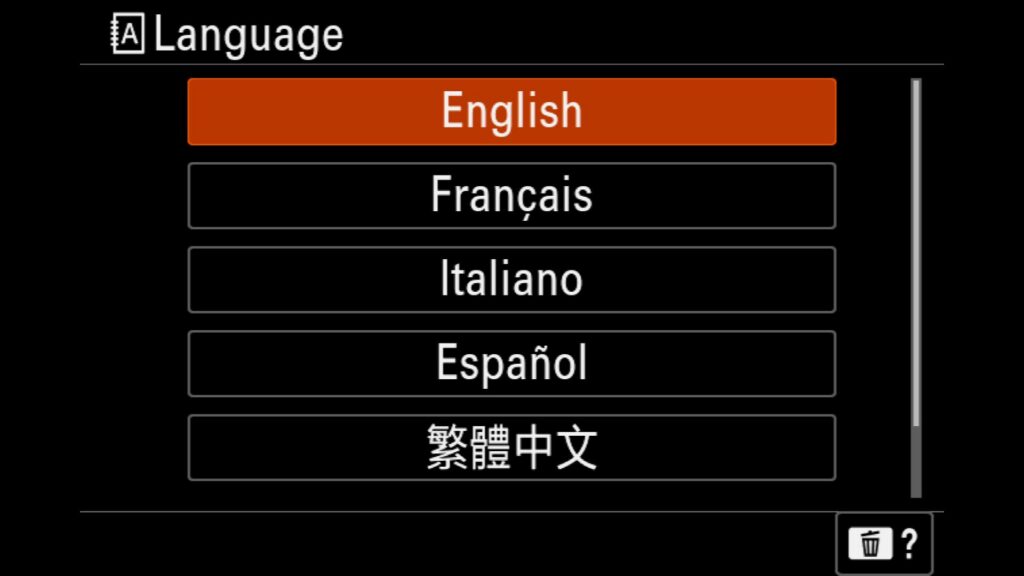
As with any modern digital camera, your first step when setting up the Sony a7r VI is selecting your preferred operating language. The camera offers six language options: English, French, Italian, Spanish, Traditional Chinese, and Simplified Chinese.
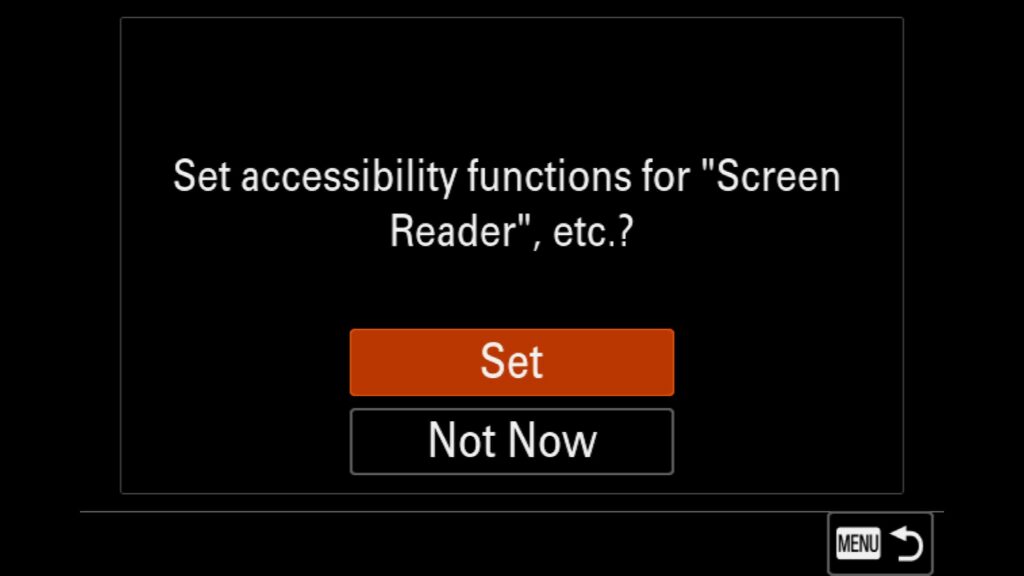
Set Accessibility functions for "Screen Reader"
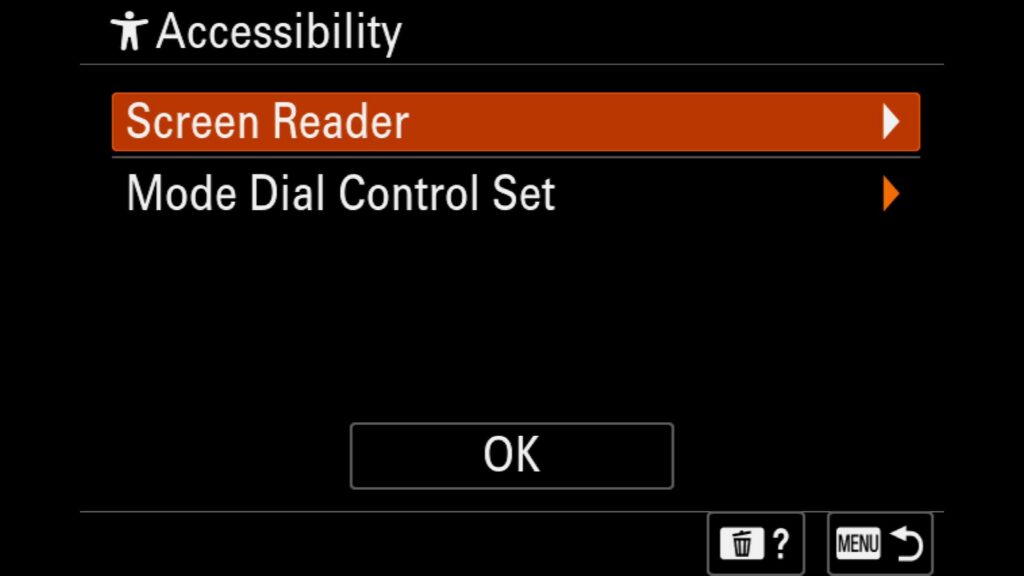
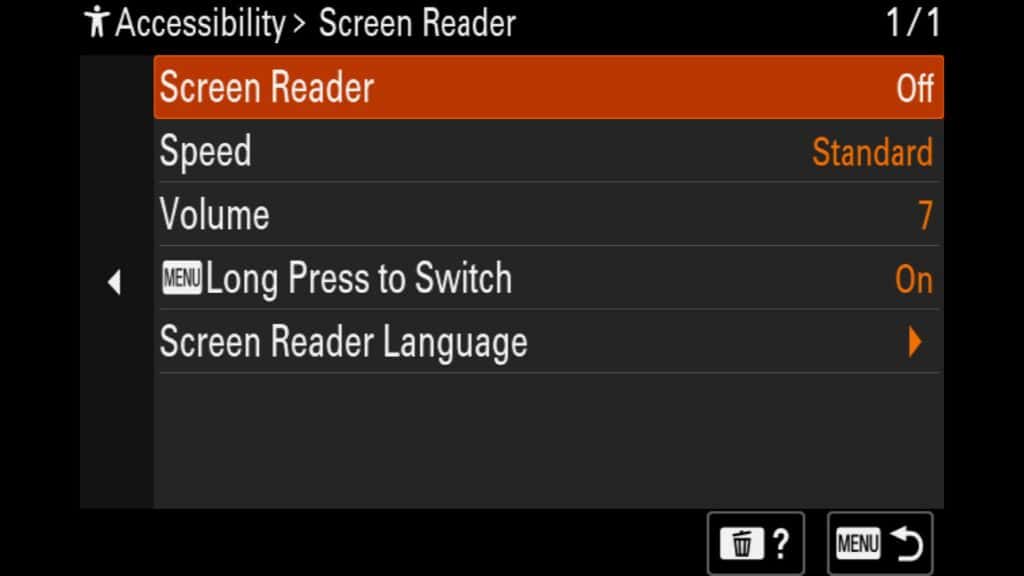
Next, an automatic prompt will ask if you want to configure the Sony a7R VI accessibility functions. Choosing ‘Set’ opens a secondary menu where you can customize the camera’s Screen Reader settings—a highly helpful tool for photographers with visual impairments or low eyesight. Activating the Screen Reader allows the camera to read on-screen text aloud in your chosen language. If you prefer to bypass this setup, simply click ‘Not Now’ to skip it entirely.
The Privacy Notice
Sony asks that you accept the use of “biometric” data with the Sony a7 V. You can read more about this notice by using your mobile phone to scan the QR code displayed on the rear LCD of the camera. If you accept, select “I understand”.
Setting Up the Creators App
Now, you will connect your Sony a7R VI to the new and vastly improved Sony Creators App. If you previously used the older ‘Imaging Edge’ software and found it frustrating, you will find the Creators App is a massive upgrade. It delivers a highly stable wireless connection, a more intuitive user interface, and the ability to update your Sony camera and lens firmware directly from your phone. Connecting your smartphone makes the initial setup incredibly seamless. (Note: The mobile screenshots below feature an Android Pixel 10 Pro XL; iPhone steps may vary slightly.)
To begin, the camera screen will prompt you to complete the setup via your smartphone. Click ‘Set on Creators’ App’ to generate a custom QR code that links you directly to the application download page for both iOS and Android devices.
Next, authorize the pairing request on your smartphone screen to let the Sony a7R VI connect to your phone (such as a Google Pixel 10 Pro XL or iPhone). Tap ‘OK’ on the camera LCD to confirm the Bluetooth pairing process.
Once authorized, return to the Sony Creators App to select your preferred wireless frequency: a 2.4 GHz vs. 5 GHz Wi-Fi connection. To keep it simple, a 2.4 GHz connection offers a longer range but slower transfer speeds, while a 5 GHz connection provides significantly faster wireless tethering and file transfers but requires your phone to stay closer to the camera body. After choosing the best option for your workflow, tap ‘Go to the initial camera settings’ at the bottom of the screen.
With the devices paired, you can now configure the three primary initial camera settings directly inside the mobile interface:
Date/Time Format: The camera automatically syncs the exact date, time, and time zone from your smartphone to your Sony a1 II mirrorless camera. Your only choice here is selecting your preferred date display format.
Device Name: The default factory name is ‘ILCE-7RM6’. However, if you operate multiple camera bodies, giving each a custom name makes identifying individual units within the mobile application much easier.
Auto Power OFF Temp: Sony’s default internal heat thresholds are quite conservative. By switching this from ‘Standard’ to ‘High,’ you can safely extend your shooting times when the camera body experiences prolonged heating. I always set this to ‘High’ on my bodies to prevent interruption when filming longer-form wildlife videos.
After configuring these initial parameters to match your workflow, tap the ‘Use above settings’ button to finalize the baseline setup. Your new camera is now active and ready for its first shoot! However, this is just the first phase of our Sony a7R VI setup guide. Next, we will dive deeper into the menu system to unlock the most critical, advanced configurations and hidden features you need to know about.
Creators App Info
Next, you will see a screen that lets you know that, through the Sony Creators App, you can transfer images from your camera to your phone and set up remote shooting control. In the menu under the “Networking” tab, you will find “Smartphone Connection”. Here you can find more settings to review. When you are ready, hit enter on the “Understand and Close” button.
Quick Access Info Graphic
Lastly, you will see a screen showing how to display and remove the quick access icons on your rear LCD. If you swipe left or right, it brings up the touch function icons (which I call “Quick Access”), and if you swipe up, it brings up the Fn Menu (which you can customize).
The Shooting Menu
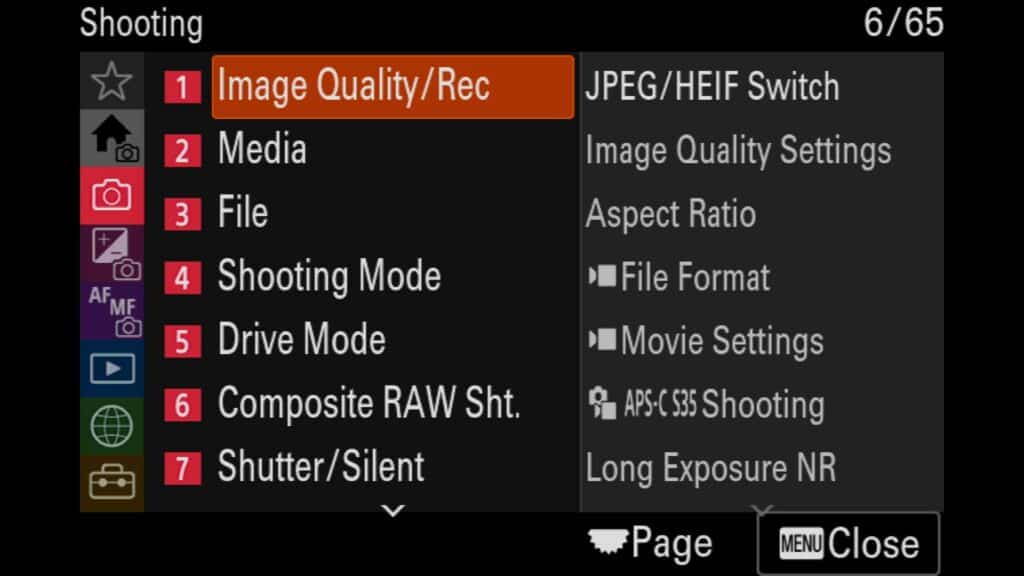
A red icon with a camera outline represents the shooting menu. In it, you will find plenty of settings related to file type, shooting mode, shutter type, and more. Here are the essential settings worth adjusting.
Image Quality Settings
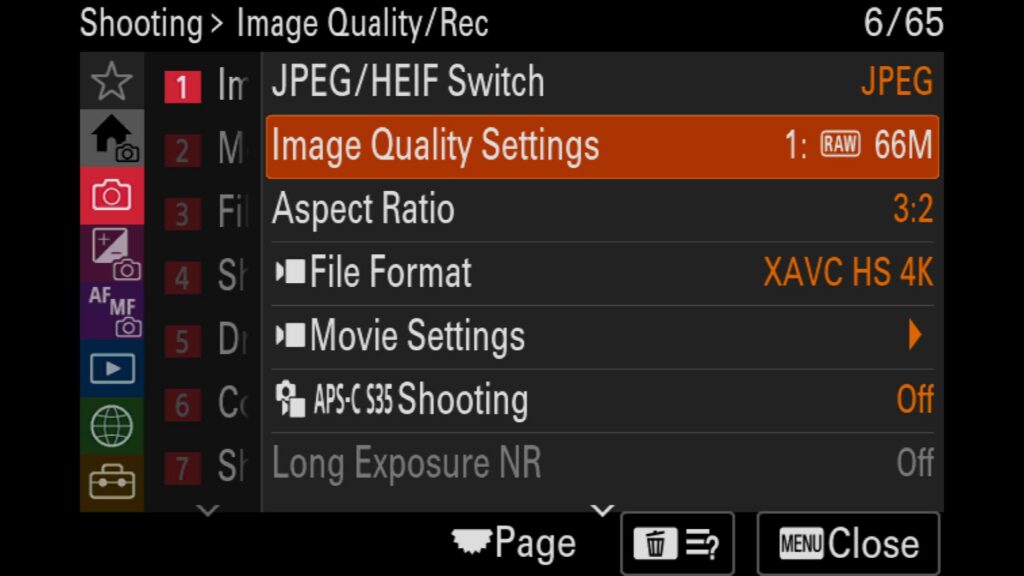
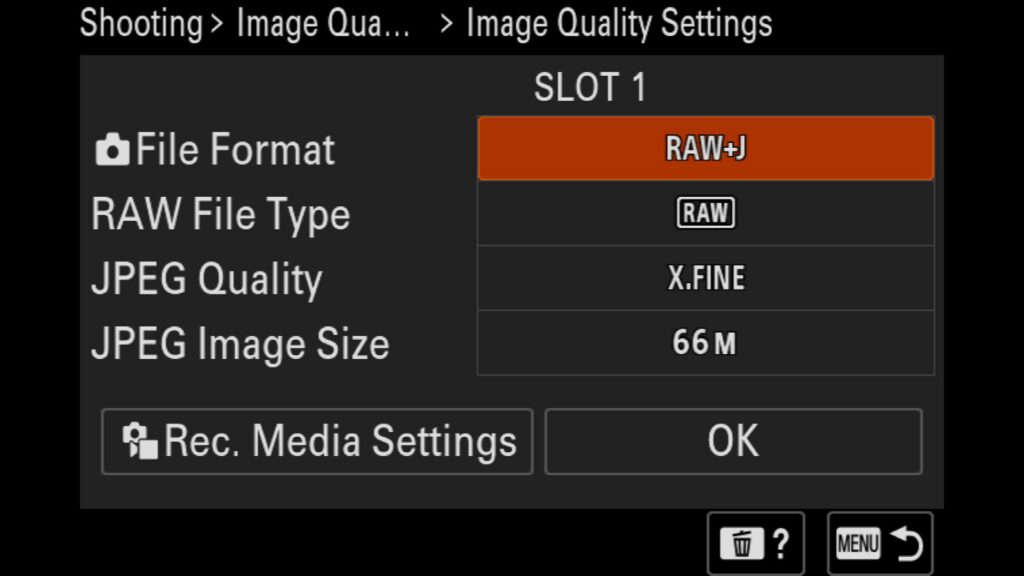
Next, navigate to the menu to adjust your Sony a7R VI image quality settings and fine-tune your format preferences. This menu allows you to choose between shooting in JPEG, RAW, or a simultaneous RAW + JPEG setup. Additionally, you can select the Sony RAW format that best fits your post-processing workflow. Here you can adjust the following settings:
File Format – RAW, RAW & JPEG, JPEG
RAW FILE Type – Lossless Comp, Compressed (HQ), Compressed
JPEG Quality – Extra Fine, Fine, Standard, Light
JPEG Image Size – Large: 66mp, Medium: 28mp, Small: 17mp
Choose what works best for you, but I tend to shoot Lossless Compressed RAW. This is necessary if you wish to shoot at 30 FPS with this camera.
Menu – Shooting Menu – (1) Image Quality/Rec – Image Quality Settings
Aspect Ratio
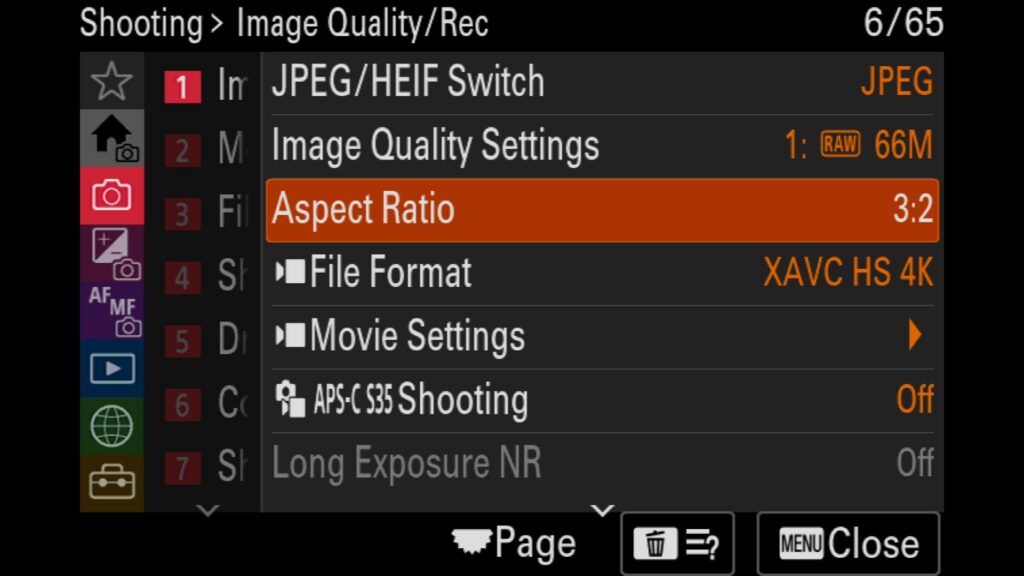
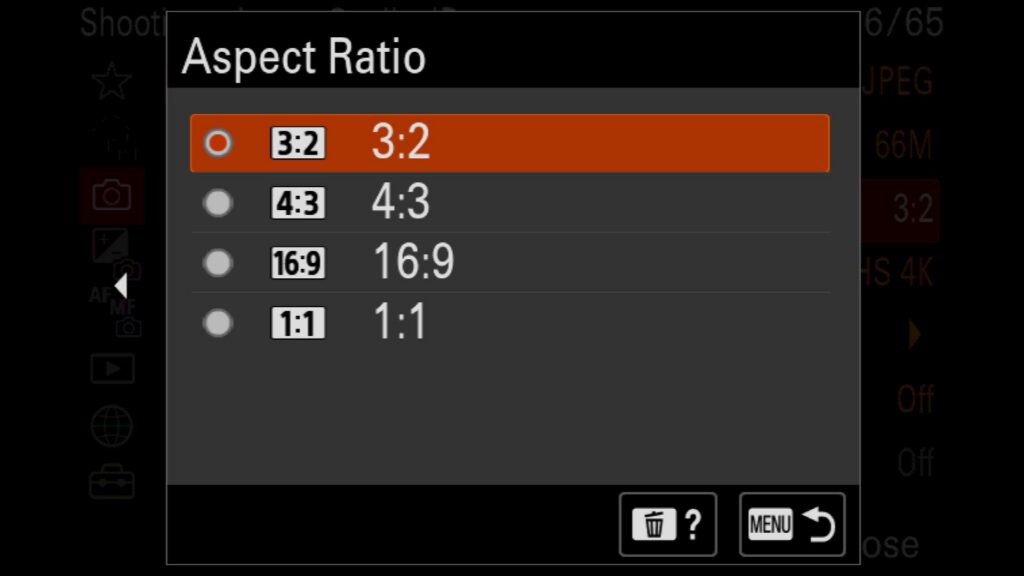
Next, you can adjust the aspect ratio of the images you are creating with the Sony a7R VI. By default, it is set to 3:2, but you have other options:
3:2 – This is the standard image ratio for most modern cameras.
4:3 – This will mimic the look of medium format cameras.
16:9 – A widescreen ratio that mimics a horizontally shot video aspect ratio.
1:1 – A square image ratio
Menu – Shooting Menu – (1) Image Quality/Rec – Aspect Ratio
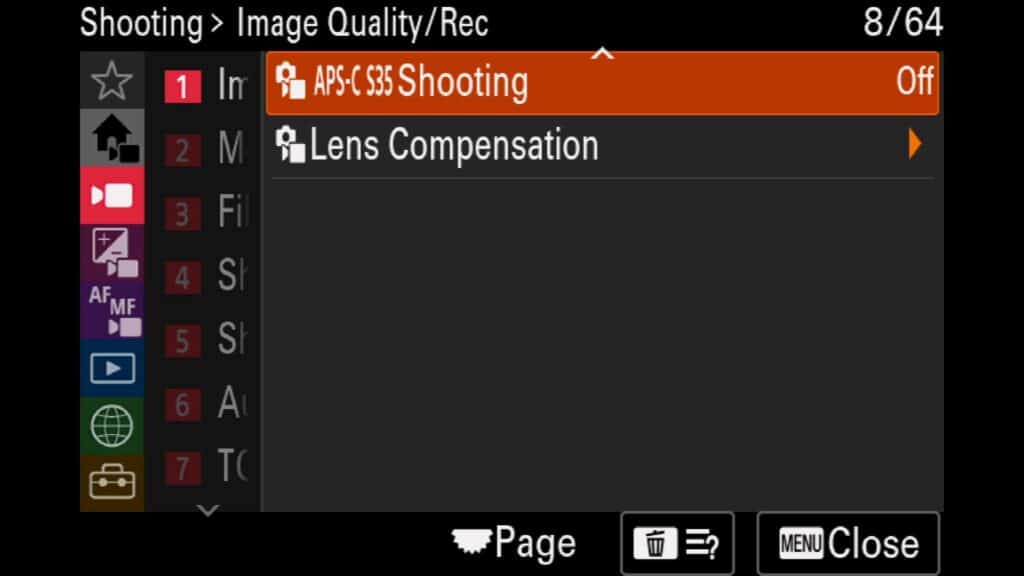
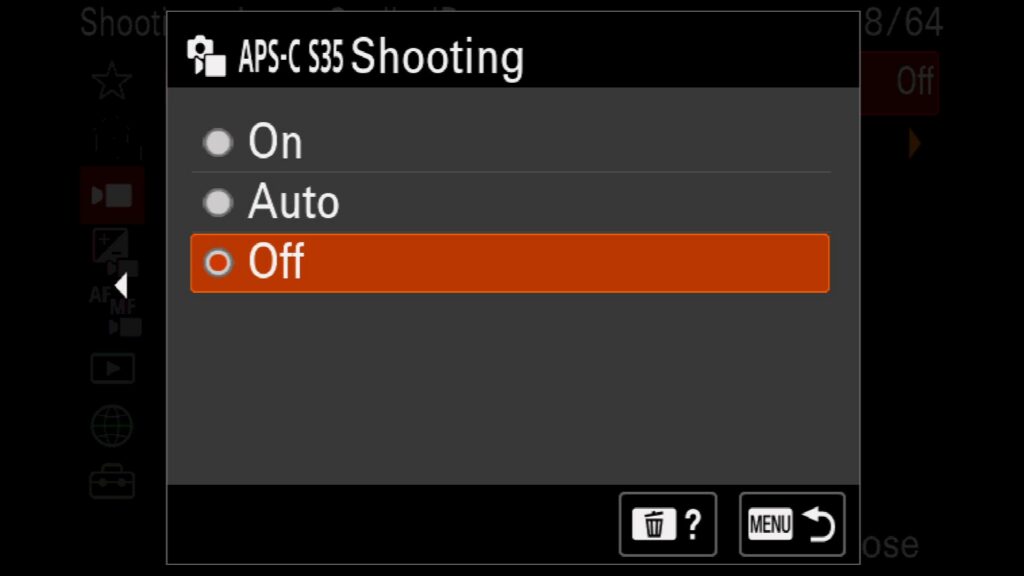
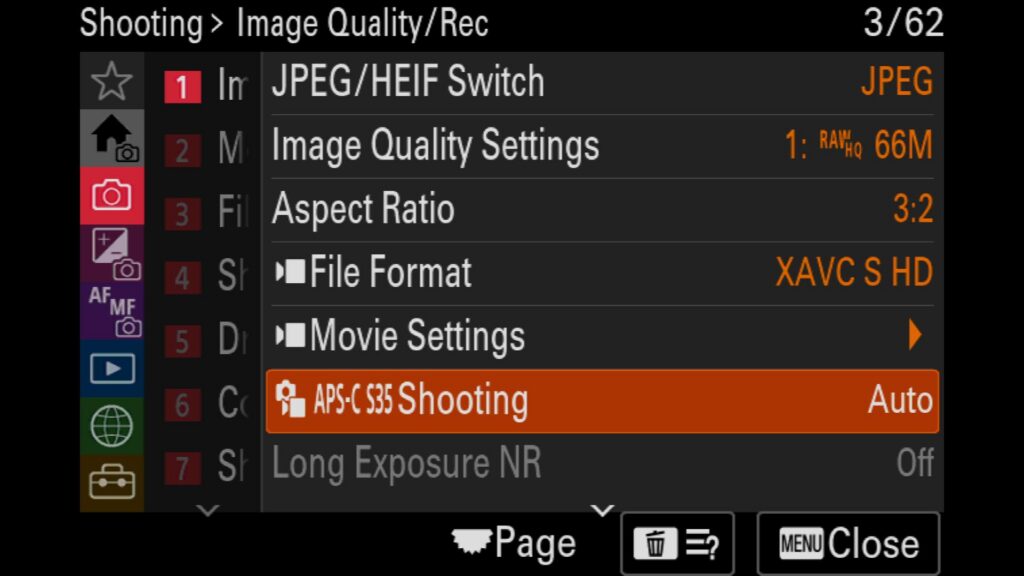
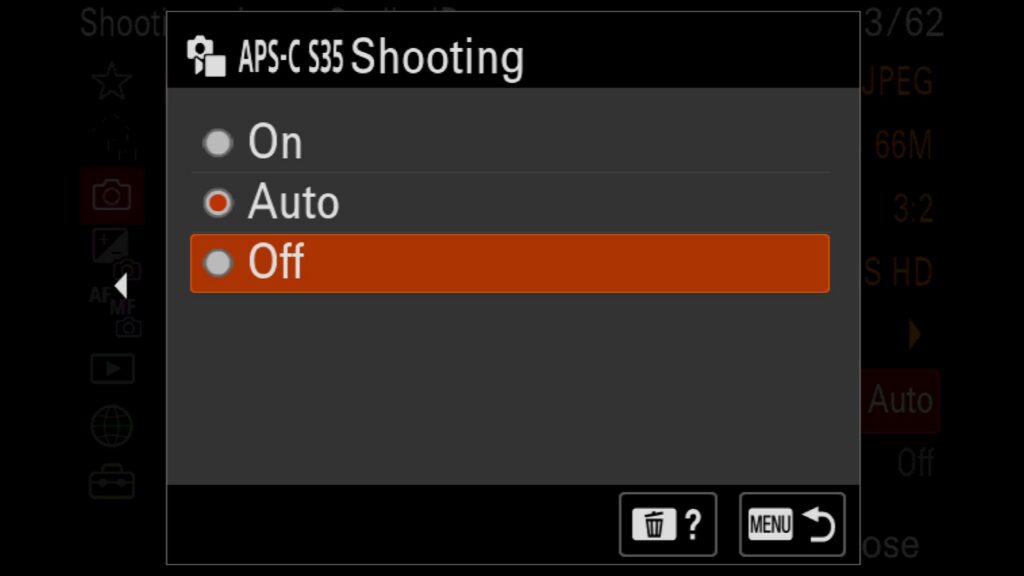
APS-C S35 Mode
Another setting worth noting is the camera’s ability to jump into APS-C S35 mode instead of shooting in “Full Frame”. What does this mean? If you wish to maximize your reach with the Sony a7R VI’s built-in APS-C crop mode, you can instantly (and artificially) extend your focal length for wildlife and sports photography without losing tracking speed. The camera crops into the sensor, allowing you to fill more of the frame with your subject, but at the cost of reduced resolution. Instead of a file with 67MP, you will have something closer to 32MP if you use this feature. Personally, I prefer to crop in post-processing when editing my images, but you might have a different approach.
Menu – Shooting Menu – (1) Image Quality/Rec – APS-C S35 Shooting
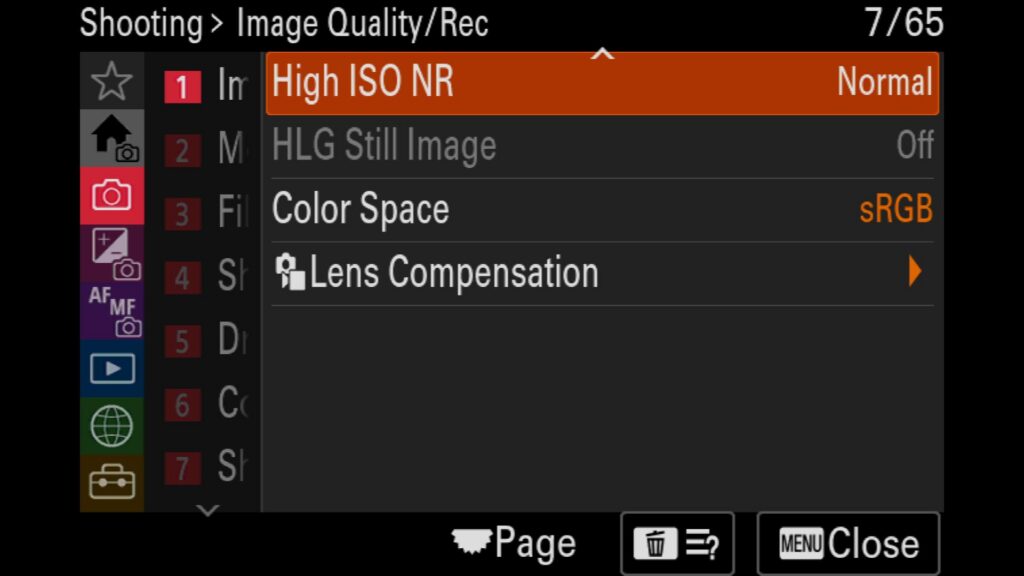
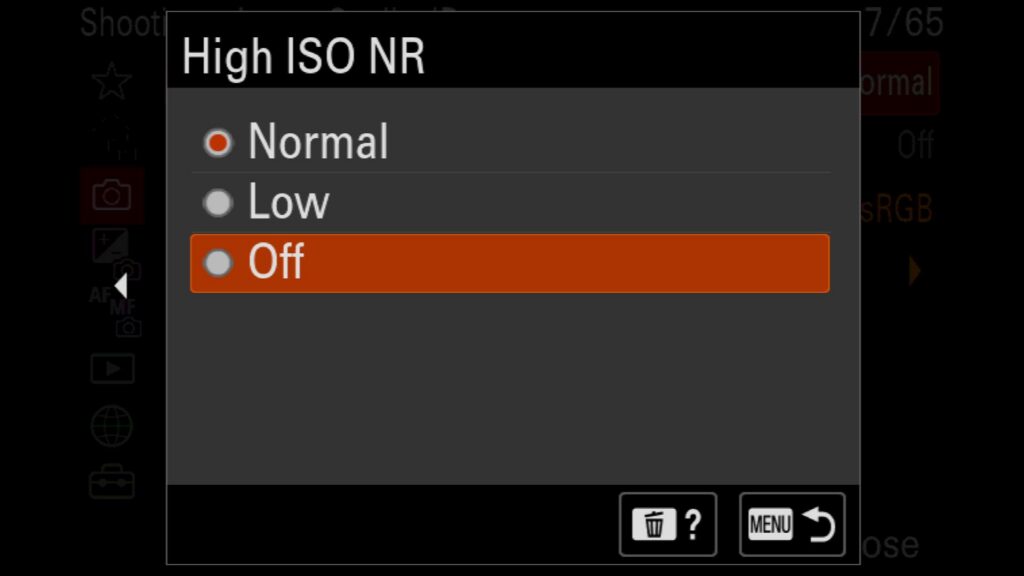
Turn Off High ISO Noise Reduction
Following that, you should disable High ISO Noise Reduction for the exact same reasons outlined in the Long Exposure NR section above. Leaving this setting active permanently smooths the camera’s internal processing on your RAW files. If you are entirely new to digital photography post-processing, you may want to keep this enabled temporarily until you feel confident managing image noise in editing software.
Menu – Shooting Menu – (1) Image Quality/Rec – (Scroll down to second page) High ISO NR
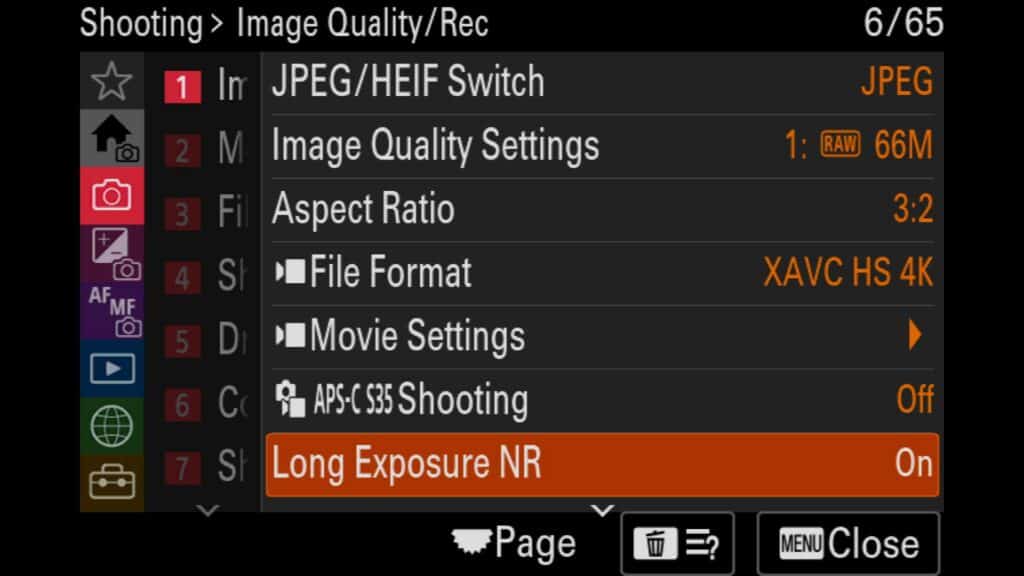
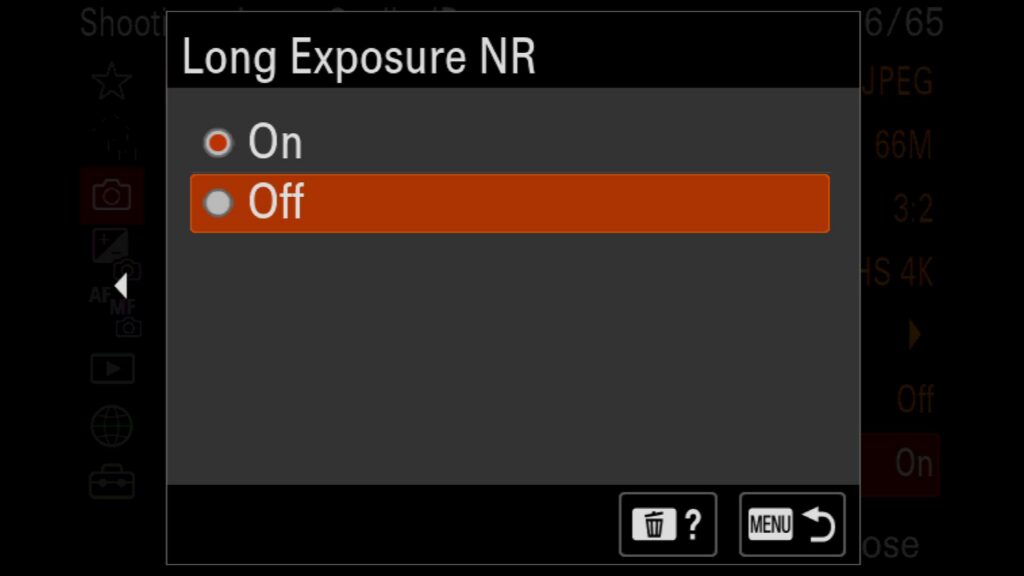
Turn Off Long Exposure Noise Reduction
One of the primary features I always disable on all my cameras is long-exposure noise reduction. Keeping this setting turned off is beneficial for two distinct reasons:
Prevents Double Exposure Times: When active, the camera performs dark-frame subtraction after every long exposure. This means a 10-second exposure requires an additional 10 seconds to process with the shutter closed, effectively doubling your shooting time and locking up the buffer. Disabling this is crucial in time-sensitive situations such as the night sky and astrophotography.
Retains Creative Post-Processing Control: I prefer managing noise reduction in post-processing with software like Lightroom or Topaz Labs rather than letting the camera’s internal algorithms permanently alter the RAW file.
Setup Tip: If you are a beginner unfamiliar with editing software, you can leave this on. For almost everyone else, I highly recommend turning it off.
Menu – Shooting Menu – (1) Image Quality/Rec – Long Exposure NR
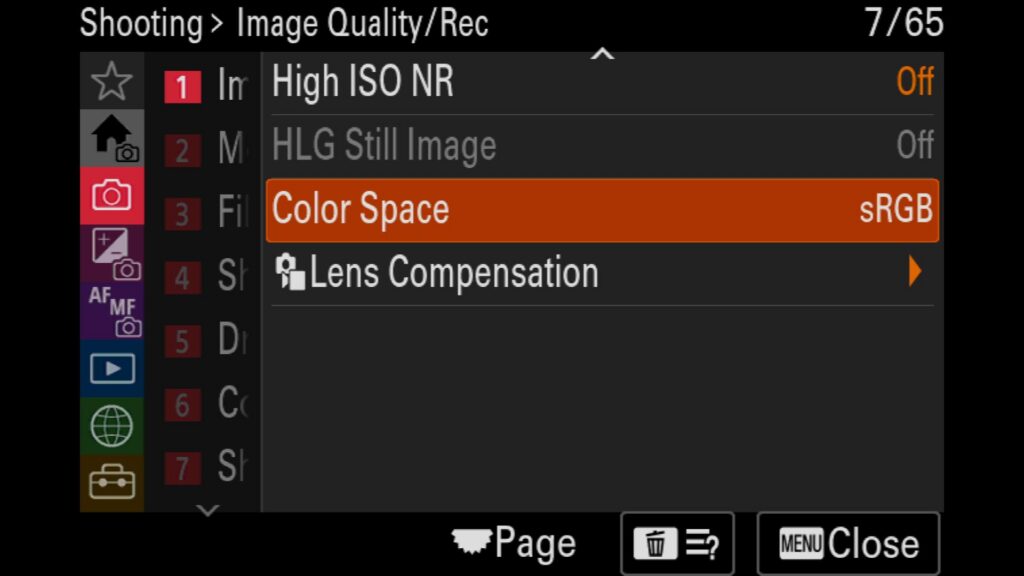
Adjust Your Color Space
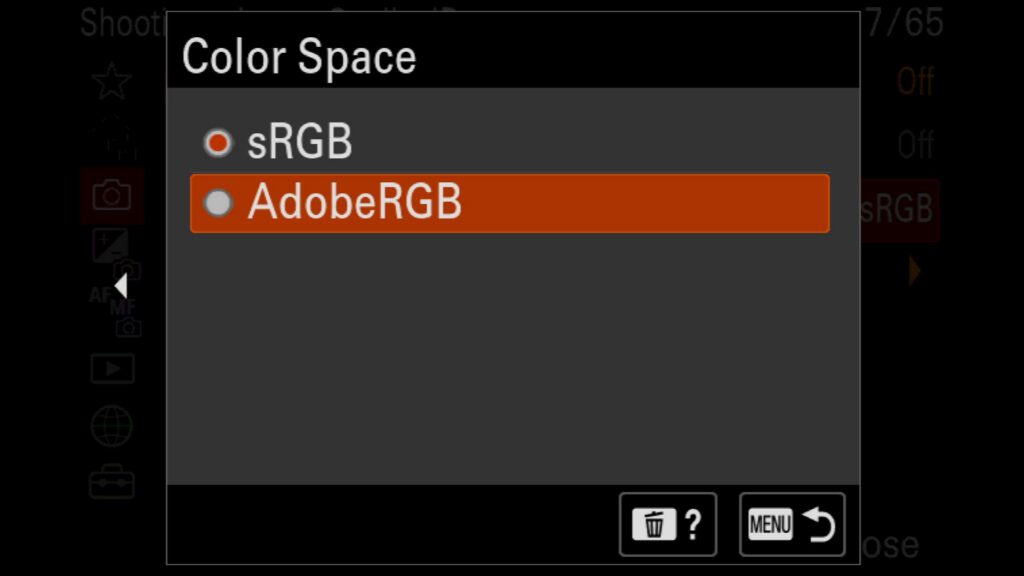
Next up are the Sony a7R VI Color Space settings. While this configuration primarily impacts JPEG files and doesn’t permanently alter pure RAW data, it is still best practice to adjust it in-camera.
By default, the camera uses sRGB, which is the most universally accepted but smallest color profile. Alternatively, you can select Adobe RGB (Adobe 1998), which unlocks a much wider color gamut directly inside the camera. While you can always assign your preferred color space during RAW post-processing, configuring it in your camera menus upfront gives you one less thing to worry about later.
Menu – Shooting Menu – (1) Image Quality/Rec – (Scroll down to second page) Color Space
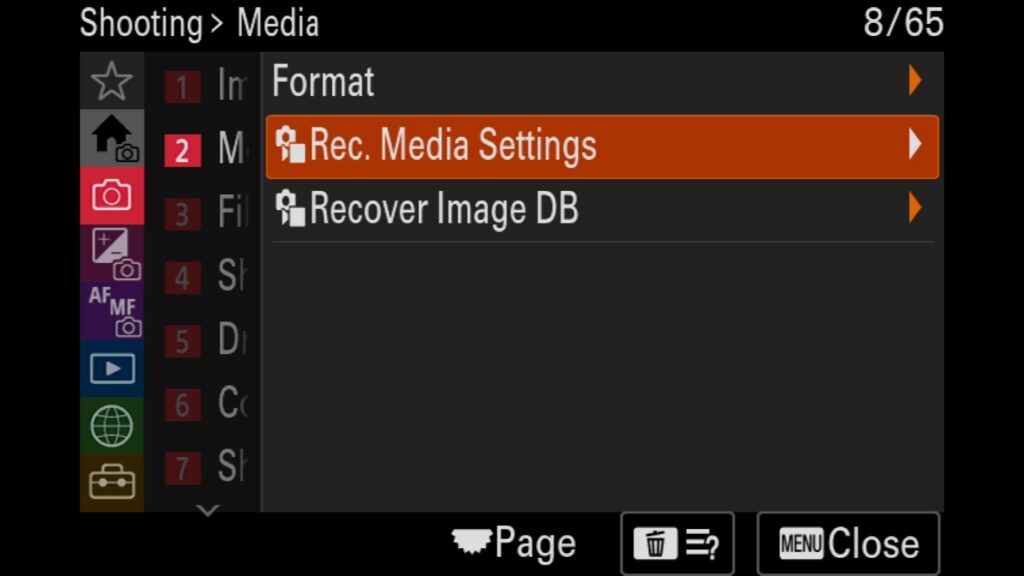
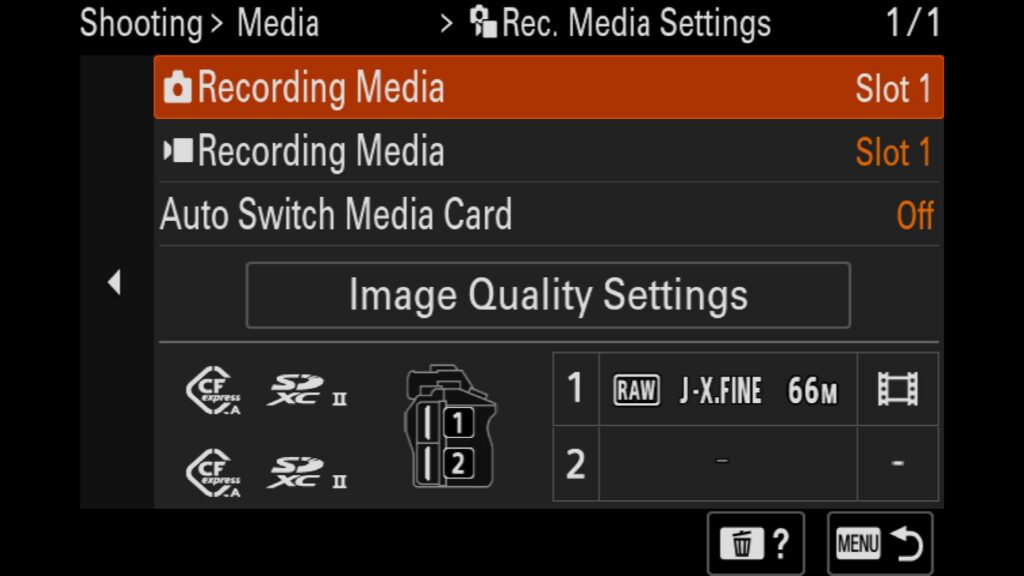
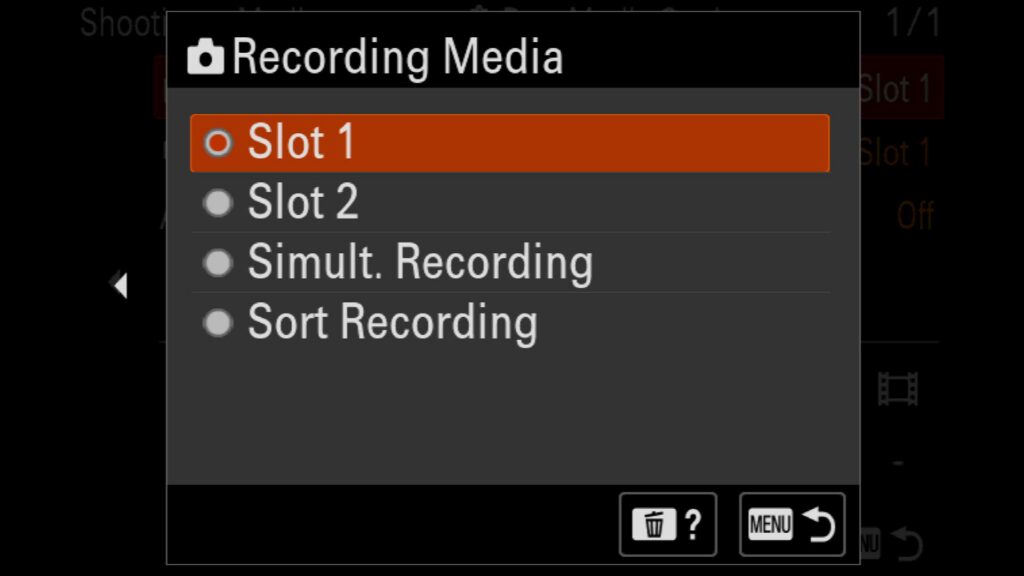
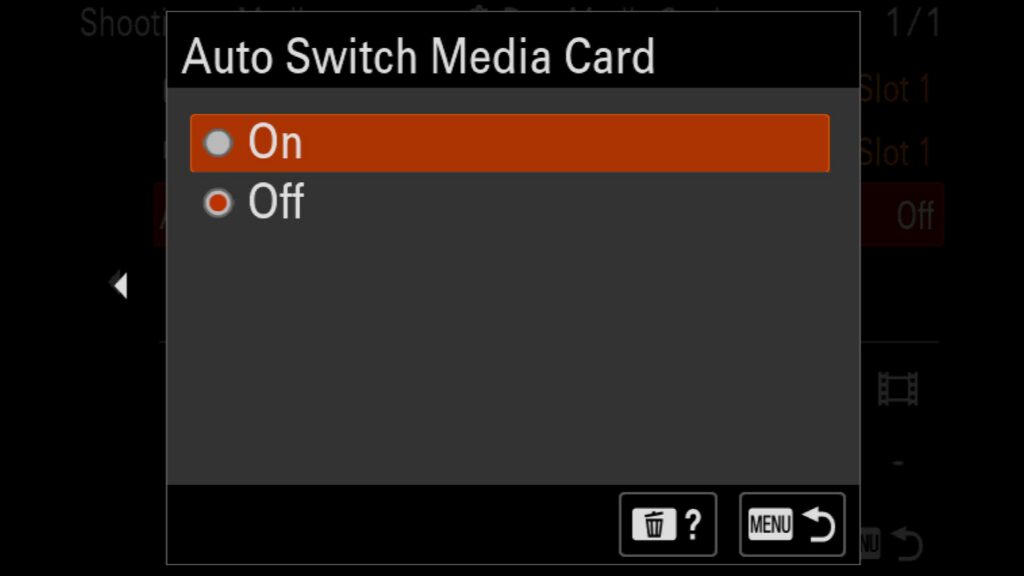
Change the Record Media Settings
Another critical menu adjustment is configuring how your files are recorded on your memory cards. The Sony a7R VI’s dual-card slot setup gives you incredible flexibility: you can write files to both cards simultaneously to back up images in real time, or route your RAW/JPEG photos to slot one and your video files to slot two.
To maximize your efficiency in the field, make sure to enable the ‘Auto Switch Media’ setting. Turning this on allows the camera to instantly switch to the second memory card when the first one fills up—ensuring you never miss a critical wildlife or sports moment just to swap cards.
Menu – Shooting Menu – (2) Media – Rec. Media Settings
Make Any File/Folder Settings Changes
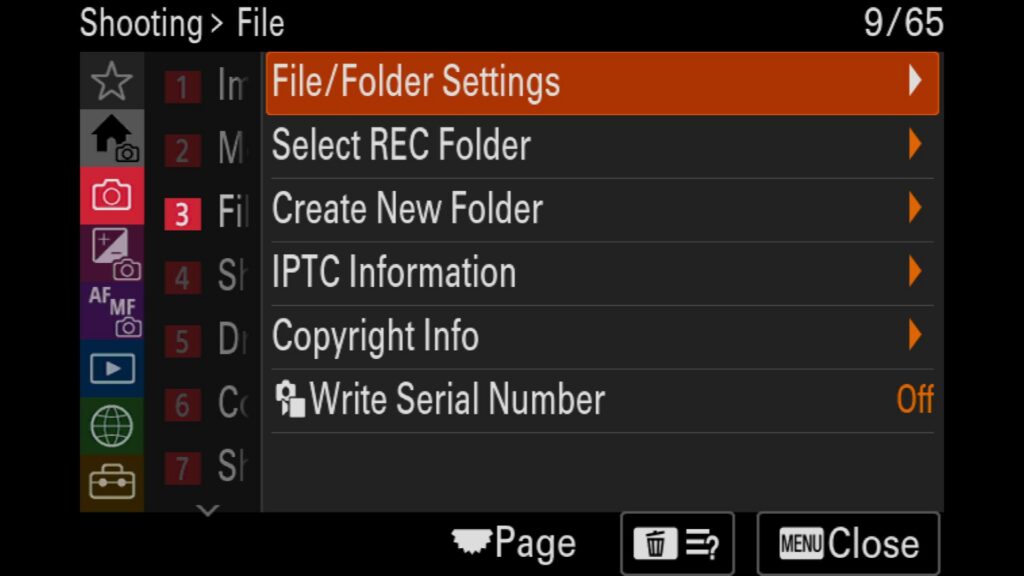
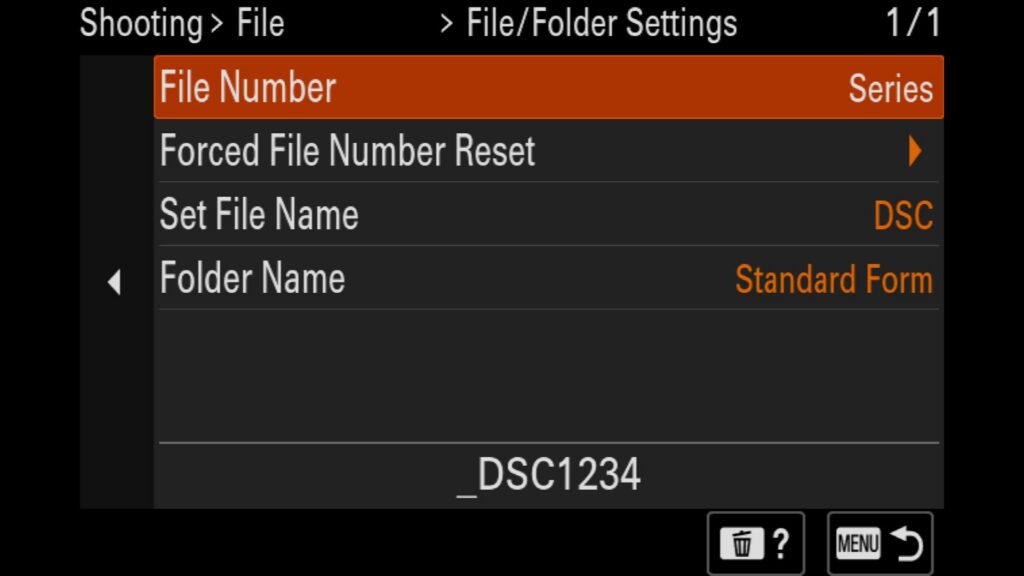
If you want to customize the file and folder settings found on your memory card, this is where you will want to start. Here you can adjust the following settings:
File Number – You can choose between a Series of images in sequential order or reset
Forced File Number Reset – Resets the still image file number. and creates a new folder in the process
Set File Name – Changes the first three letters of the file name
Folder Name – You can change it from “Standard Form” to “Date Form”.
Menu – Shooting Menu – (3) File – File/Folder Settings
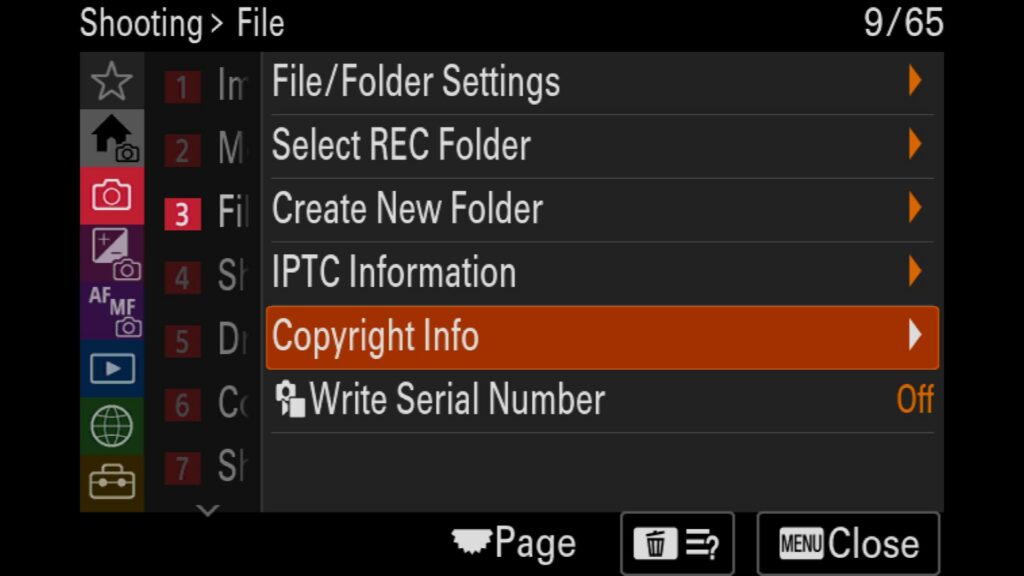
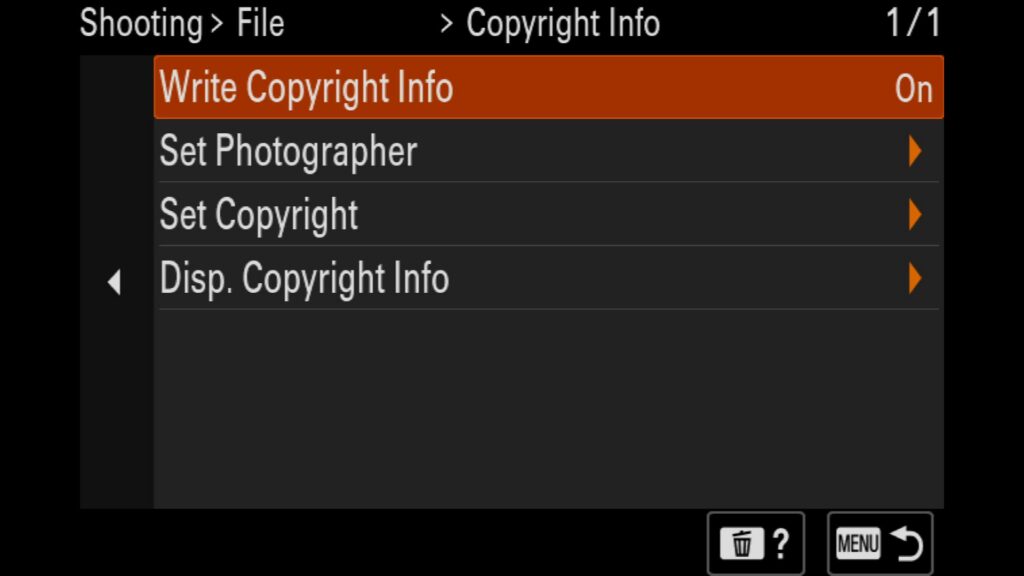
Add Your Copyright Info
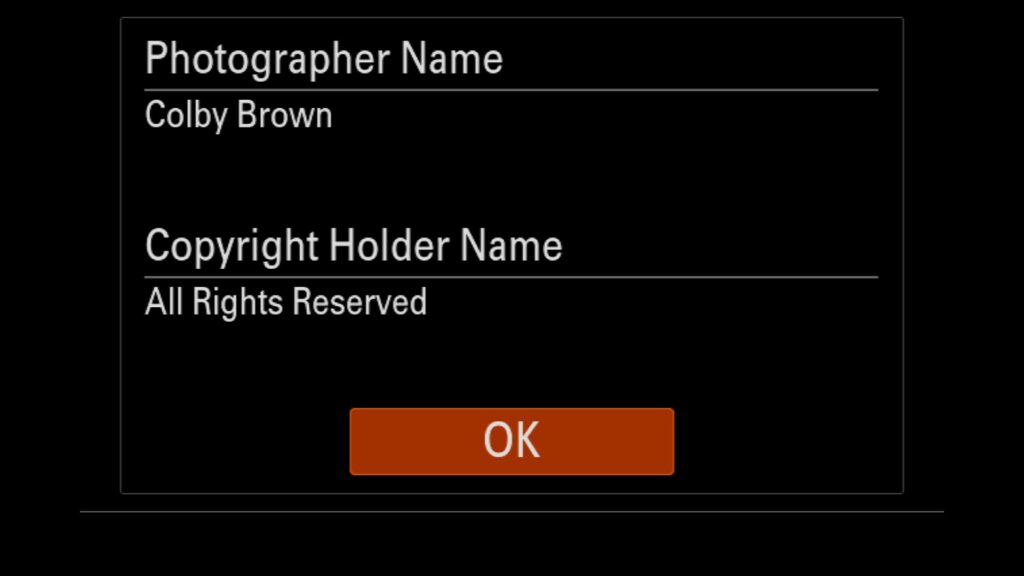
If you want to protect your images by automatically embedding your ownership details into your image’s metadata, this setting makes it incredibly simple. Within this menu, you can input both the official photographer’s name and the Copyright holder’s details for every file you shoot. The entire in-camera copyright setup is straightforward and highly recommended for professional workflows.
Menu – Shooting Menu – (3) File – Copyright Info
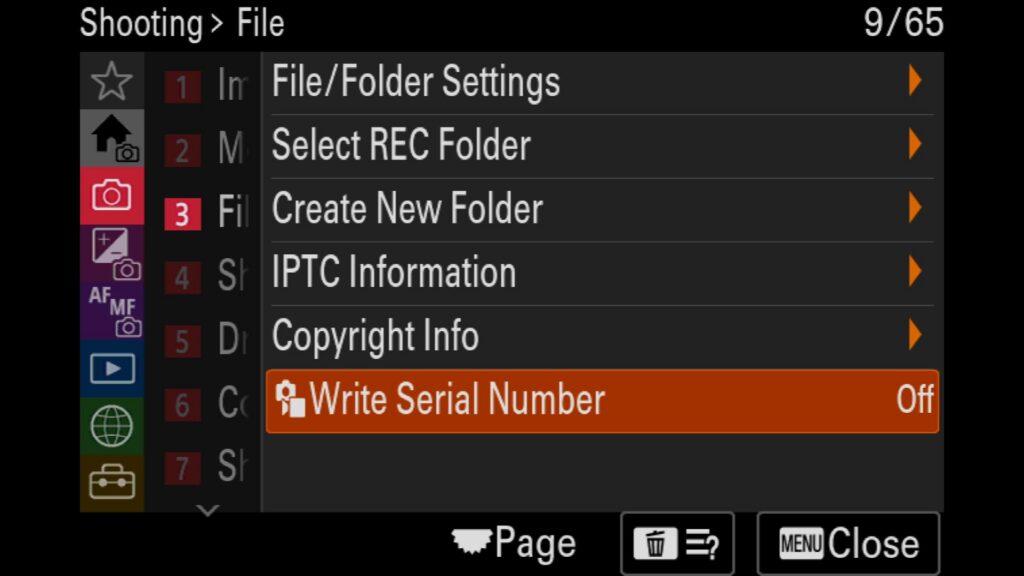
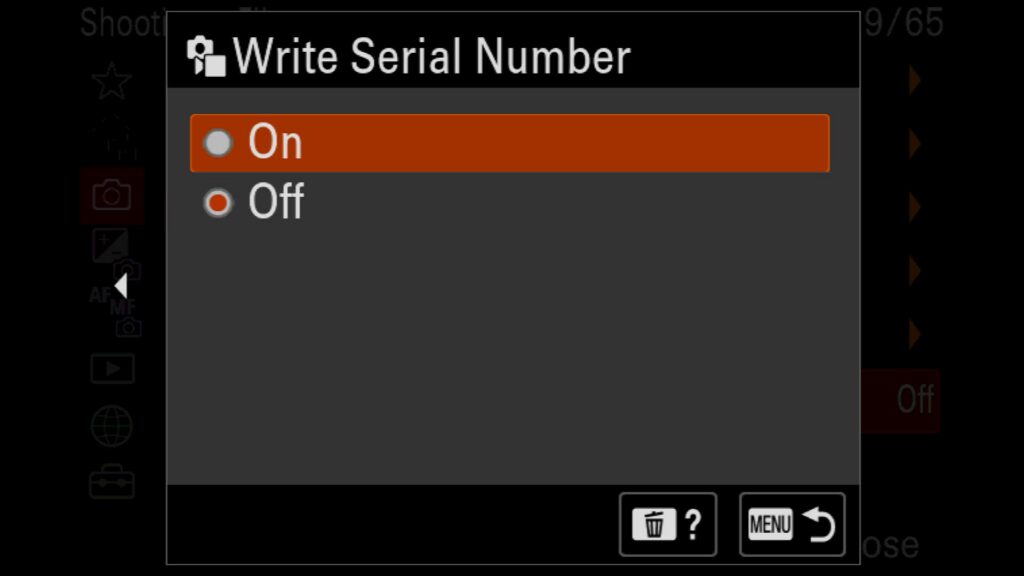
Turn on "Write Serial Number"
An excellent method for protecting your camera from theft—or tracking down your gear if it is ever lost or stolen—is to permanently embed your Sony a7R VI serial number in the metadata of every photo and video you capture. Enabling this in-camera security feature ensures that your unique hardware identity remains linked to your files, making it much easier to prove ownership or track your equipment online.
Menu – Shooting Menu – (3) File – Write Serial Number
Experiment with Custom Camera Modes 1, 2, and 3
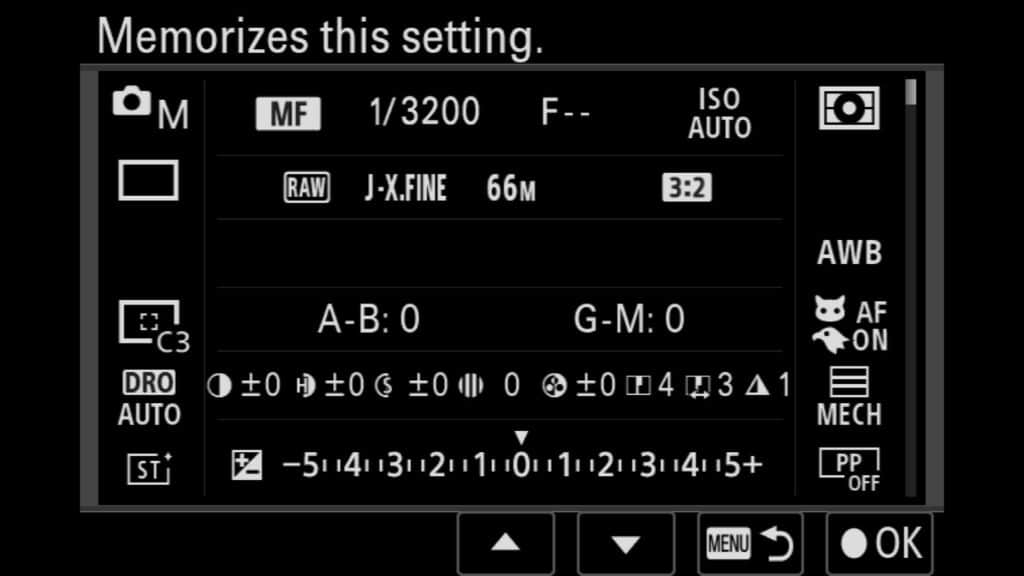
An often-overlooked feature in most Sony Mirrorless cameras is their powerful ability to save and instantly recall entire configurations of camera settings. This is incredibly useful when frequently switching between landscape and wildlife photography, or toggling between still images and video. These diverse scenarios require vastly different setups beyond basic adjustments to ISO, shutter speed, and aperture.
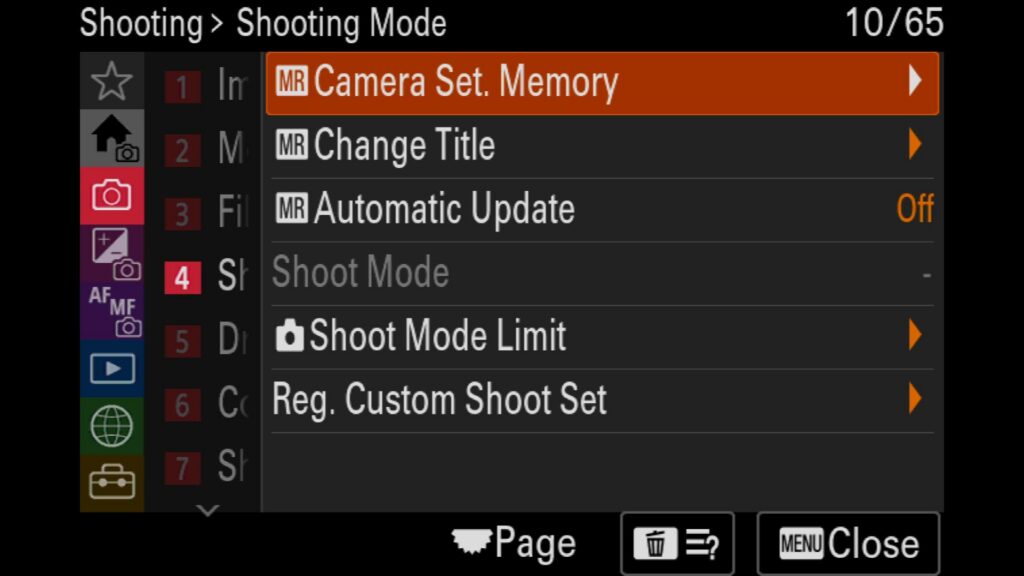
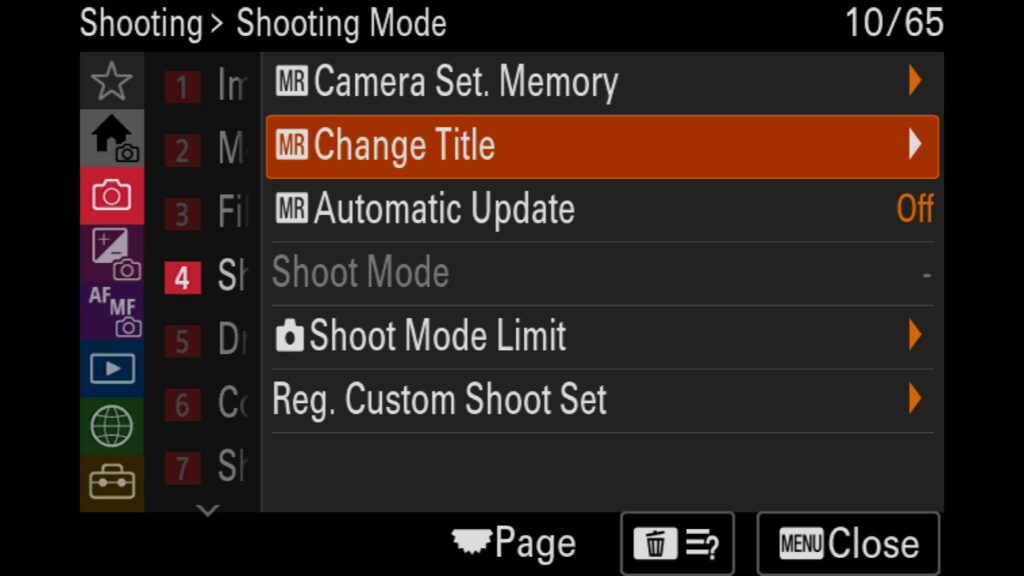
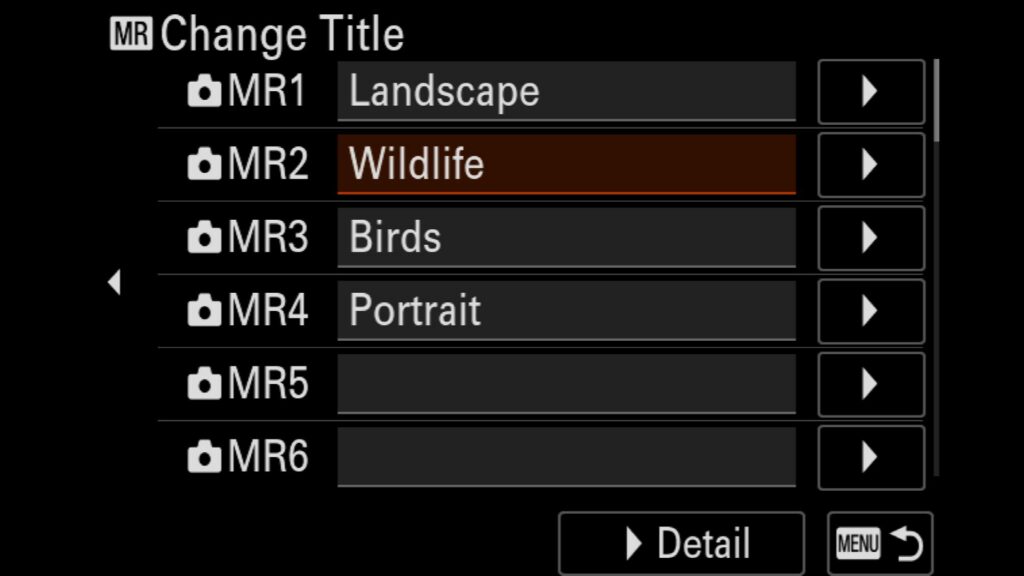
Using the Sony Camera Memory Recall feature, you can not only program the 1 and 2 custom modes on the camera’s top dial but also save and custom-name 8 additional “custom camera modes” (saved as MR1 – MR10 inside the menu system).
I frequently use these Sony a7R VI custom shooting modes in the field when tracking dynamic wildlife. For example, if I am photographing a stationary jaguar but need to instantly switch to nearby birds in flight, I can jump to a pre-saved profile. This instantly updates my shutter speed, ISO thresholds, drive mode FPS, autofocus areas, and specific Sony subject tracking (Animal/Bird Eye AF) settings without diving into the menus.
Inside the Camera Set. Memory menu, you will find the following options:
Camera Set. Memory – Once you have dialed in all of your settings that you wish to save to a custom mode, head here and review the changes before hitting the middle button on the rear control wheel to save those settings, apply a unique name, and choose which mode to save them to (MR1 – MR10).
Change Title – Here you can rename any custom camera mode (MR1 – MR10) to something such as Landscape, Birds in Flight, or anything else.
Automatic Update – When you make small micro-adjustments to your settings in any MR mode, they are automatically saved with this setting turned on.
Menu – Shooting Menu – (4) Shooting Mode – Camera Set. Memory
Recall Specific Settings at the Touch of a Button
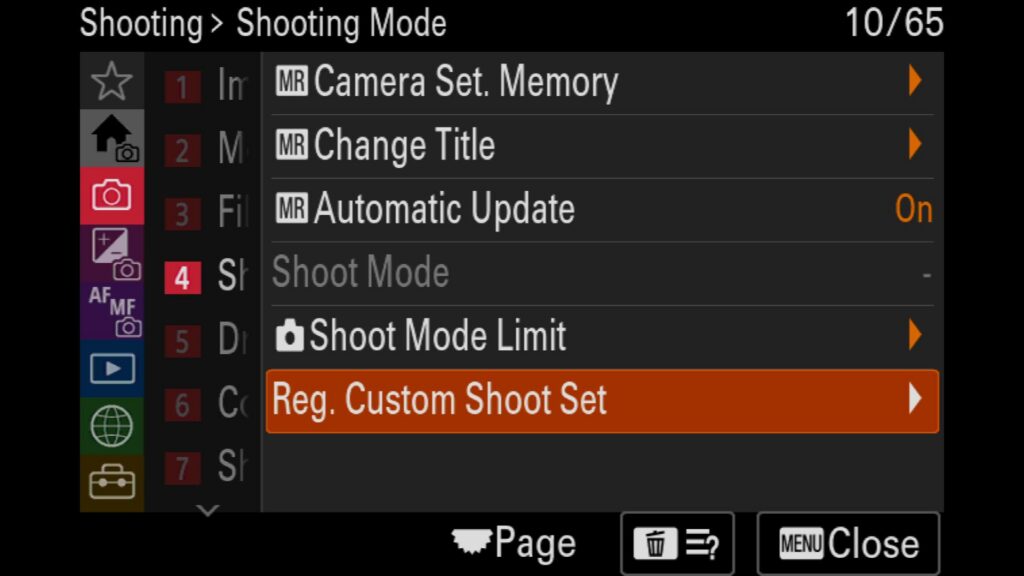
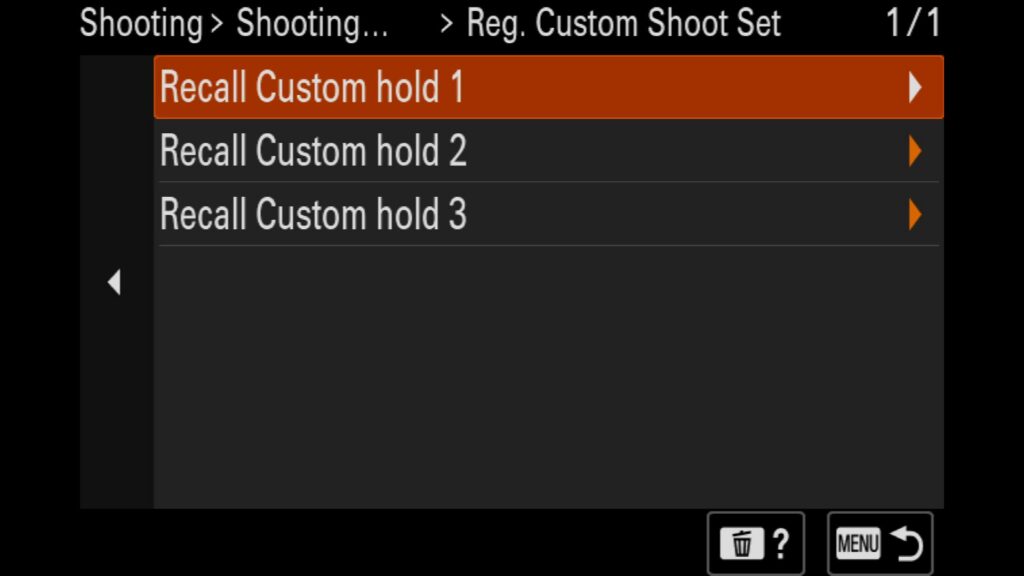
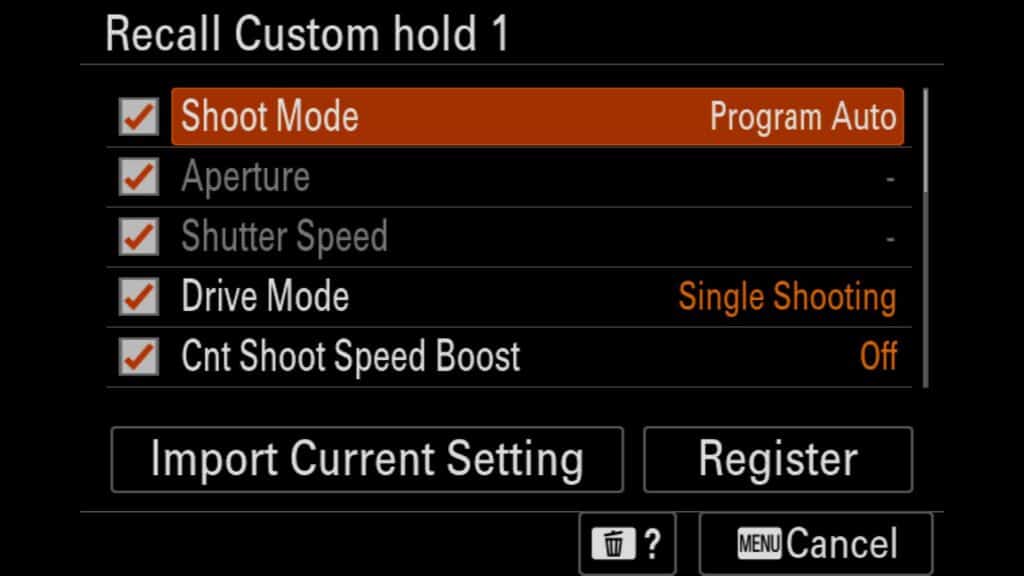
If you want to recall specific settings at the touch of one of your custom-set buttons, you will want to experiment with Recall Custom Hold. I use this feature to configure the button on the side of most of my Sony lenses to automatically switch the camera to “Single Shot” mode. This way, if I am photographing wildlife at 30 fps and come across a bird perched on a branch, I don’t want to photograph that subject at 30 fps. I press the customized lens button and instantly change to “Single Shot” mode. It has been a lifesaver for wildlife photography and for culling thousands of images after each session.
Once you have the setting in question set accordingly, head to the Custom Shoot Set menu and choose Recall 1, 2, or 3 to save the setting to. Then you can choose specifically what setting you want it to overwrite (in my case, just the drive mode). Once you are done, hit the “Register” button. Now, when you are customizing your camera, set one of your custom buttons on your a7R VI to recall the correct Custom Hold setting you choose here.
Menu – Shooting Menu – (4) Shooting Mode – Reg. Custom Shoot Set
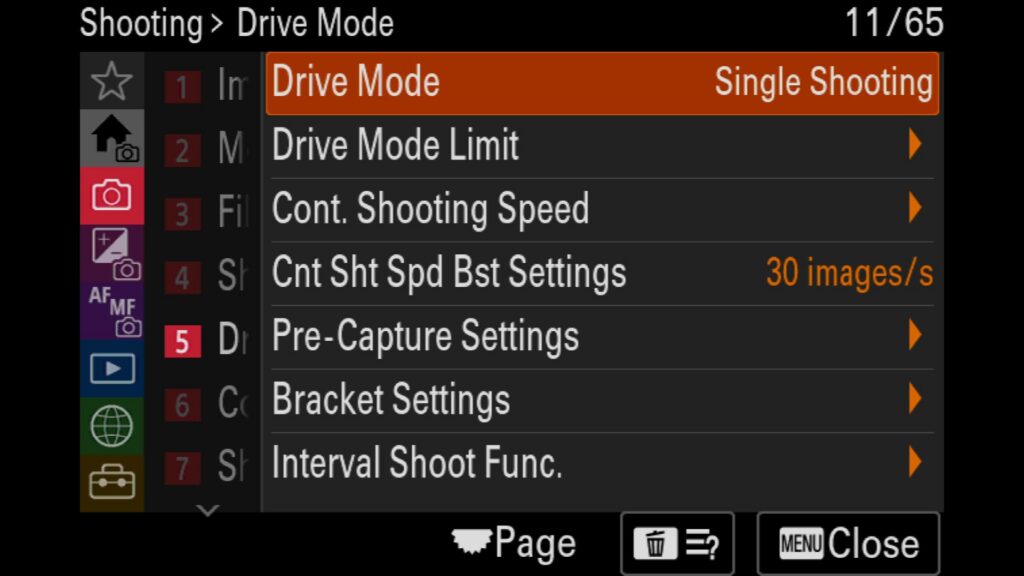
Set the a7R VI's Drive Mode
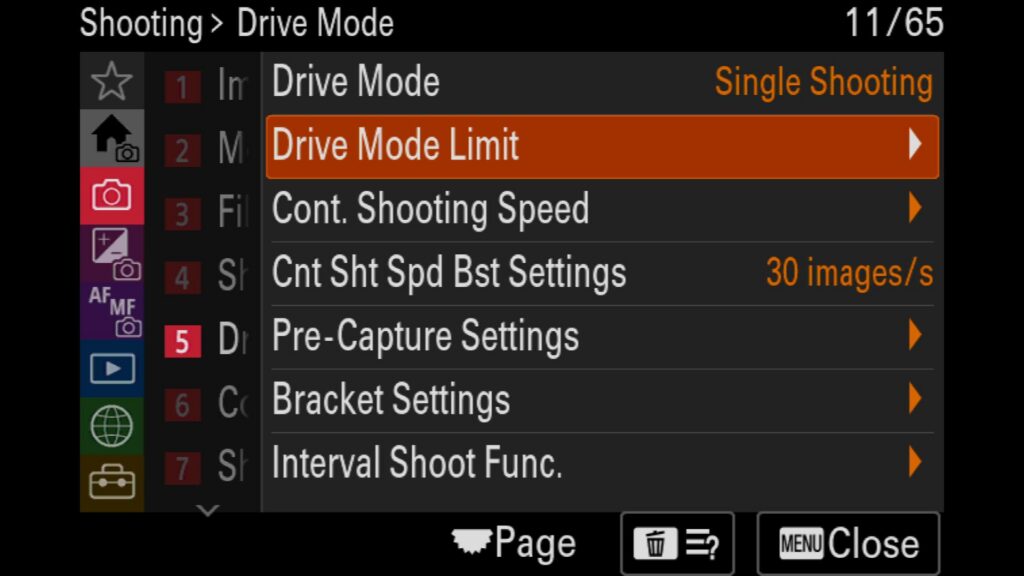
Unlike the Sony a1 or a9 series, the a7R VI does not have a top dial to handle the camera’s Drive Mode. To make changes to these modes, you need to head to the Drive mode option in the Shooting menu.
Single Shot – Take a single photo every time you press the shutter release button.
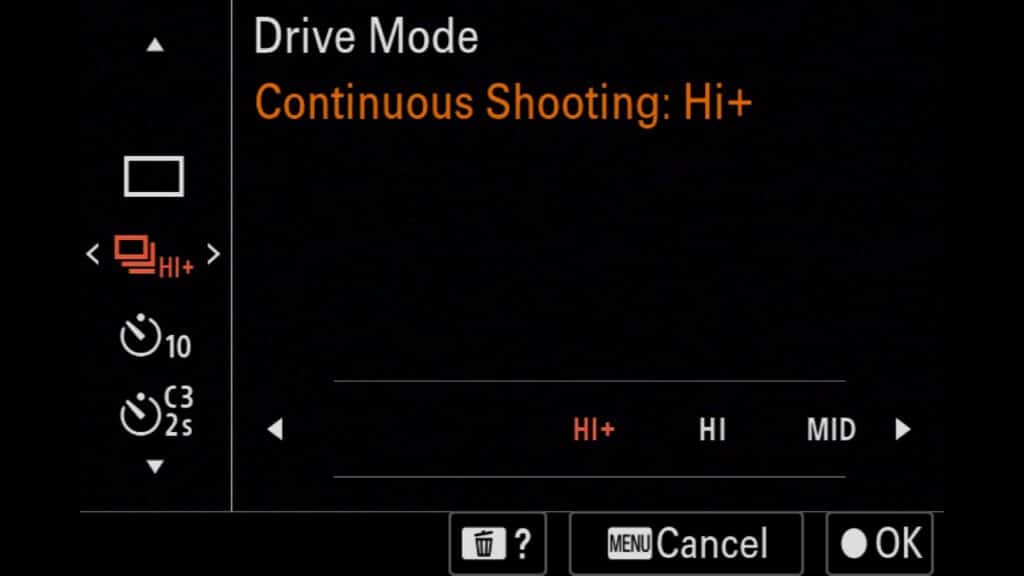
Continuous Shooting – Choose Low, Medium, High, and High+ options based on how many FPS you wish to shoot at.
Self-Timer Single – Set to 2, 5, or 10-second delay before taking a single photo.
Self-Timer Continuous – Set a 2-, 5-, or 10-second delay to take a burst of images (3- or 5-image burst options). This will allow the camera to take all the images in the bracket automatically after you press the shutter release button once to start the countdown timer.
Continuous Bracket – You can shoot an image bracket, but you must hold down the shutter button to complete it.
Single Bracket – Every time you press the shutter button, another image in your chosen bracket will be taken.
Focus Bracket – Create a focus bracket of images by selecting the Step Width (Narrow to Wide), the number of shots, and adjusting other settings such as Focus Bracket Order, Exposure Smoothing, Shooting Interval, and Focus Bracket Saving Destination.
White Balance Bracket – Create a bracketed set of images by varying the white balance settings with each shot.
DRO Bracket – Create a 3-image bracket set of images with Lv1, Lv2 & Lv3 DRO settings to help with Shadows and Highlights.
Menu – Shooting Menu – (5) Drive Mode – Drive Mode
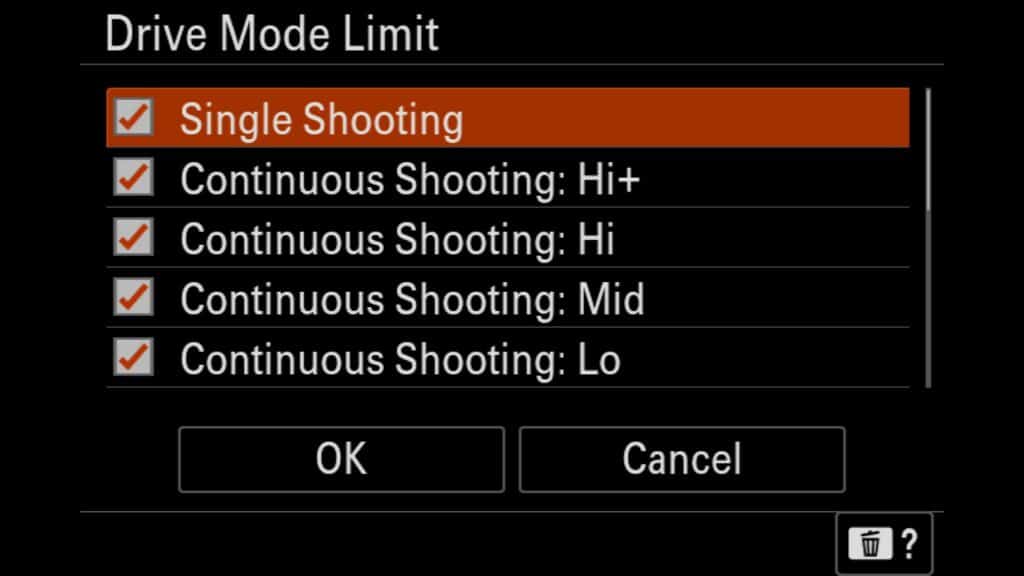
Adjust the Drive Mode Limit
If you wish to limit the number of options that appear in the Drive Mode menu, you are in the right place. For example, if you never plan on shooting a DRO Bracket, you can remove it from the menu so that it is not a distraction.
Menu – Shooting Menu – (5) Drive Mode – Drive Mode Limit
Set the Amount for Frames Per Second
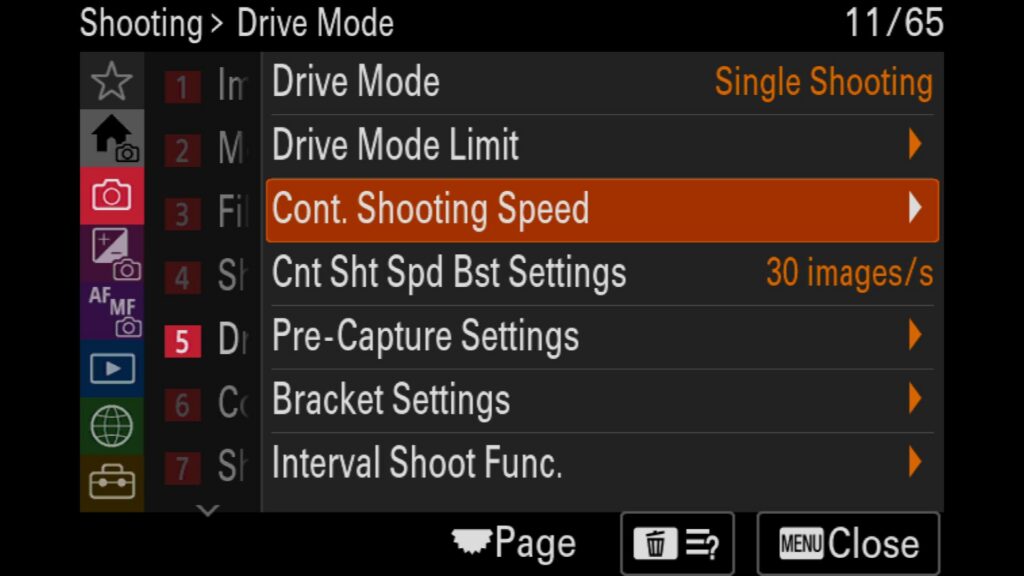
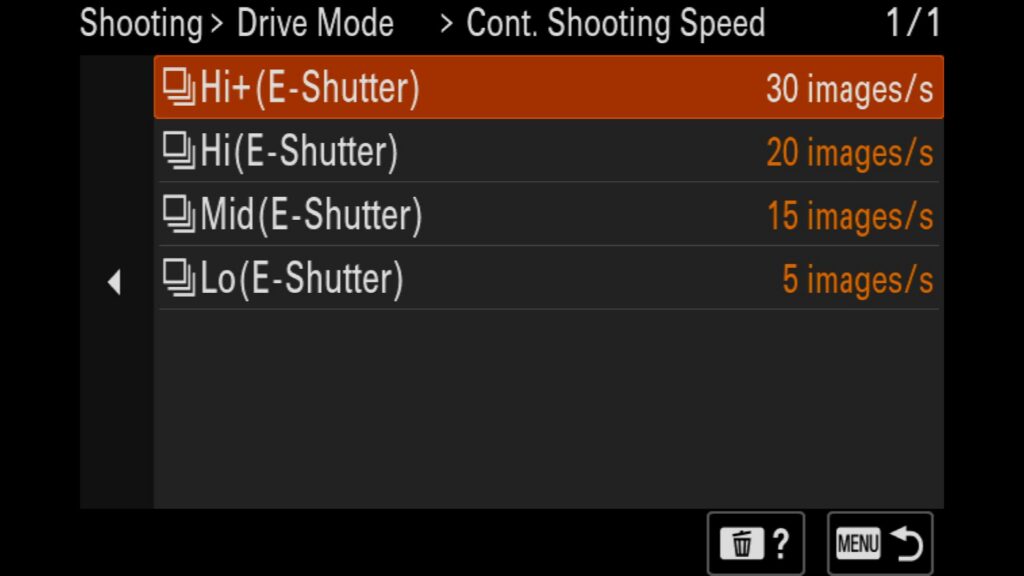
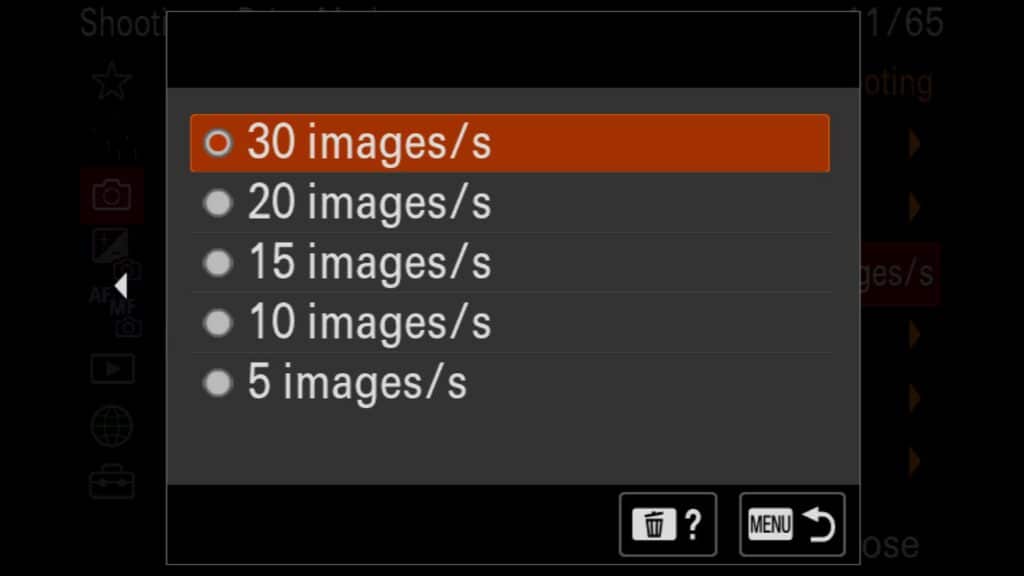
When you want to shoot a burst of images with the Sony a7R VI, you have to choose between Low, Mid, Hi & Hi+, but how fast are each of those options? In the “Cont. Shooting Speed” menu, you can customize each mode to be 5, 10, 15, 20, or 30 FPS.
Menu – Shooting Menu – (5) Drive Mode – Cont. Shooting Speed
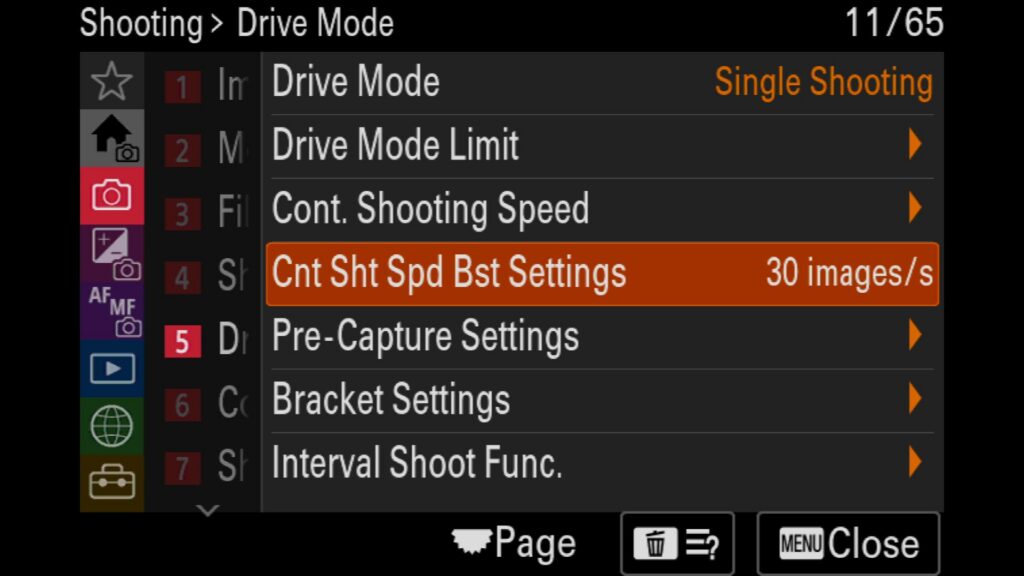
Customize the Shooting Speed Button
In addition to customizing the Continuous FPS modes we mentioned above, you can also customize any button on the Sony a7R VI to a set FPS toggle. For example, you could customize the C2 button on top of your camera to automatically switch to 30 fps, even if you were already set to 10 fps.
In this menu setting, you would set the FPS amount you want to enable at the press of a button, but you would still need to customize a button to recall this setting. More on this later in this setup guide.
Menu – Shooting Menu – (5) Drive Mode – Cont Sht Spd Bst Settings
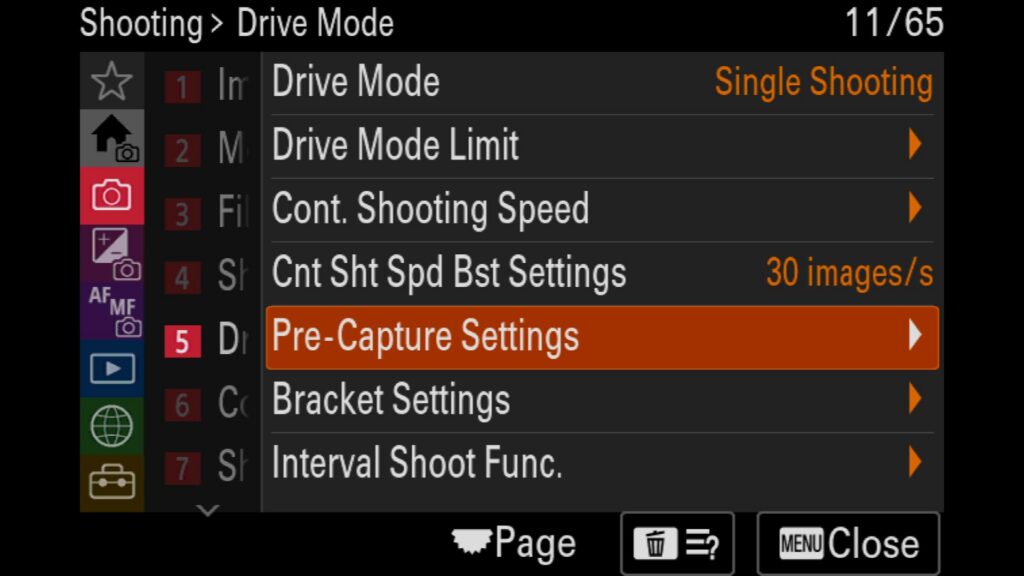
Utilize the Sony Pre-Capture System
One of the most highly anticipated new features of the Sony a7R VI is RAW Pre-Capture. But how exactly does it work?
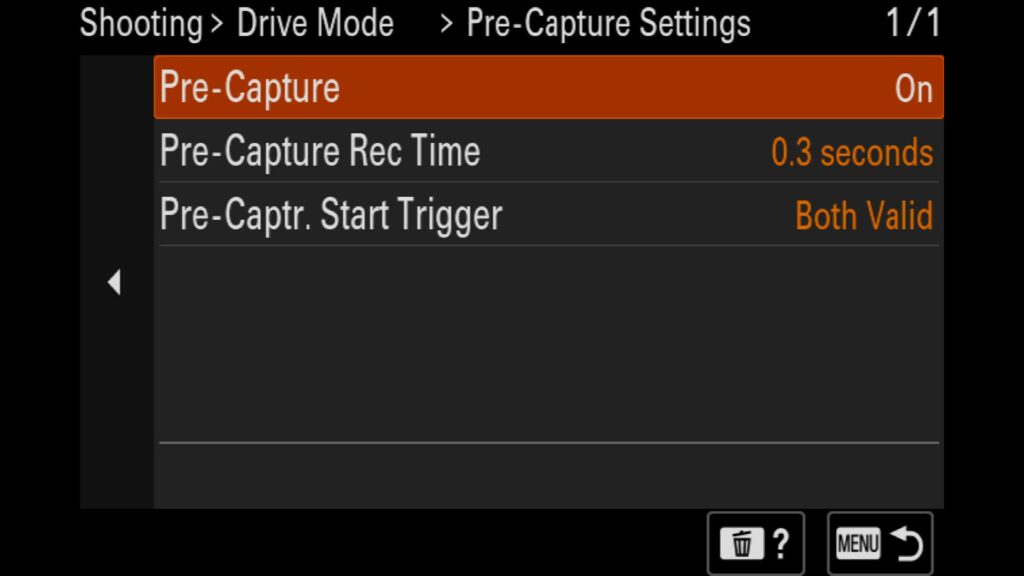
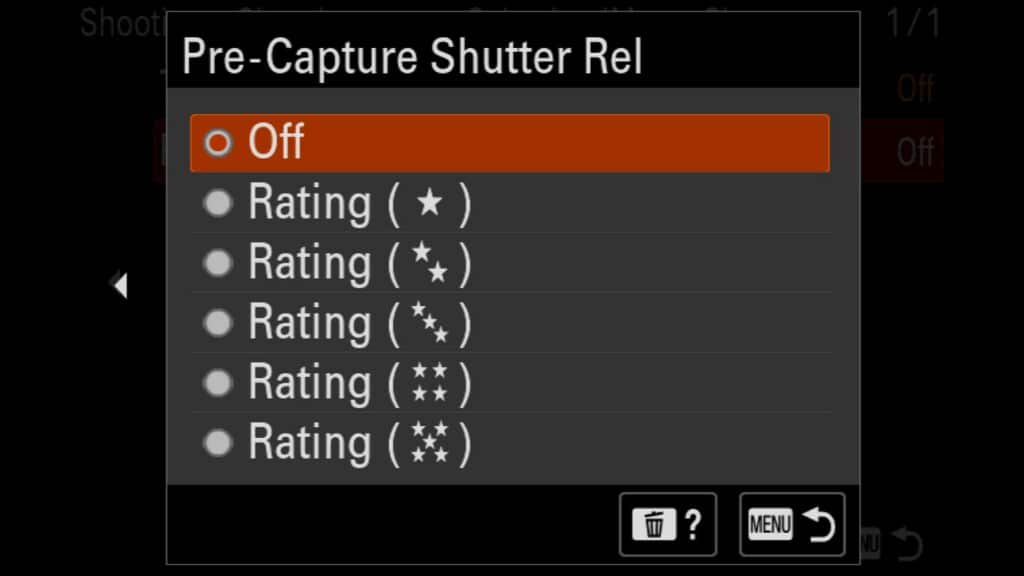
Once enabled, any time you half-press and hold the shutter release button (or your assigned back-button AF), the camera begins capturing continuous RAW frames in the background at your designated FPS setting (Such as 30 fps). These frames are held in a temporary camera image buffer for a user-defined window ranging from 0.03 seconds up to 1 second. As long as you maintain that half-press, the system continuously refreshes this buffer, overwriting the oldest frames.
The magic happens when you fully depress the shutter button: the Sony a7R VI commits both your new shots and the cached pre-capture frames to your memory card. For example, if you are tracking a perched bird that suddenly takes flight, a 0.5-second pre-capture window ensures you save every movement that occurred a half-second before your finger fully pressed the shutter. If you release the button without taking a shot, the temporary buffer clears automatically without saving any data to your card.
The settings for Pre-Capture are as follows:
- Pre-Capture – Turn this feature on or off. You can also customize a button on the R VI to turn this setting on or off.
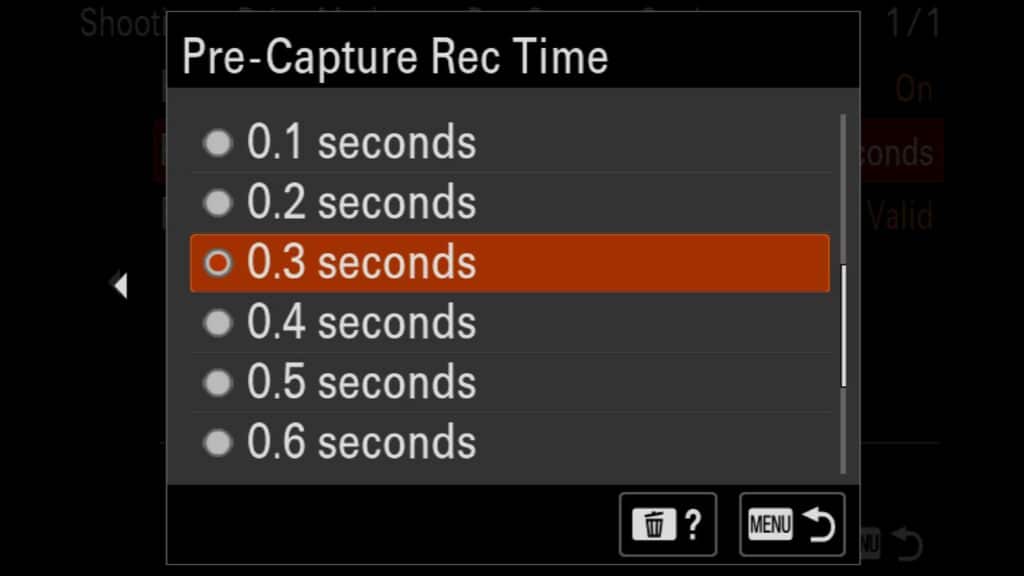
- Pre-Capture Rec Time – Set the length of the Pre-Capture image buffer between .03 seconds and 1 full second. (I personally prefer .3 seconds).
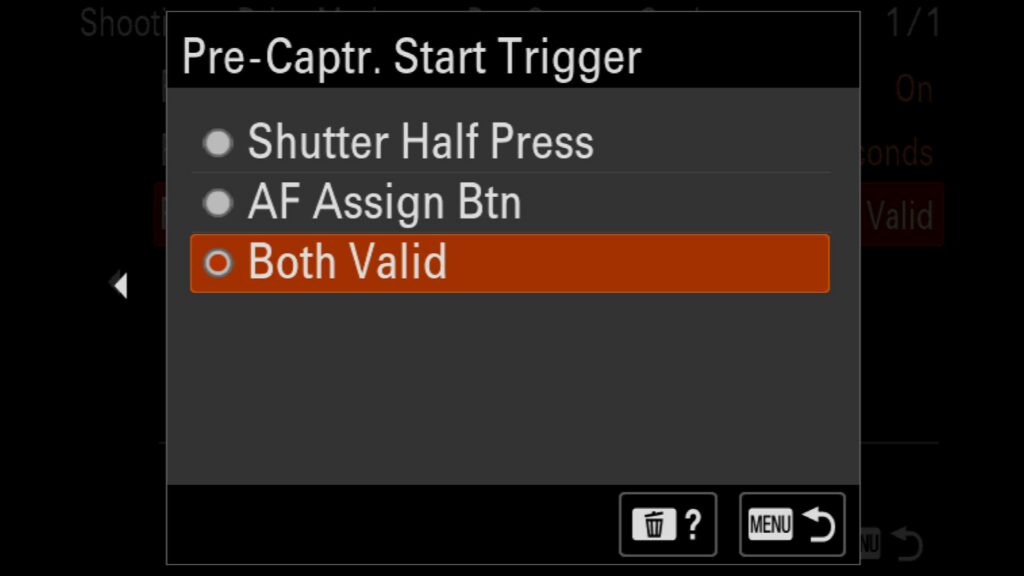
- Pre-Captr. Start Trigger – Choose when Pre-Capture begins by selecting the Shutter Release button, the Back AF Button, or when either is engaged.
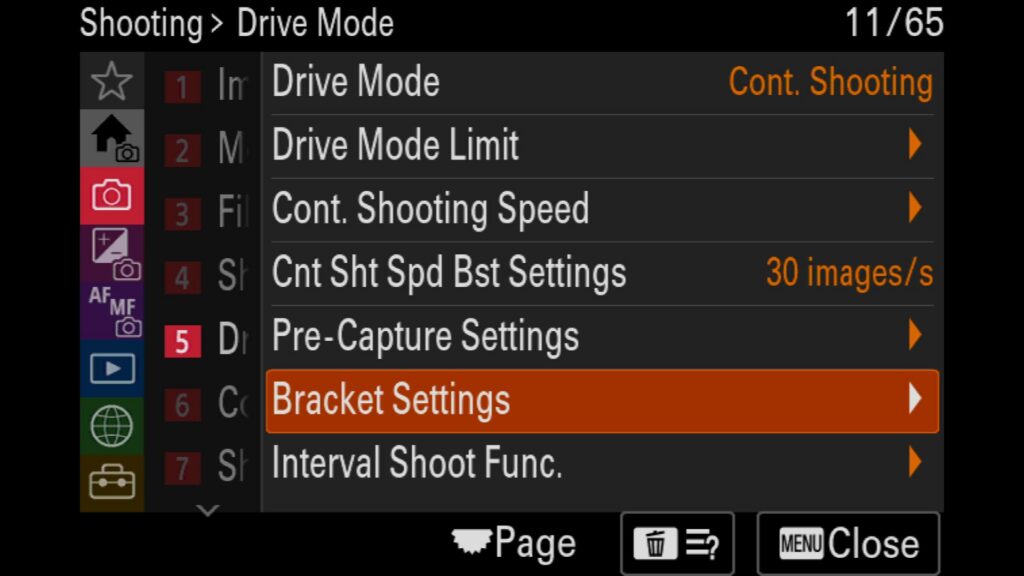
Menu – Shooting Menu – (5) Drive Mode – Pre-Capture Settings
Adjust the Bracket Settings for your Sony a7R VI
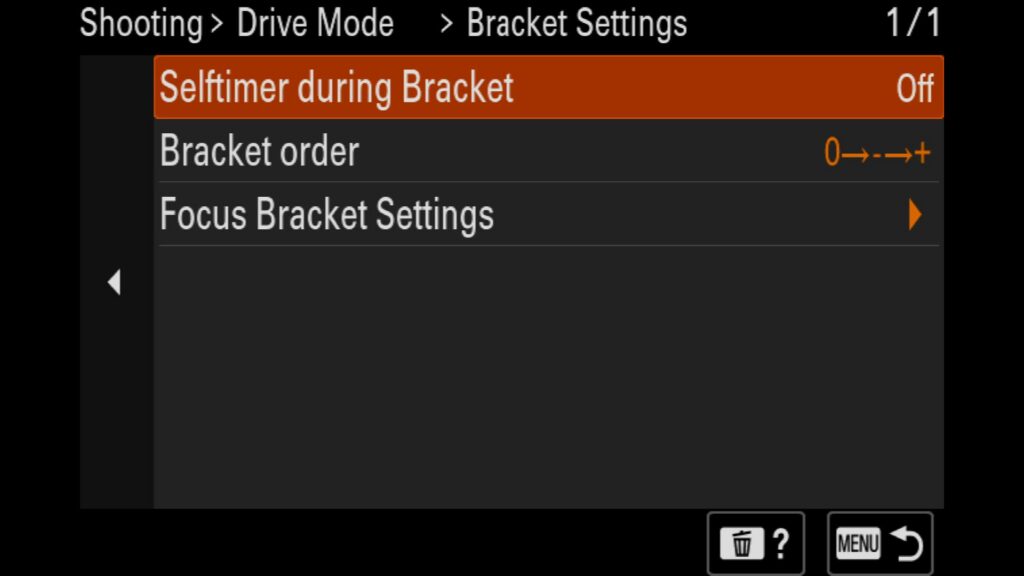
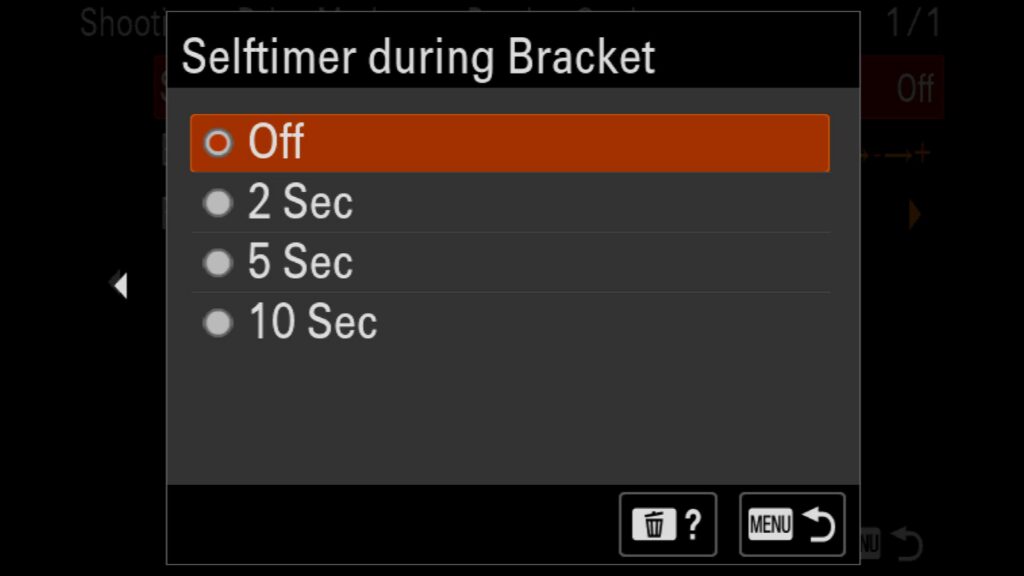
If you plan on shooting bracketed images with your Sony a7R VI, you will want to make some changes to your bracketing settings. Most importantly, adjust the “Selftimer during Bracket” setting (Off, 2 Sec, 5 sec, or 10 Sec). Turn this “On” so that when you shoot a continuous bracket, the camera will automatically take all the images in your bracket once the delay has finished. Without this setting set, your brackets will require you to hold down the shutter release button on your camera to complete. a bracketed set.
Menu – Shooting Menu – (5) Drive Mode – Bracket Settings
Learn How to Setup Timelapses (Still Images)
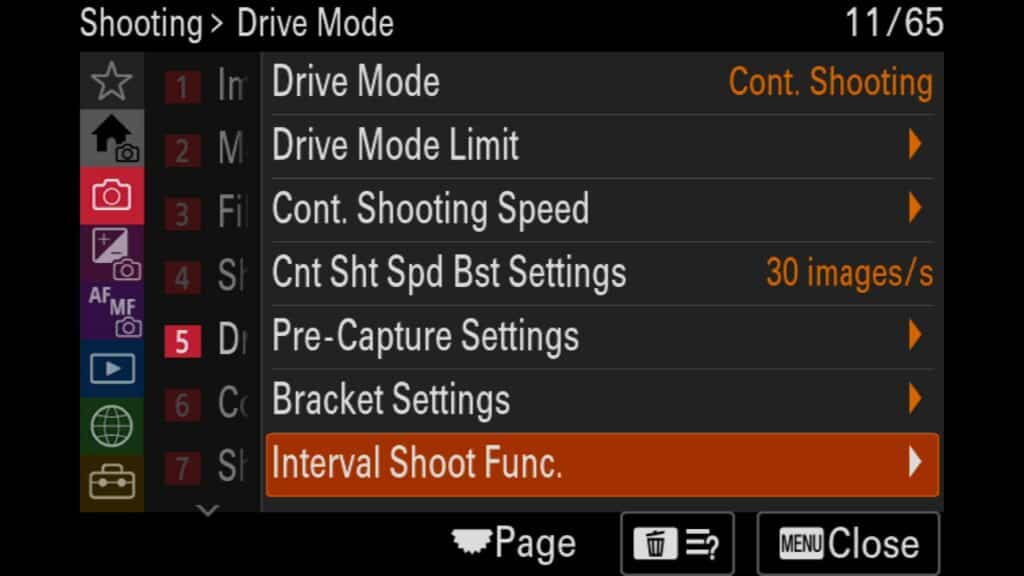
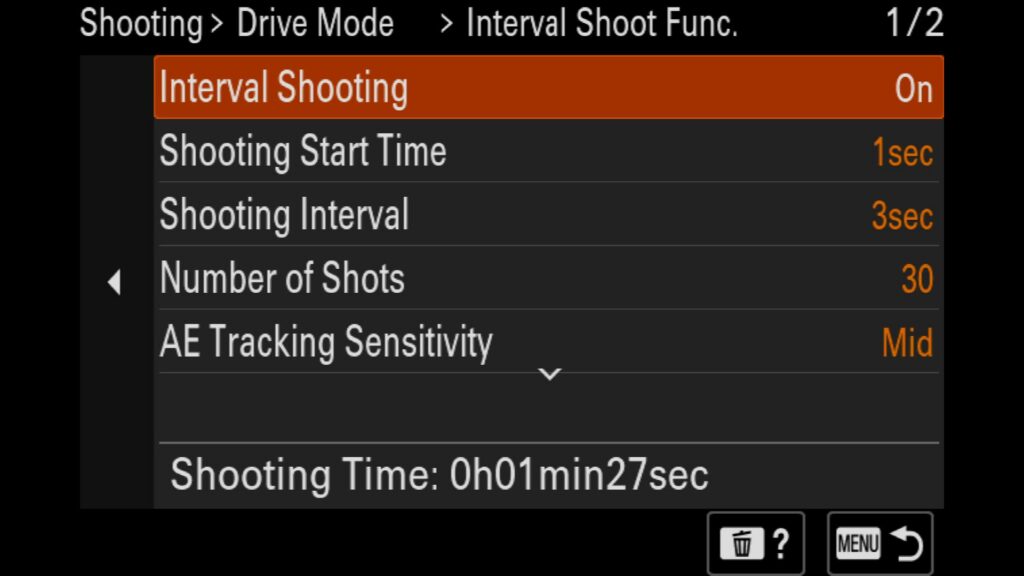
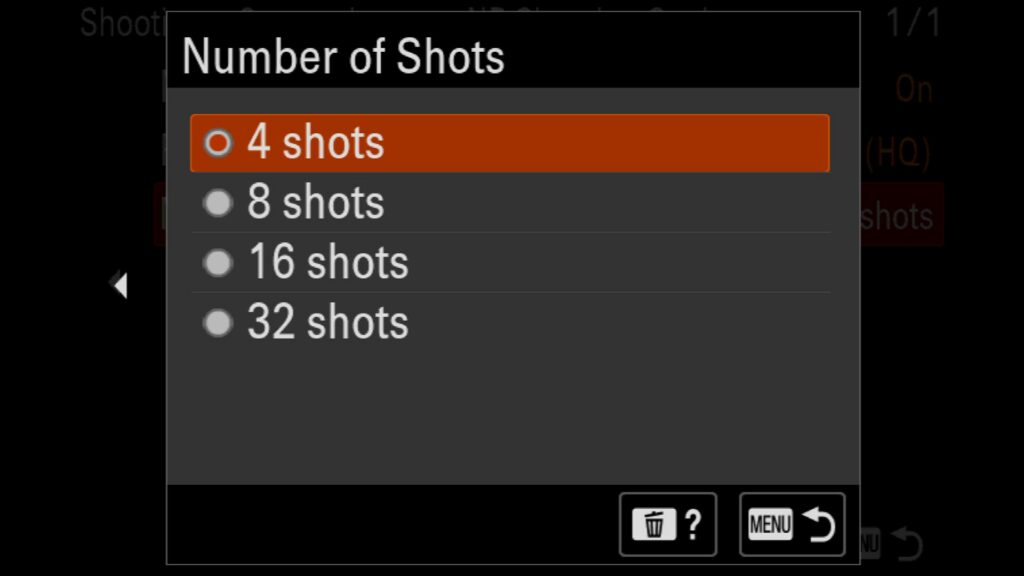
If you want to create stunning time-lapse sequences, you will need to configure the Sony a7R VI time-lapse settings in the Interval Shoot Func. menu. It is important to note that the camera functions as a built-in intervalometer—it captures the individual high-resolution frames but does not generate a finished video file in-camera. You will compile the final timelapse movie during post-processing on your computer. The major benefit of this workflow is that you retain all your uncompressed RAW files, allowing you to extract pristine, standalone still images alongside your video project.
Here is a breakdown of the essential Sony R VI interval shooting configuration options:
Interval Shooting: Toggle this to ‘On’ to activate the camera’s built-in intervalometer mode.
Shooting Start Time: Delays the initial shutter release after you press the button, allowing any camera vibrations to settle.
Shooting Interval: Sets the exact duration between each photograph in your sequence.
Number of Shots: Sets the total volume of frames the camera will record before automatically ending the sequence.
AE Tracking Sensitivity: When using Program (P) or Aperture Priority (A) modes, this controls how smoothly the auto-exposure adapts to changes in ambient light (crucial for day-to-night transitions).
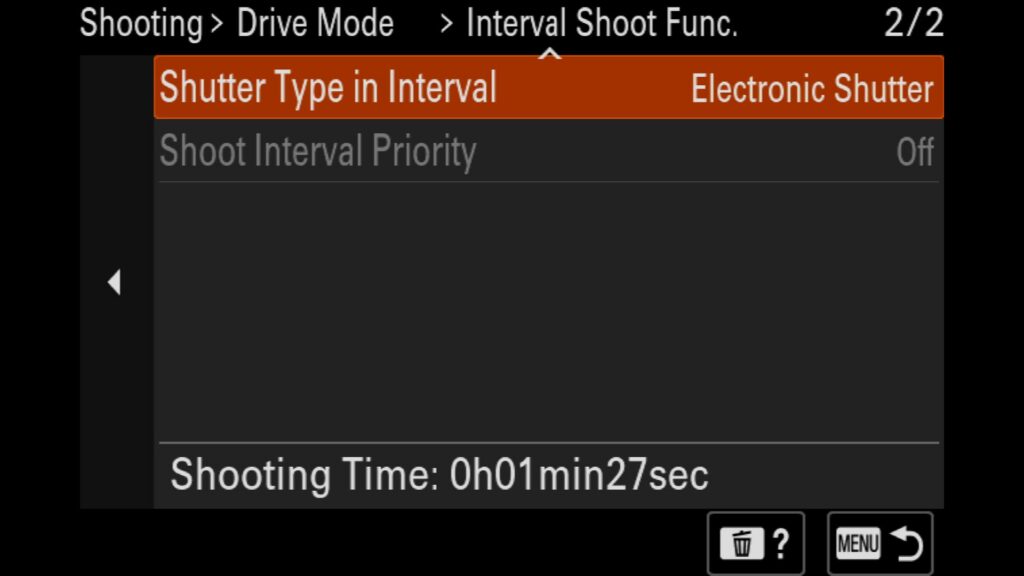
Shutter Type in Interval: Choose between the electronic and mechanical shutters for your shooting sequence.
Shoot Interval Priority: Forces the camera to prioritize your designated interval timing over exposure adjustments when shooting in automated exposure modes.
Menu – Shooting Menu – (5) Drive Mode – Interval Shoot Func.
Learning More about Pixel Shift
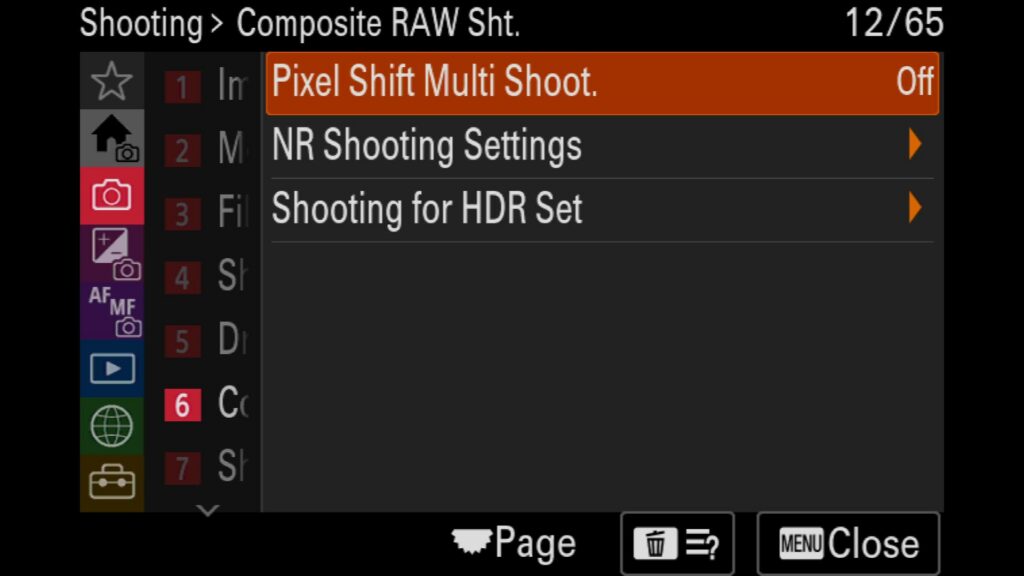
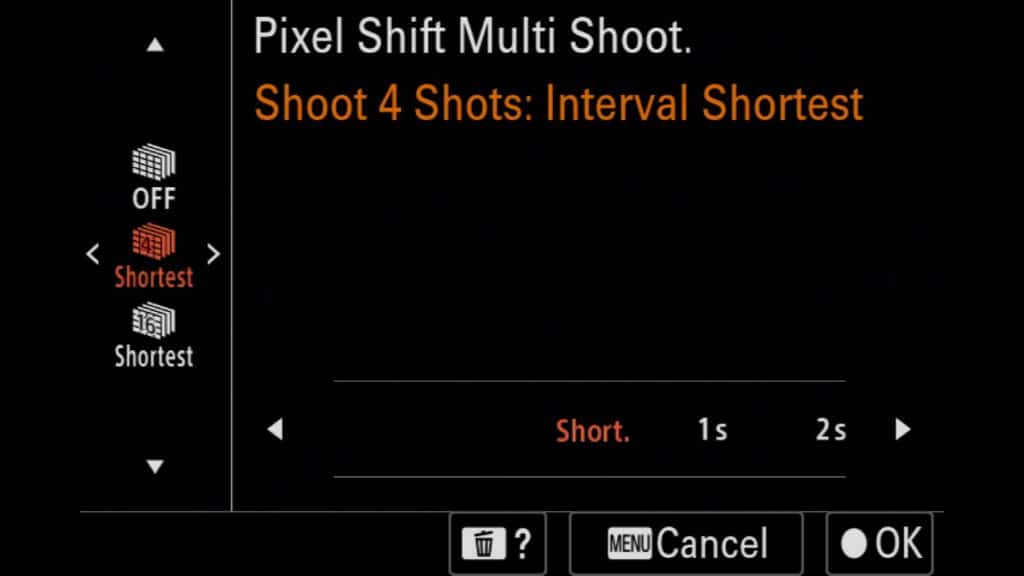
Another incredible but underutilized feature built into Sony’s mirrorless systems is Pixel Shift Multi Shooting. When enabled, Pixel Shift instructs the camera to capture a sequential burst of either 4 or 16 RAW images while the in-body image stabilization system shifts the sensor slightly between each exposure. This allows the Sony a7R VI to capture an extraordinary level of detail and color accuracy that far exceeds that of a standard single-frame exposure.
The trade-off is that it requires a rock-solid tripod setup and that you must use Sony’s software to composite the final ultra-high-resolution image. In my experience, this feature yields the best results for architectural photography, fine art reproduction, or landscapes devoid of moving elements such as wind or water.
Menu – Shooting Menu – (6) Composite RAW Sht. – Pixel Shift Multi Shoot.
Understand the Noise Reduction Shooting Settings
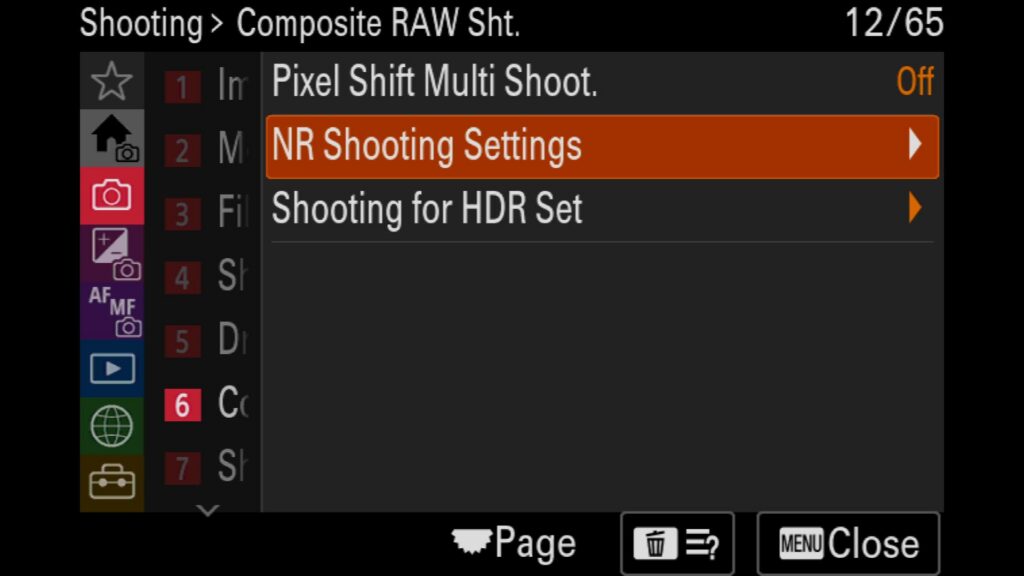
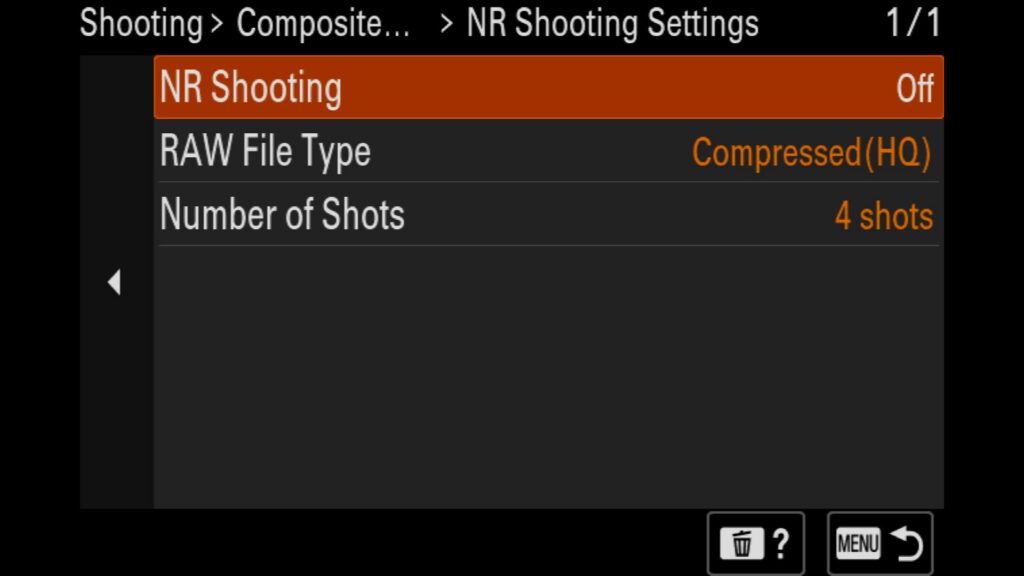
Not to be confused with Long Exposure NR, the R VI features a powerful built-in noise-management method: Multi-Frame Noise Reduction (Multi-Frame NR). This feature instructs the camera to capture a rapid sequence of identical exposures and automatically stack them together to cancel out digital artifacts. While astrophotographers have historically relied on third-party software to stack night-sky images, having this automated in-camera image-stacking tool built directly into Sony’s latest bodies is a massive convenience for in-field workflows. Personally, I still prefer to do all my noise reduction on my own, but it is nice that this feature is built in for some users.
Menu – Shooting Menu – (6) Composite RAW Sht. – NR Shooting Settings
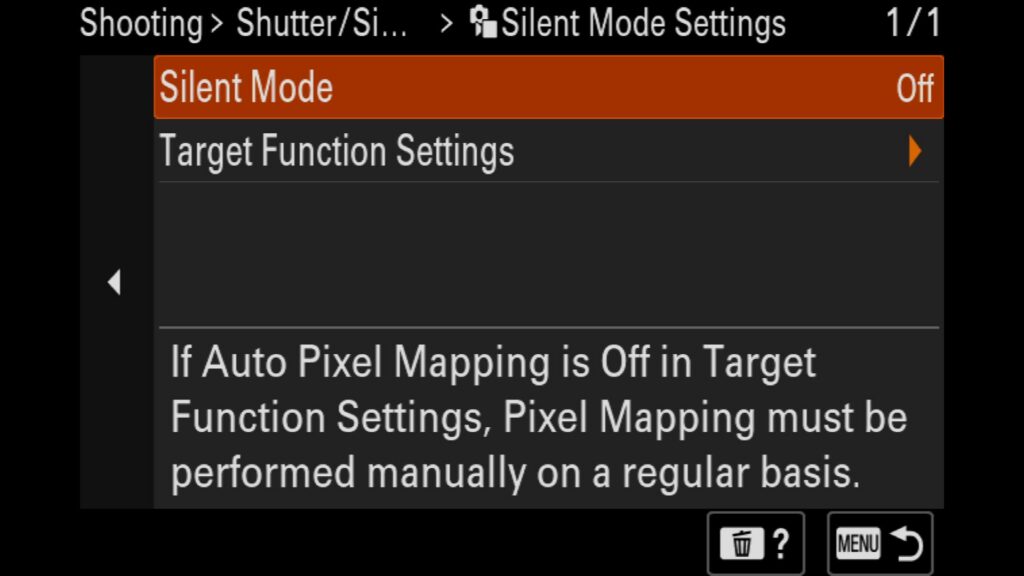
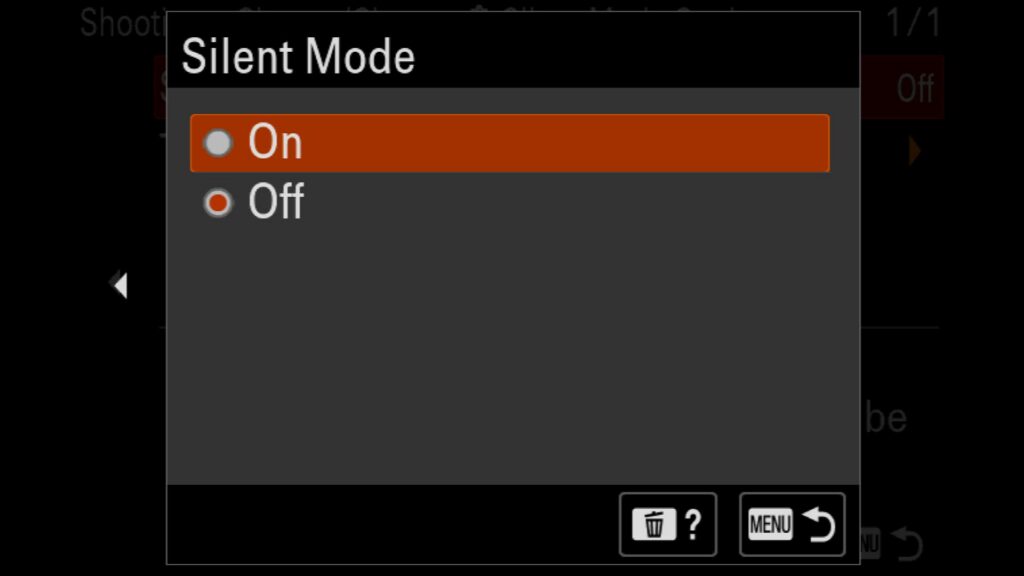
Shoot in Silent Mode
Another incredibly handy feature of the Sony a7R VI is the ability to shoot with a truly silent shutter. This can be helpful in situations where you don’t want to disturb your subjects, whether it’s wildlife out in the field or an intimate moment at a wedding.
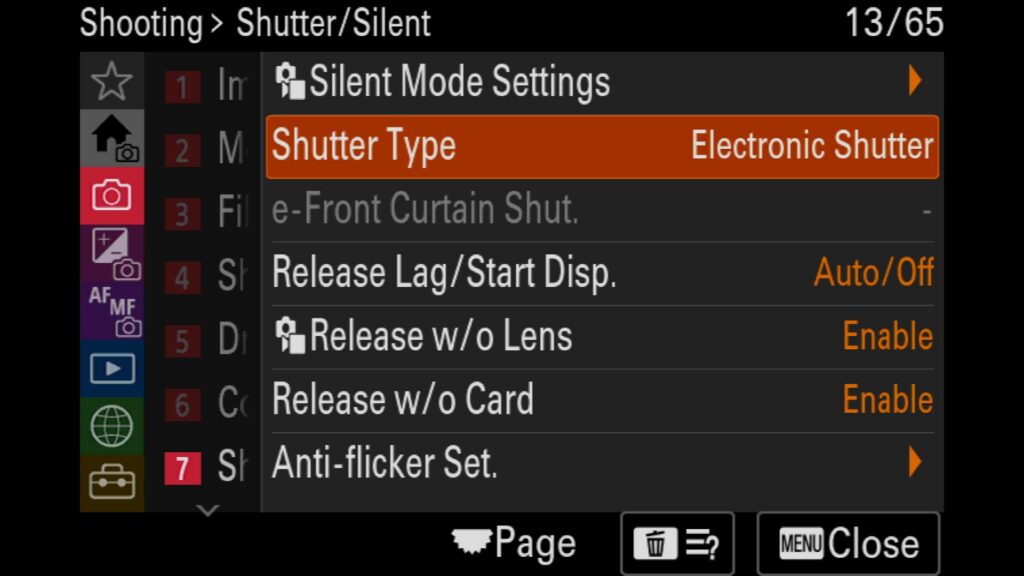
To shoot in Silent Mode, you need to have Single Shot or Continuous Shooting modes selected and the “Electronic Shutter” setting engaged.
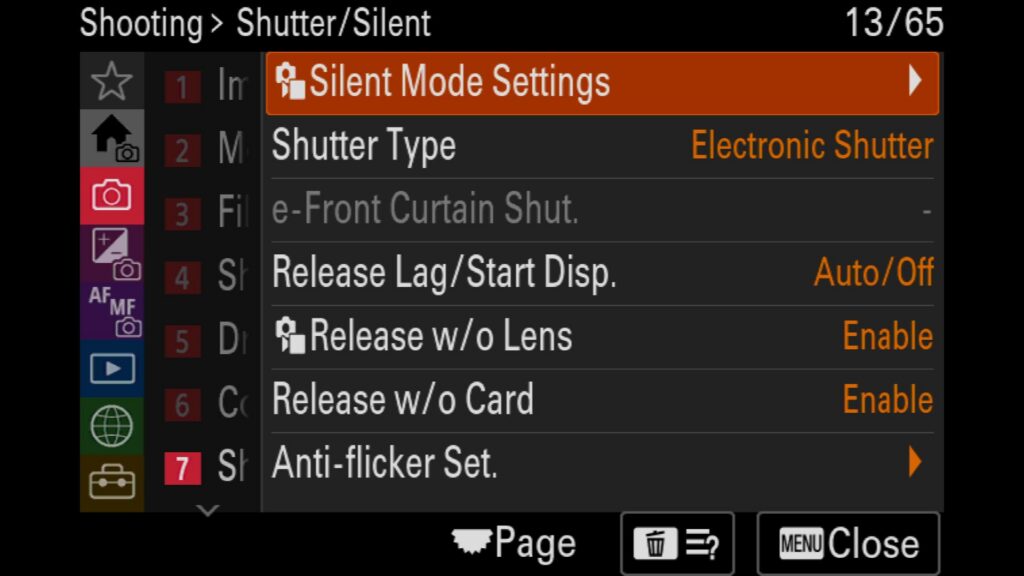
Menu – Shooting Menu – (7) Shutter/Silent Type – Silent Mode Settings
Changing Your Shutter Type
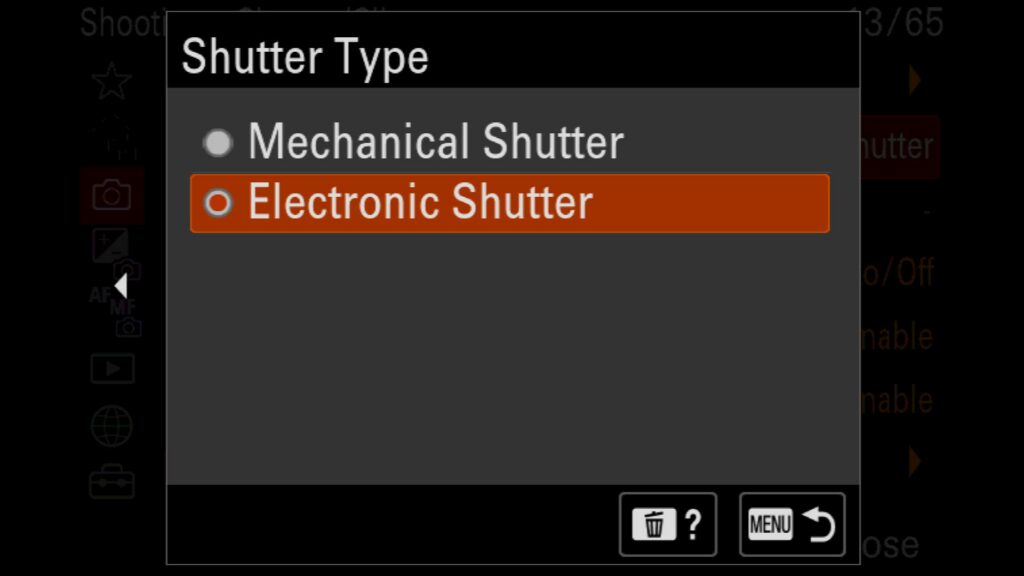
While the new fully stacked sensor in the R VI delivers incredible readout speeds, there are specific scenarios where you will want to switch between the electronic and mechanical shutters. For instance, knowing how to fix LED light banding is critical when shooting under artificial indoor lighting or stadium displays, where electronic shutters can introduce unwanted lines across your images. And if you want to shoot at 30FPS, you need to be in the “Electronic Shutter” mode.
Mechanical Shutter: Best for eliminating banding from artificial light sources and working with certain flash synchronization setups.
Electronic Shutter: Maximizes your blackout-free high-speed burst frame rates and ensures completely silent shooting.
Menu – Shooting Menu – (7) Shutter/Silent Type – Shutter Type
Keep Your a7R VI From Taking A Photo Without a Lens or Memory Card
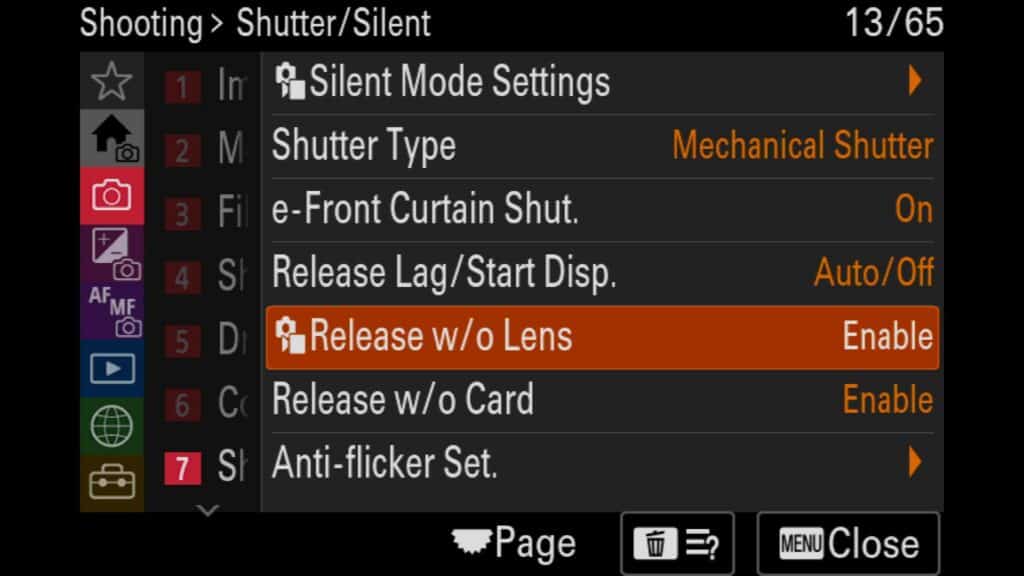
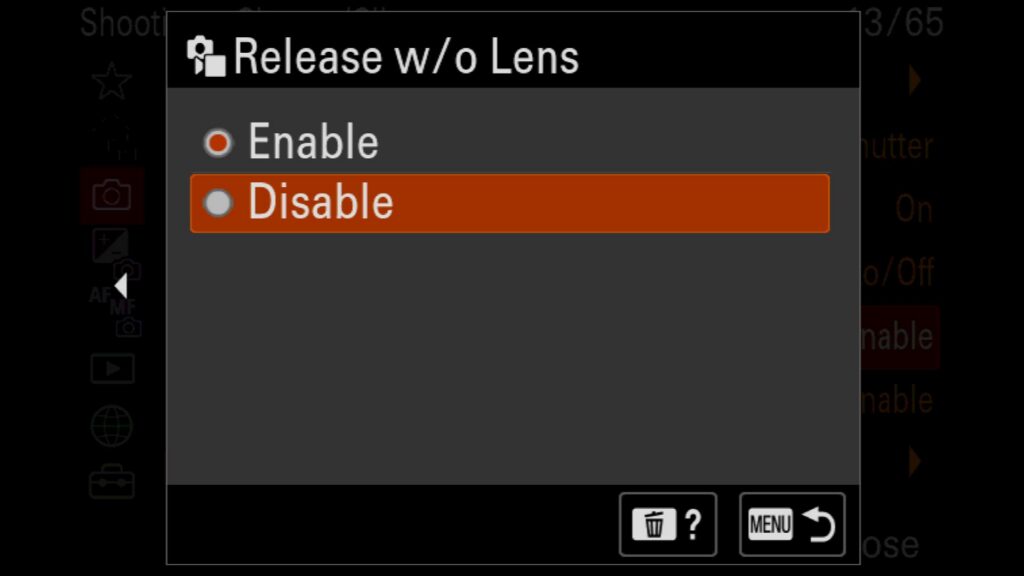
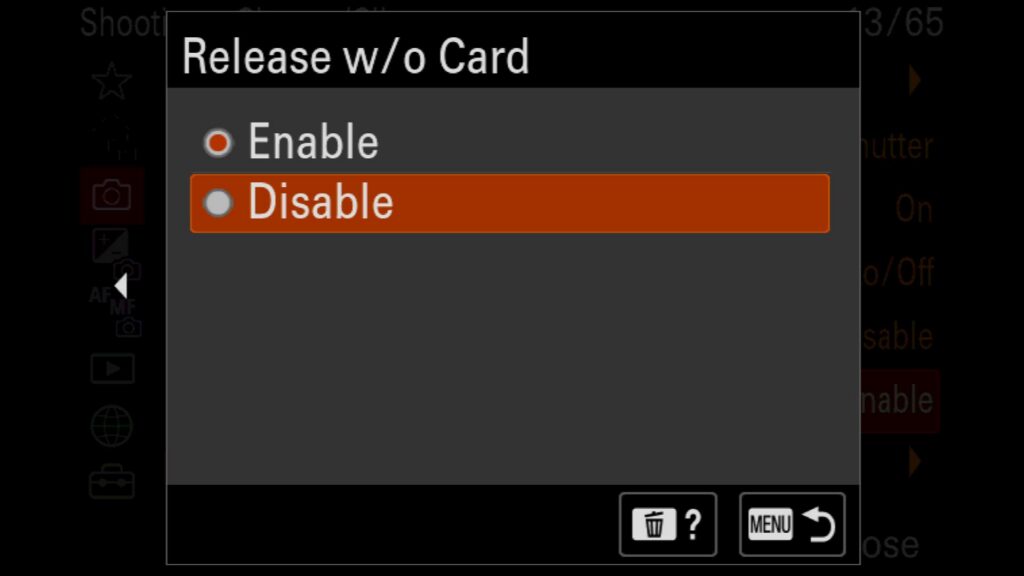
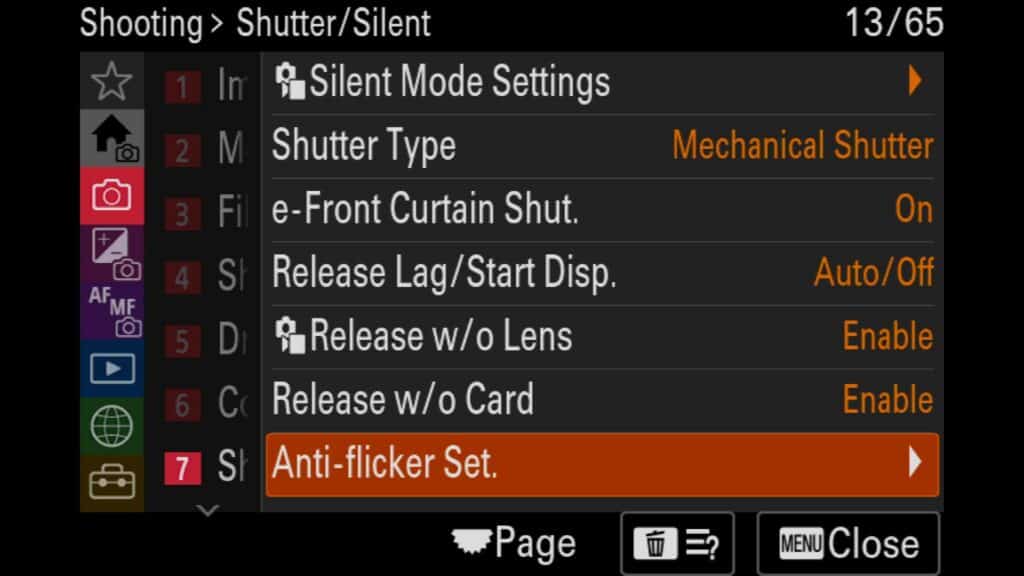
If you have ever forgotten to insert a memory card into your camera before taking photos, these settings are for you. Here you can make sure the camera won’t allow you to start taking images if it can’t find a memory card or if the lens attached to your camera isn’t fully connected/registering a connection.
Menu – Shooting Menu – (7) Shutter/Silent Type – Release w/o Lens
Menu – Shooting Menu – (7) Shutter/Silent Type – Release w/o Card
Use the Anti-flicker Settings for Shooting Under LED Lights
If you ever find yourself working under bright LED lights, be it in a home studio, a concert, or even a wild animal hide in Africa, you will want to pay close attention here.
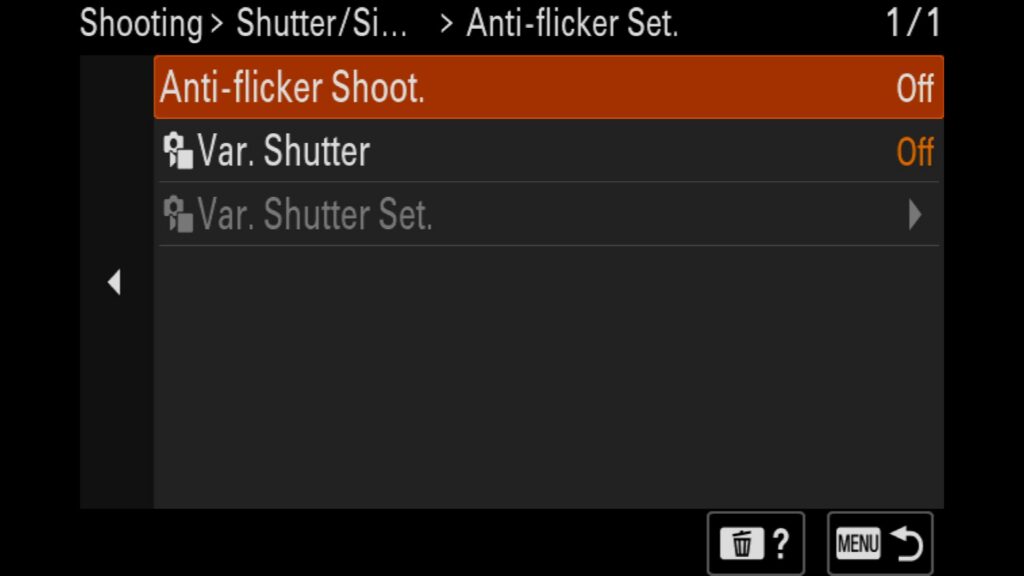
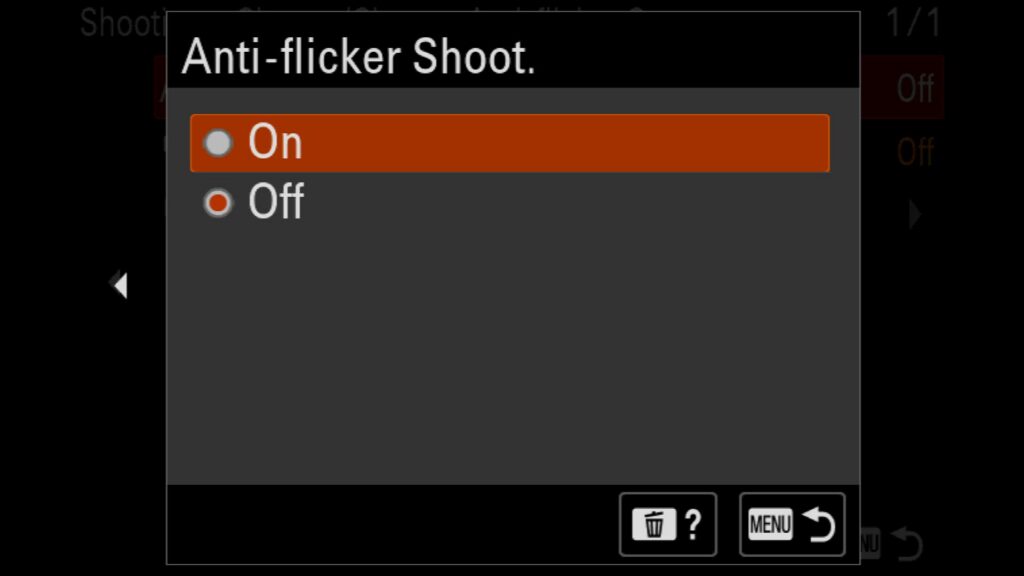
The Anti-flicker Shooting setting on Sony cameras is a tool designed to eliminate the artificial banding, blinking, or uneven exposure caused by cycling indoor light sources, such as fluorescent, sodium, or mercury-vapor lights. Most indoor lights don’t emit constant light; they flicker at a high frequency (usually 50Hz or 60Hz, depending on your region’s electrical grid) that is invisible to the human eye. When your camera’s shutter speed is faster than the frequency of the lights, it catches the lights in the middle of a “dimming” cycle. This results in images with strange dark bands or inconsistent exposures from shot to shot. When Anti-flicker Shooting is enabled, the camera automatically detects the frequency of the light flicker and slightly delays the shutter release by microseconds, ensuring the exposure occurs at the light’s peak brightness.
* This setting requires that you are using the Sony a7R VI’s Mechanical Shutter.
Menu – Shooting Menu – (7) Shutter/Silent – Anti-flicker Set.
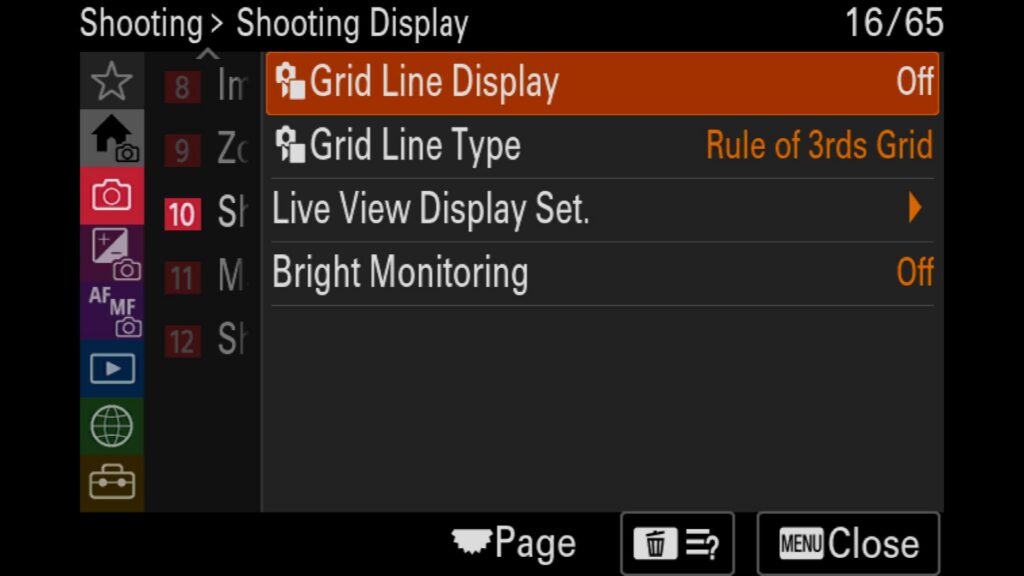
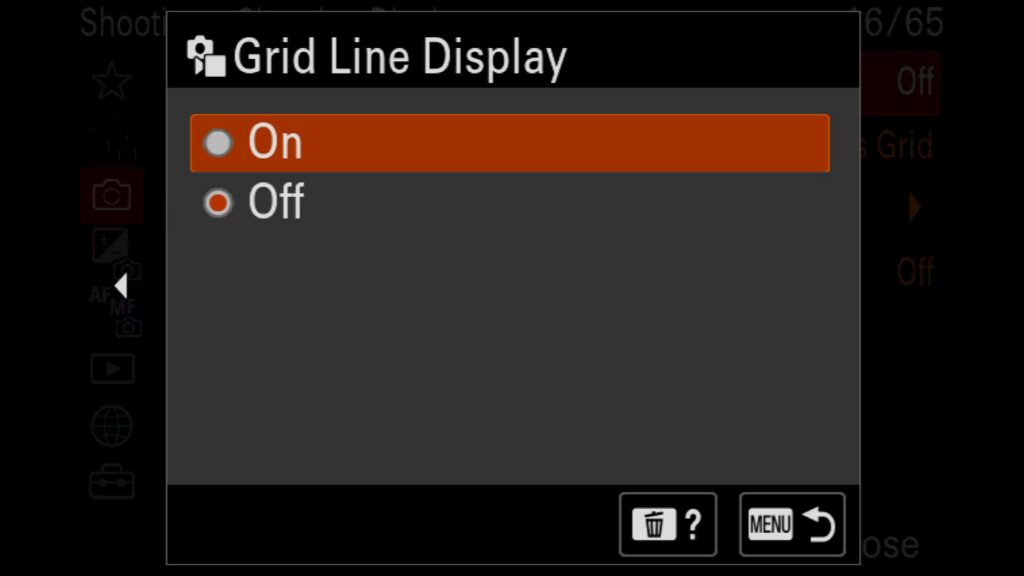
Turn on the Grid Line Display To Help With Composition
An incredibly helpful tool that often gets overlooked is enabling the grid lines for both the rear LCD screen and the electronic viewfinder (EVF). This feature provides an instant visual reference to ensure your horizons are perfectly level while shooting in the field.
My personal preference within these menu settings is the ‘Rule of 3rds Grid’. Beyond just keeping your landscape horizons straight, it serves as a fantastic real-time guide for better subject placement and framing as you work out your composition.
Menu – Shooting Menu – (10) Shooting Display – Grid Line Display
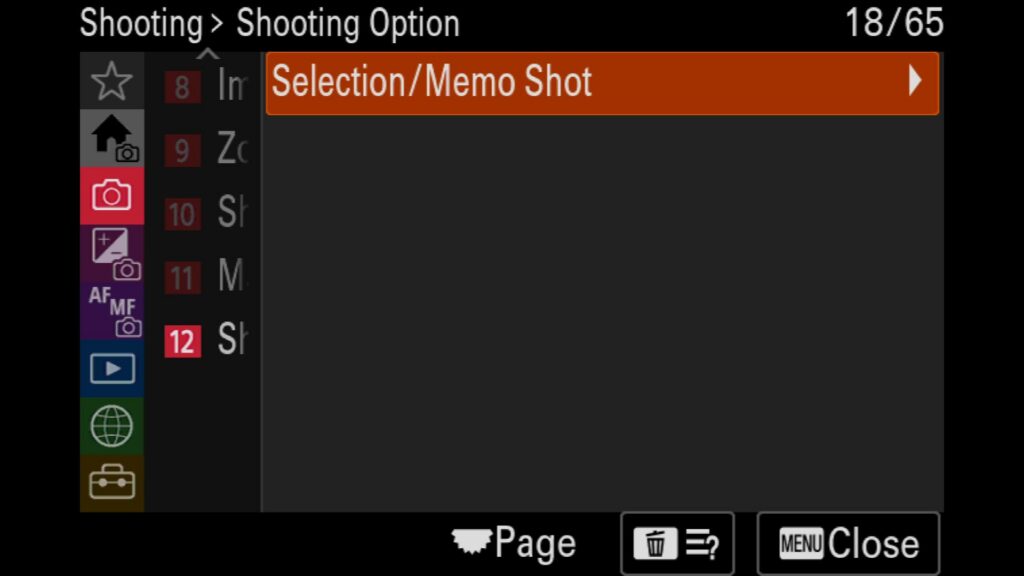
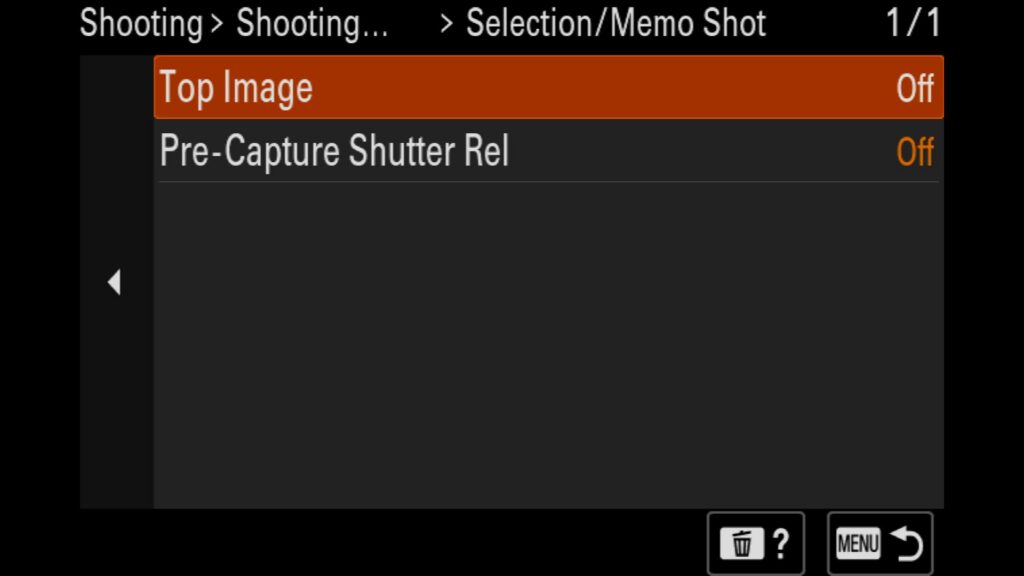
Create Divider or Separator Images For Image Bursts
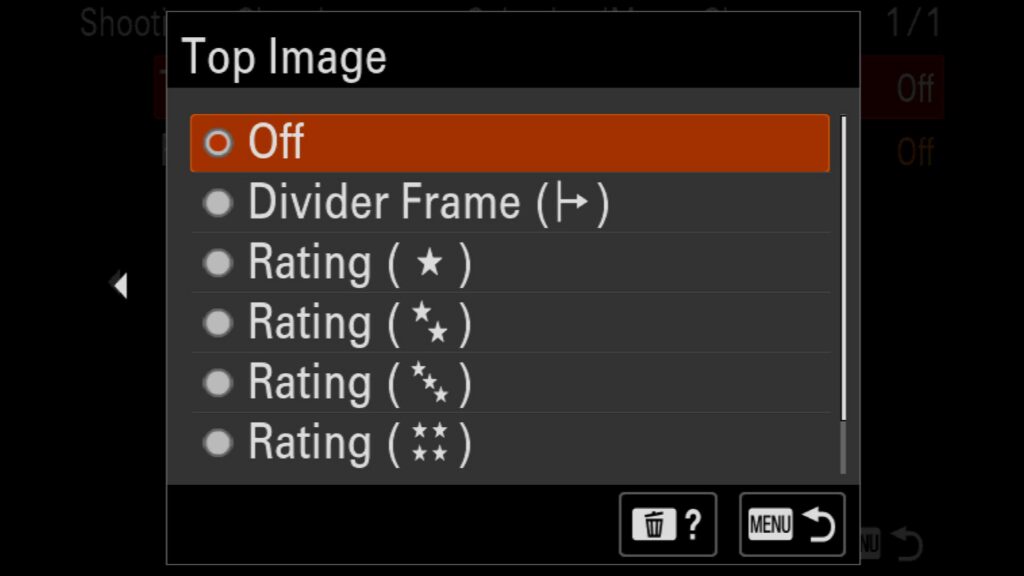
One of the challenges of shooting groups of images, such as an image bracket, interval time-lapse, or even a pre-capture burst, is that you don’t know when the set officially starts and ends. But now you have a setting that lets you add either a Divider Frame (Black Frame) or a specific Star Rating (1-5) to the top image of an image set or a series of shots taken during Pre-Capture. This should make it much easier to know when a group of images starts and ends when you are reviving all your shots from a session.
Menu – Shooting Menu – (12) Shooting Option – Selection/Memo Shot
Exposure & Color
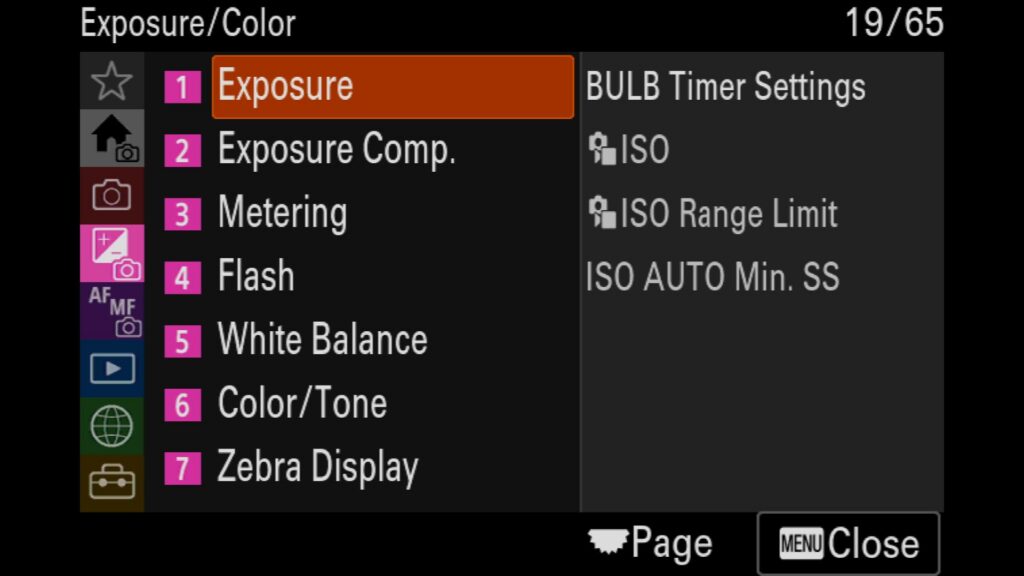
All of the following settings can be found in the Pink Exposure/Color menu on the Sony a7R VI.
Adjust the Bulb Camera Settings
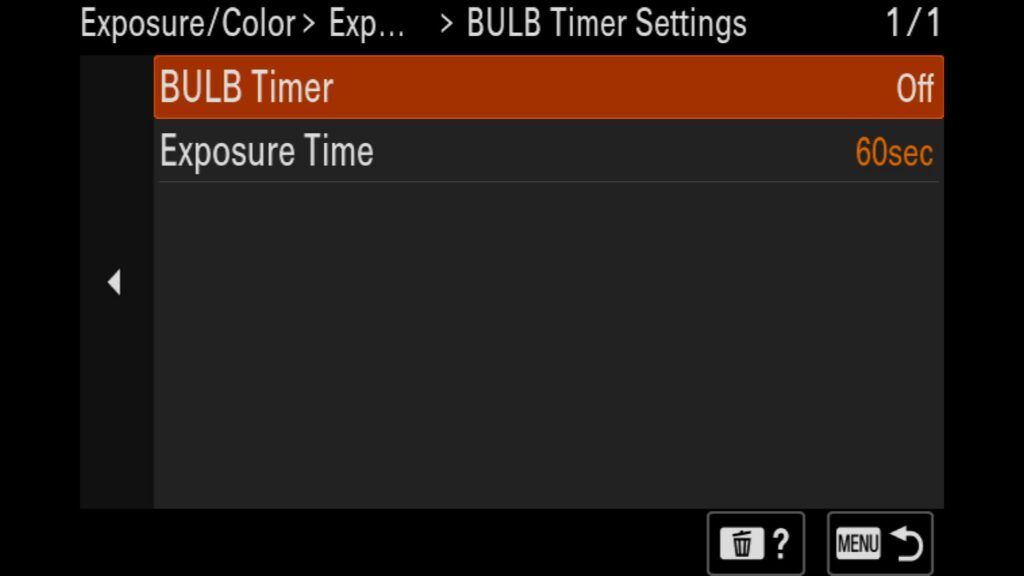
While you can easily access the Sony a7R VI BULB mode by scrolling past the 30-second exposure limit in your shutter speed settings, you typically cannot control the exact shutter duration without holding down the shutter button or using an external remote shutter release.
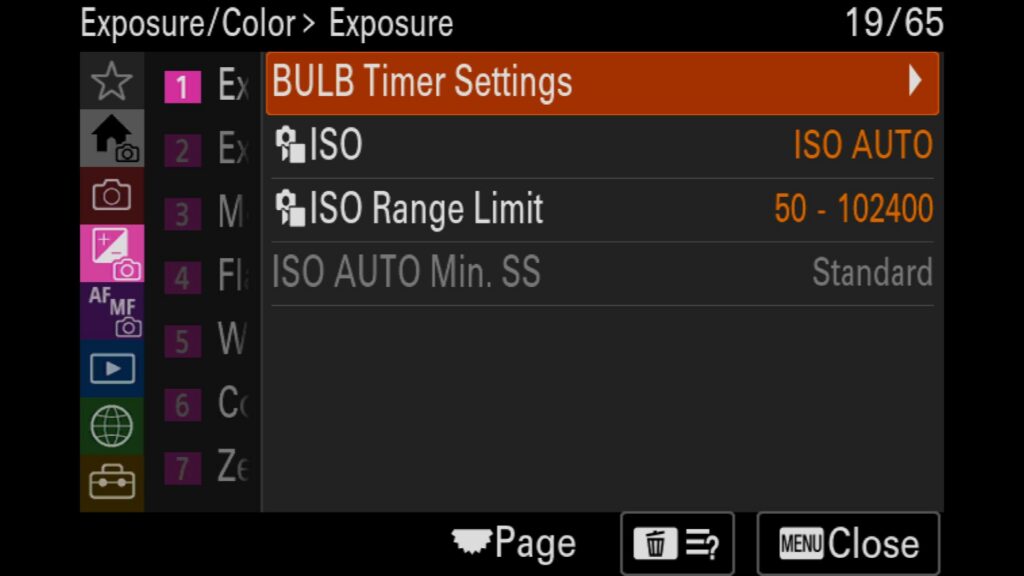
However, you can bypass this limitation by enabling the camera’s dedicated BULB Timer setting. Activating this built-in interval feature lets you program a precise long-exposure photography window anywhere between 2 and 900 seconds (15 minutes) directly in the camera—completely eliminating the need for extra gear.
Menu – Exposure/Color – (1) Exposure – BULB Timer Settings
Turn on Auto ISO If Needed
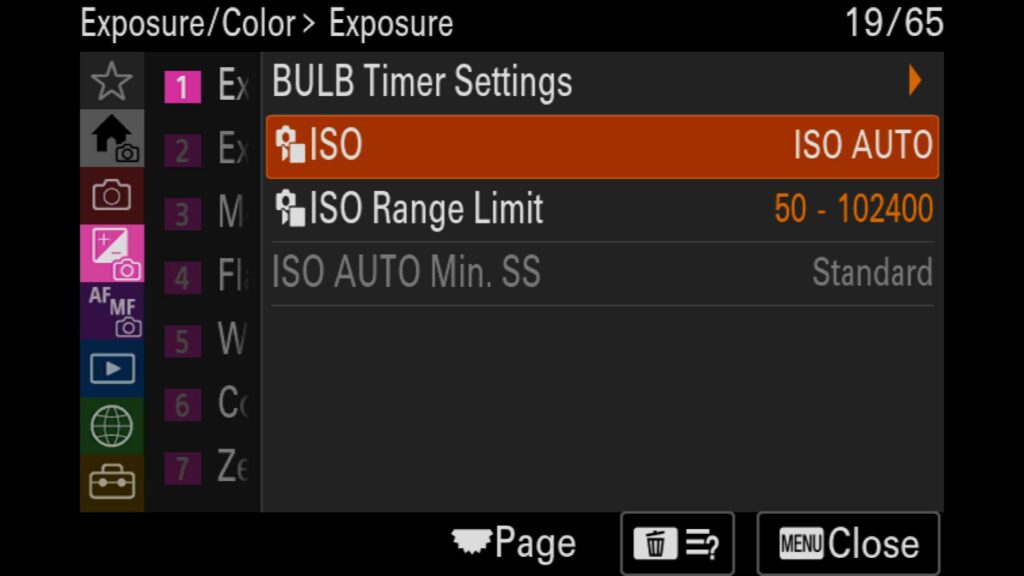
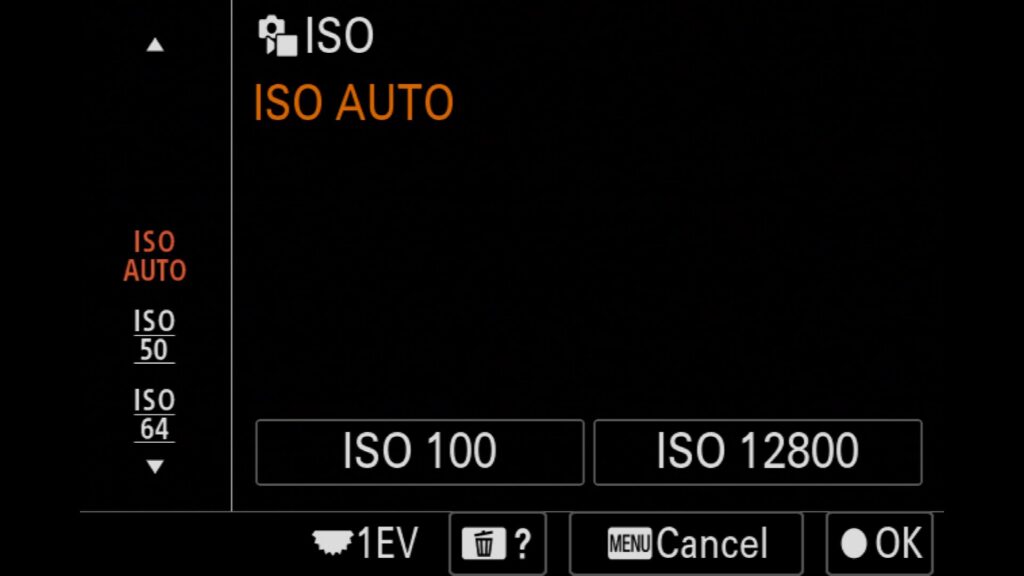
If you wish to enable “Auto ISO” on. theR VI, you have two options:
- In the camera’s menu system, navigate to Exposure/Color and find the “Exposure” setting. There you will find “ISO. The first option is “ISO AUTO”.
- By default, if you hit the right button on the rear control wheel, it will take you to the same ISO menu setting as above. There you can select ISO Auto which is at the top of the list.
Menu – Exposure/Color – (1) Exposure – ISO
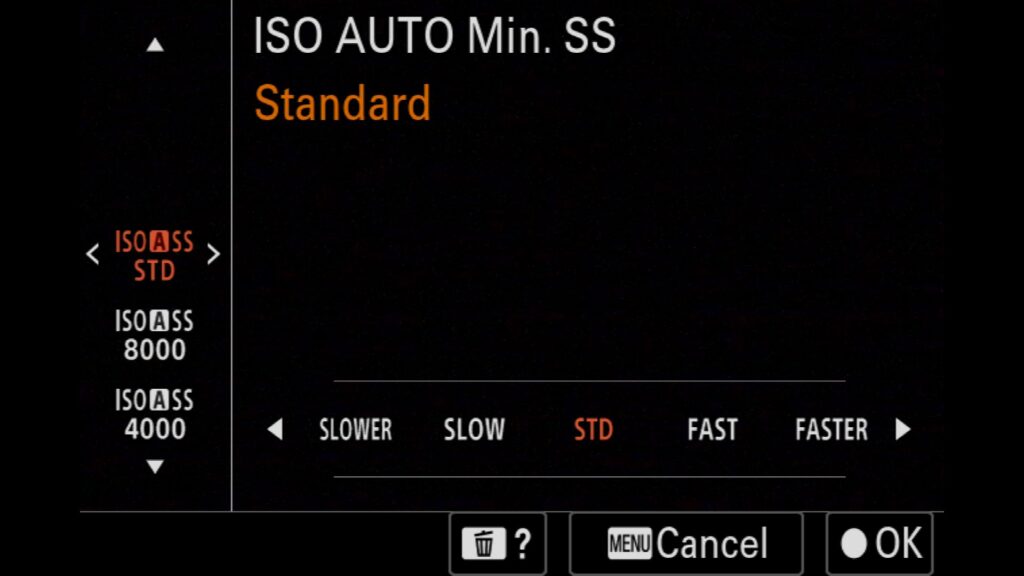
Set The AUTO Minimum Shutter Speed
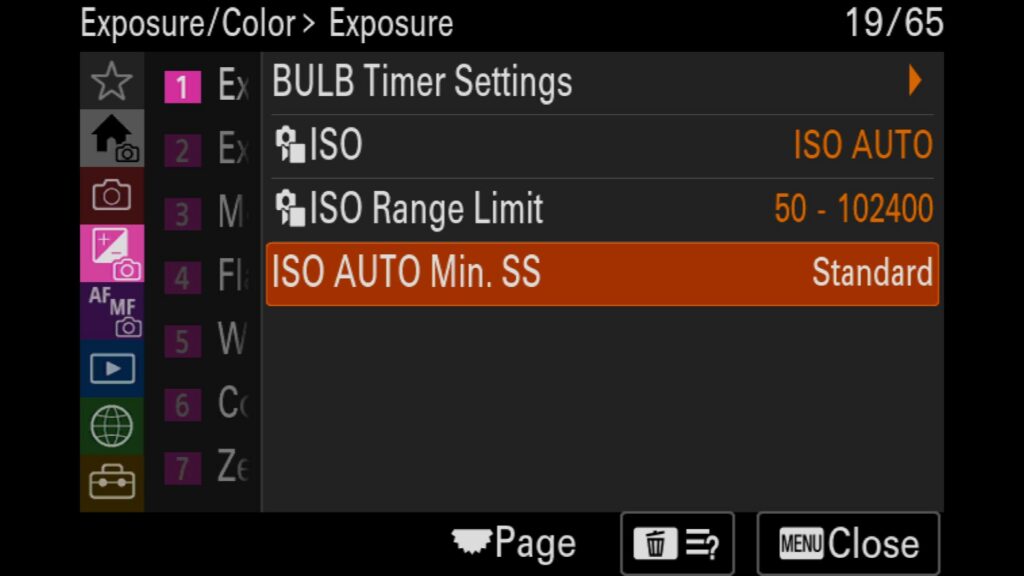
Many action and wildlife photographers prefer shooting in Aperture Priority mode with Auto ISO. This setup allows you to focus entirely on framing and composition rather than constantly adjusting exposure variables. However, to make this workflow reliable, you must configure the ISO Auto Min SS (Minimum Shutter Speed) setting.
Without a designated minimum shutter speed, the camera’s shutter speed can drop too low in dim lighting, resulting in blurry wildlife photos due to subject movement or camera shake. Enabling this feature ensures that the Sony a7R VI automatically raises your ISO to maintain your exact minimum shutter speed, keeping your images sharp in changing environments.
Menu – Exposure/Color – (1) Exposure – ISO AUTO Min. SS
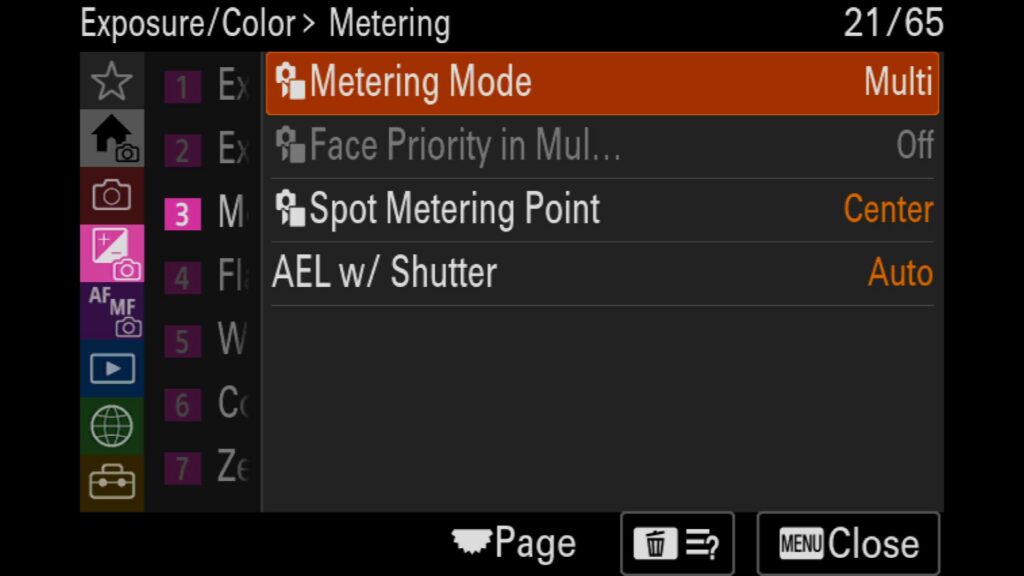
Adjust the a7R VI's Metering Modes
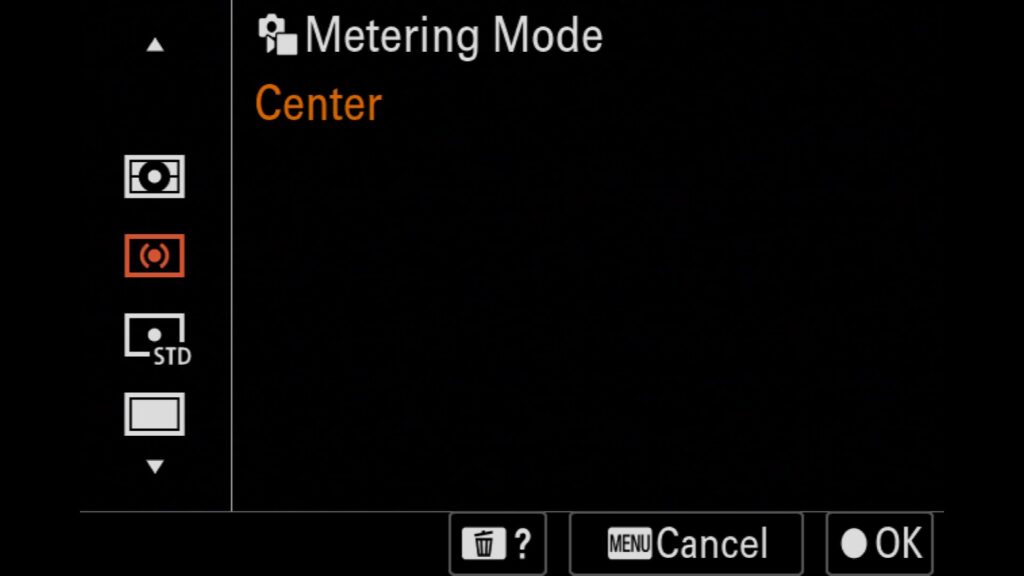
If you let your camera control any exposure settings (Shutter Speed, Aperture, or ISO), you will want to adjust your Camera’s Metering Mode. Here are your options:
Multi – Measures the balance of light over the entire scene for normal shooting
Center – Measures the light with emphasis placed on the center area of the screen
Spot – Measures the light based on a Standard or Large spot circle
Entire Screen Avg – Measure the average brightness of the entire screen
Highlight – Measures the brightness of the area being focused on in the scene. Optimal for shooting scenes with reduced overexposure.
Menu – Exposure/Color – (3) Metering – Metering Mode
Download my a7R VI Settings File over on my other blog post: "Customizing Your Sony a1 II"
Linking AF Area & Light Metering Modes
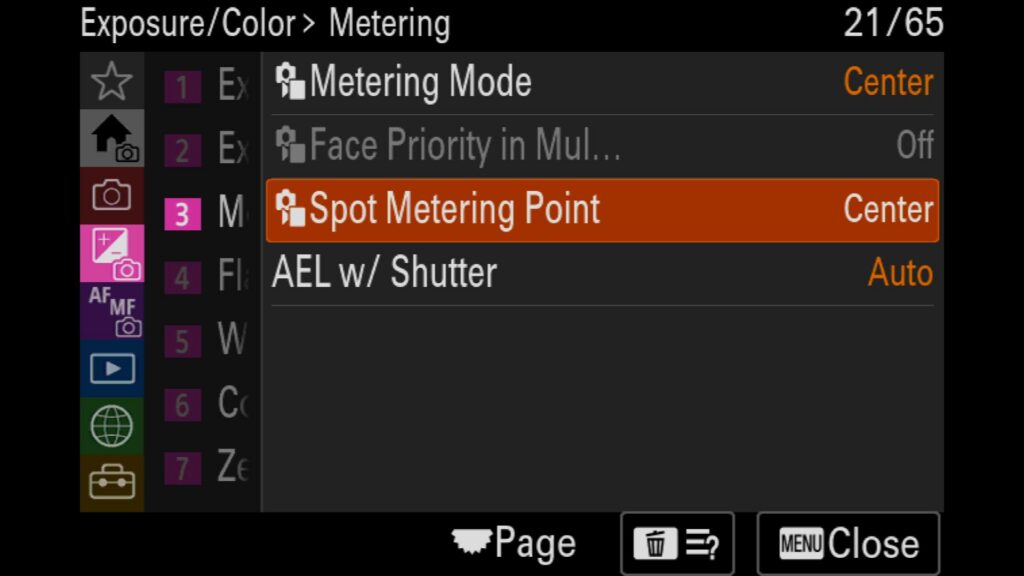
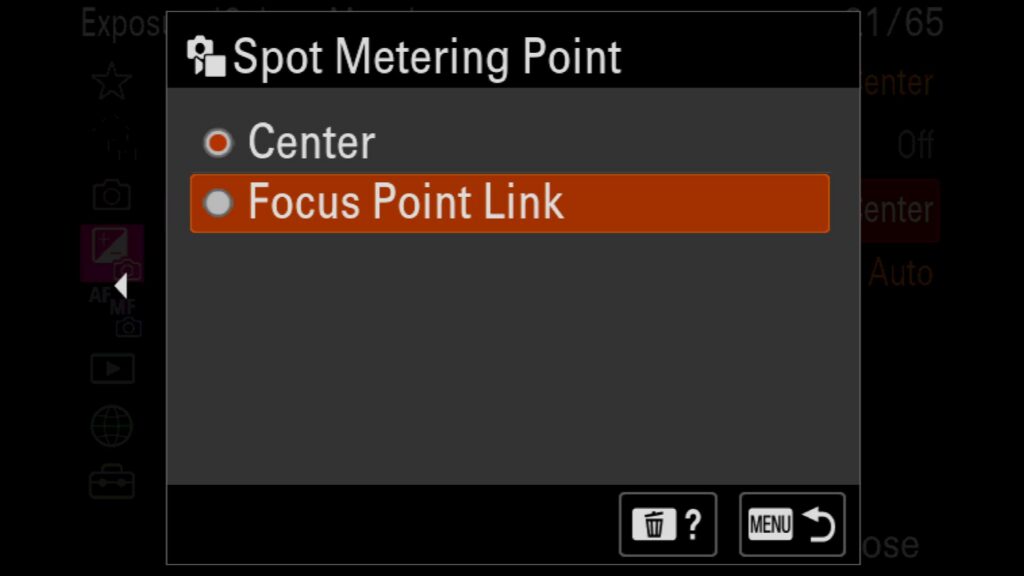
When utilizing the Sony a7R VI Spot Metering mode, the camera defaults to calculating exposure from a fixed circle at the exact center of your frame. However, you can unlock a much more dynamic workflow. By enabling the Spot Metering Point (Focus Point Link) feature alongside an adjustable Flexible Spot AF Area, you can link your exposure metering directly to your active autofocus square. This allows you to manually move your focus point anywhere across the frame while the spot meter automatically follows your subject. This could be helpful when you want to exposure for a very specific spectrum of light in your frame, such as sunray piercing through the forrest canopy to the ground below.
Menu – Exposure/Color – (3) Metering – Spot Metering Point
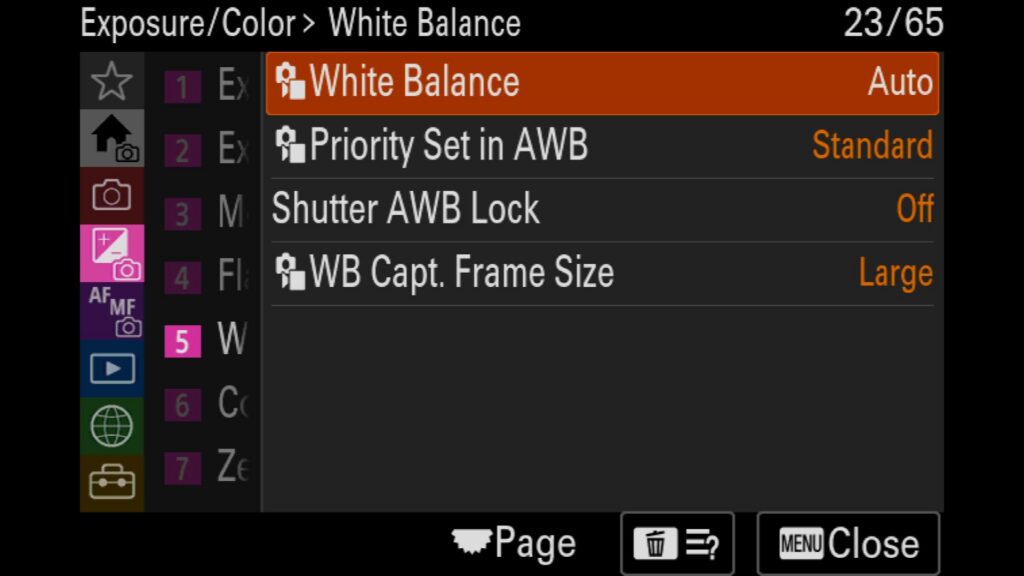
Make Changes to the A7R VI's White Balance Settings
To adjust the White Balance of your images, you have a few options:
– Inside the menu, find the Exposure/Color Menu and select (5) White Balance
– Inside the Fn. Menu
– I customize the down button on the rear control wheel to also bring up the White Balance menu
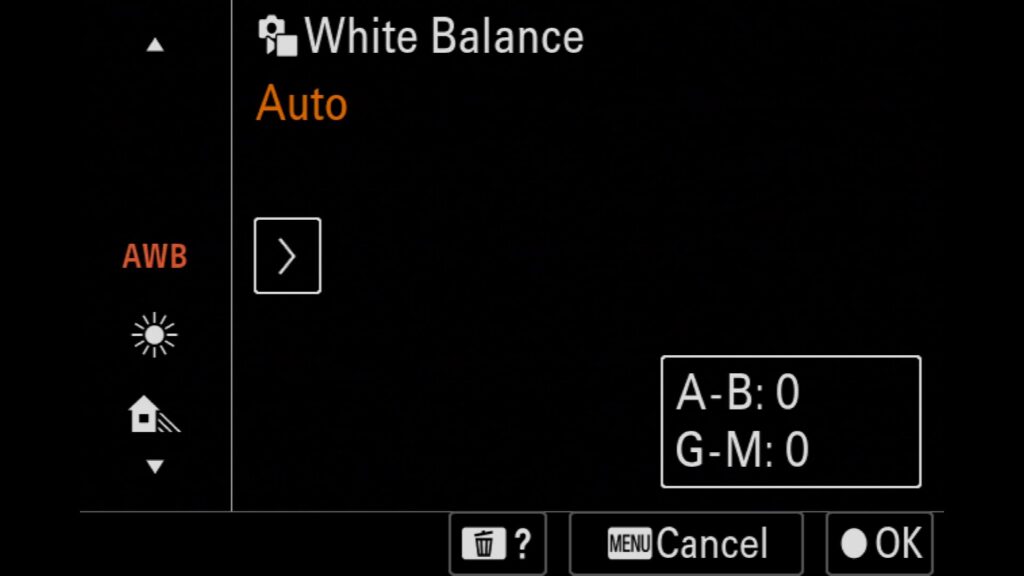
* There are a lot of options to scroll through in the White Balance menu, including three custom White Balance modes that you can customize.
Menu – Exposure/Color – (5) White Balance – White Balance
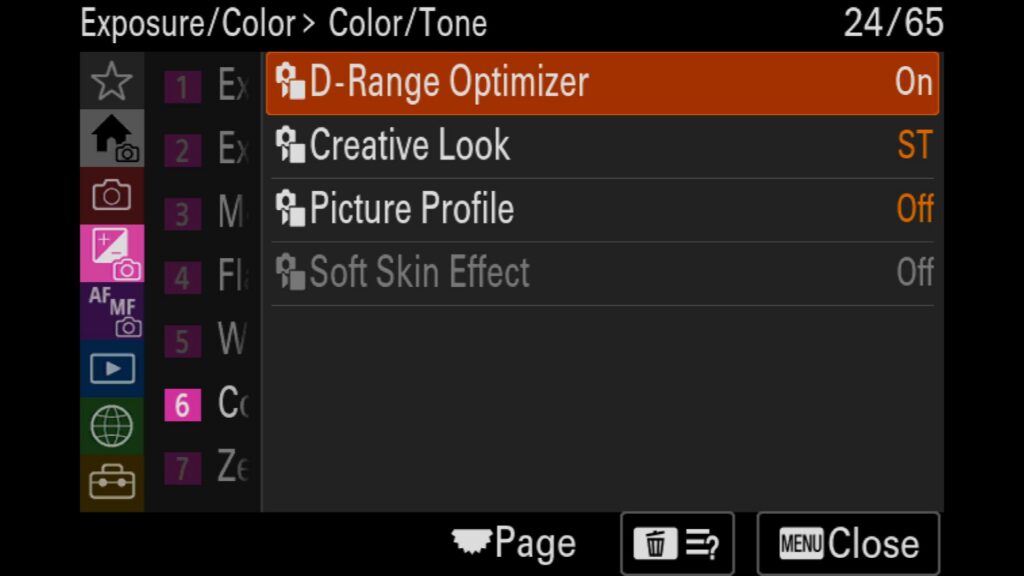
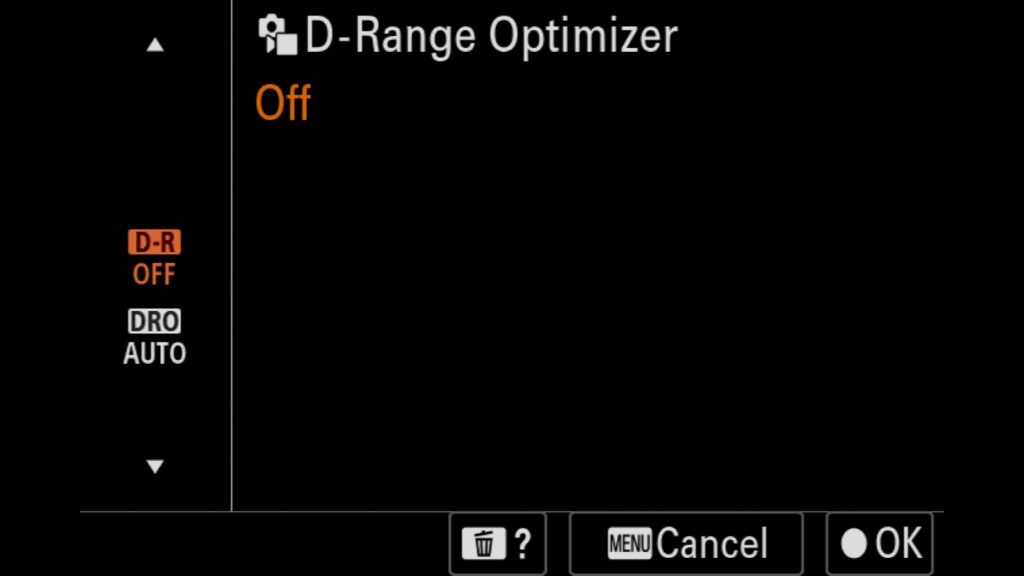
Turn off D-Range Optimizer (DRO)
One a7R VI setting that you might want to turn off is the D-Range Optimizer (DRO). While DRO artificially boosts shadow details, it only applies to JPEG images. If you shoot in RAW, leaving this on creates a problem: your camera generates a misleading JPEG thumbnail preview. When reviewing images on the LCD screen, an inaccurate preview can give you an unrealistic expectation of your actual RAW exposure.
Menu – Exposure/Color – (6) Color/Tone – D-Range Optimizer
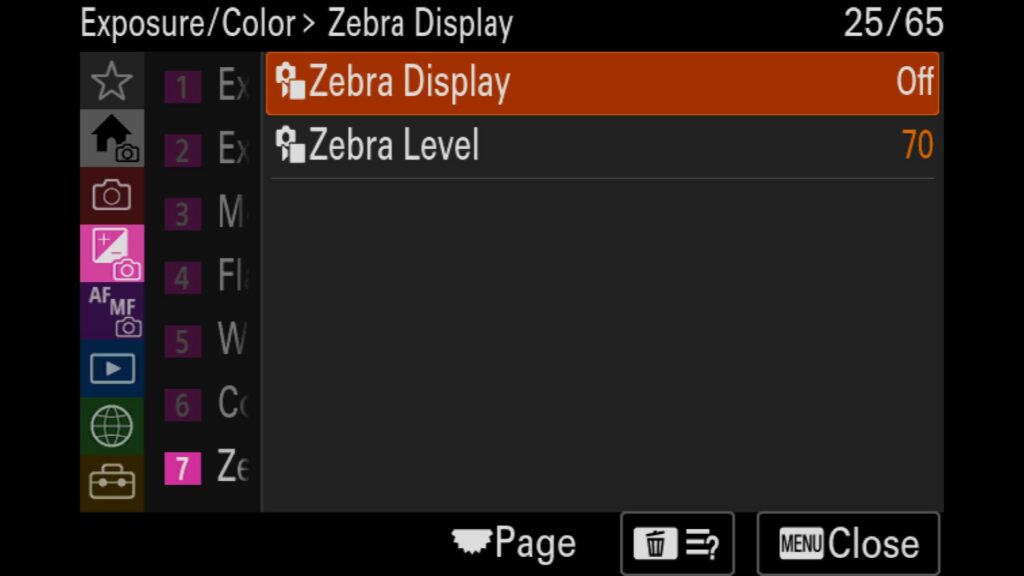
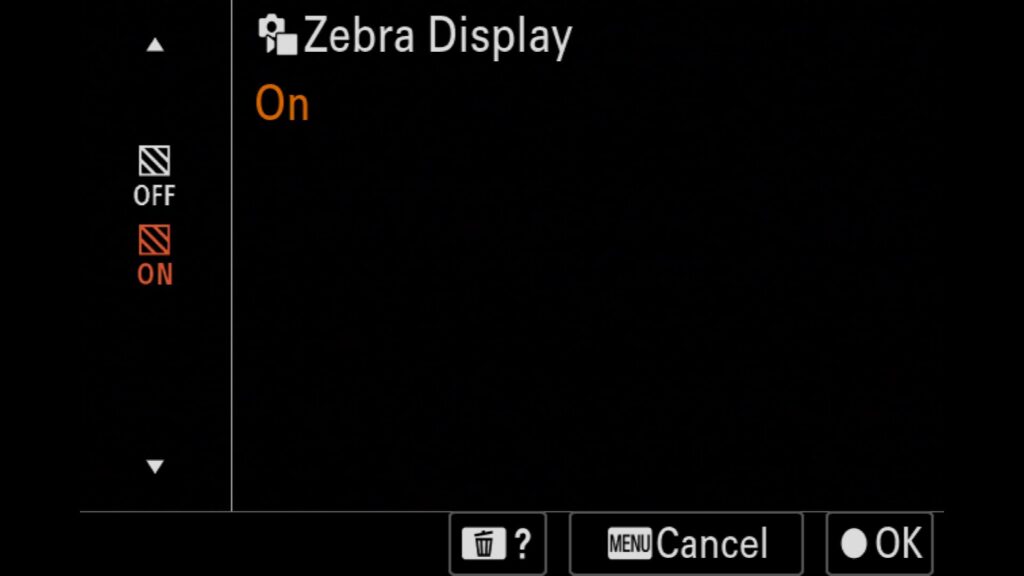
Utilize the Zebra Display Feature
If you have ever shot video, you are likely familiar with the Zebra pattern (or “dancing ants”) setting found on most digital cameras. While typically used to prevent blown-out highlights in video production, zebra settings can also be used for still photography. By setting a custom zebra level to a “Lower Limit of 107+”, you can easily detect highlight clipping in your images. If you don’t see the zebra lights flashing across your frame, your exposure is safe. This trick is incredibly useful for bird photography, especially when exposing for birds in flight with bright white feathers.
Menu – Exposure/Color – (7) Zebra Display – Zebra Display
The Focus Menu
All of the following settings can be found inside the Purple Focus Menu on the Sony a7R VI.
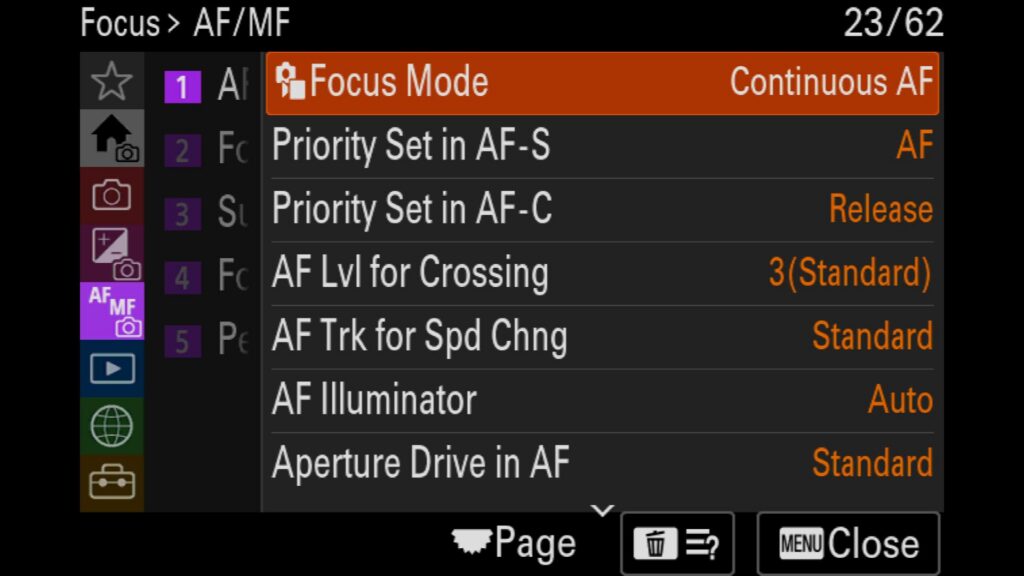
Set the Focus Mode
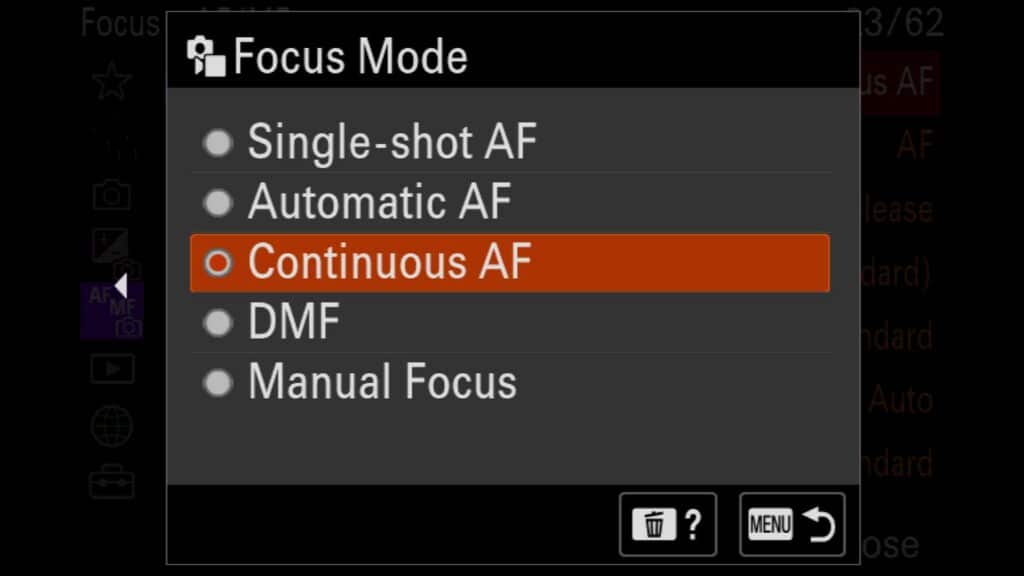
To set the Focus Mode on your R VI, you will want to navigate to the Focus Menu, select AF/MF, and choose Focus Mode. Here you can pick from the following options:
Single-shot AF – The camera checks focus just once. Suitable for static subjects that are not moving
Automatic AF –
Continuous AF – The camera continuously tries to achieve focus as you either hold down the back button focus button or press the shutter release button down halfway
DMF (Direct Manual Focus) is a hybrid of MF and Continuous AF. In this mode, you can use the focus ring to help make focus adjustments along with the impressive AF system of the R VI
Manual Focus – You must use the lens’s focus ring to achieve focus. Many Sony lenses also have an AF/MF switch that overrides this setting.
Menu – Focus – (1) AF/MF – Focus Mode
Keep scrolling to continue…
A Quick Look At Upcoming Photo Workshop Adventures...

Dolomites Photography Workshop
October 16th – 23rd, 2026
Come join us on an adventure of a lifetime to the amazing Italian Dolomites. We will photograph and explore incredible mountain peaks, beautiful reflected lakes and gorgeous fall colors as we move throughout one of the most impressive mountain ranges in the world.

Indian Tiger Photo Safari
March 26th – April 6th, 2027
Join our incredible adventure to India to experience and photograph the gorgeous Bengal Tiger through two amazing National Parks, Jim Corbett and Ranthambore in 2027.
Costa Rica Wildlife Photography Workshop
January 10th – 19th, 2027
Join me next January in one of the most biologically diverse countries on the planet, Costa Rica, where we will spend 9 days photographing toucans, macaws, rare frogs, snakes, sloths, anteaters and much more.

Uganda Photo Safari – A Trip of a Lifetime
December 6th – 16th, 2026
Uganda is one of the most unique wildlife destinations on the planet. Here you can find the endangered Silverback Gorilla along with amazing troops of Chimpanzees and the world-famous tree-climbing lions, which are found in a single area of Queen Elizabeth National Park. Join us on an adventure of a lifetime that offers some of the most intimate and incredible wildlife experiences on the planet.
Priority Set for AF-S & AF-C
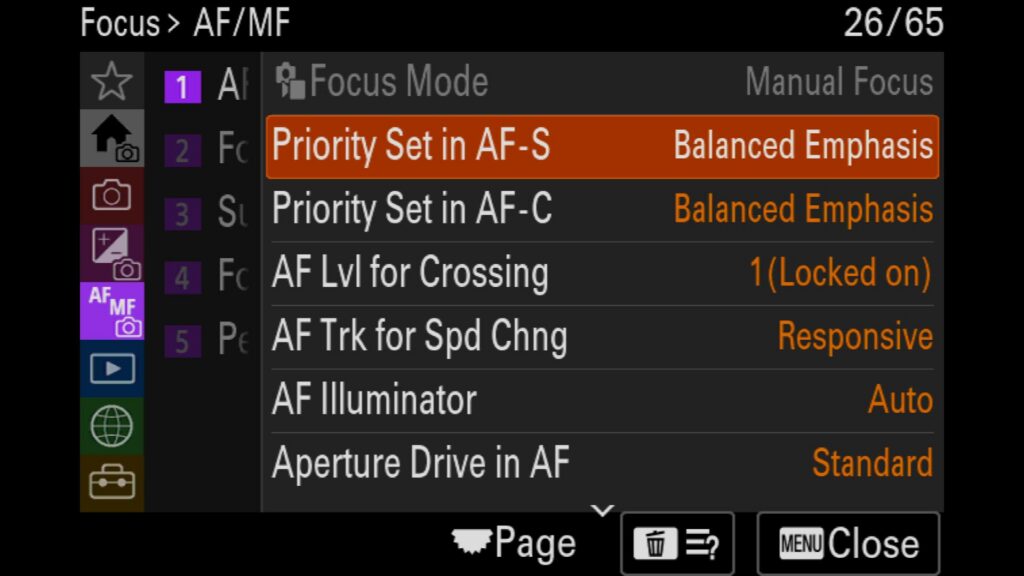
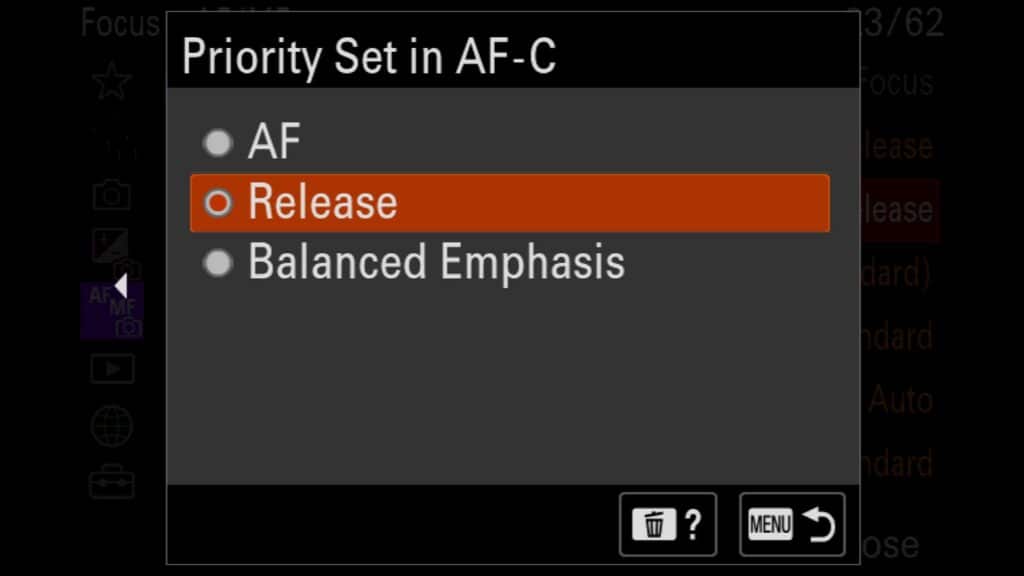
With the Sony a7R VI, you have the ability to prioritize AF, Speed or both when it comes to taking images. This is done through the “Priority Set” menu setting where you can adjust the settings for AF-S & AF-C seperately. Your options are as follows:
AF – Prioritize the systems autofocus system so that an image isn’t taken unless it is in focus
Release – Prioritizes speed, allowing the shutter to open even when not in focus. This mode is required to achieve 30fps with this camera.
Balanced Emphasis – This is the default mode, which attempts to prioritize both approaches, speed and AF when it comes to taking images.
Menu – Focus – (1) AF/MF – Prioriy Set in AF-S/AF-C
Adjust Sensitivity for the AF System
You can further fine-tune your Sony a7R VI autofocus settings using the built-in AF Sensitivity menus.
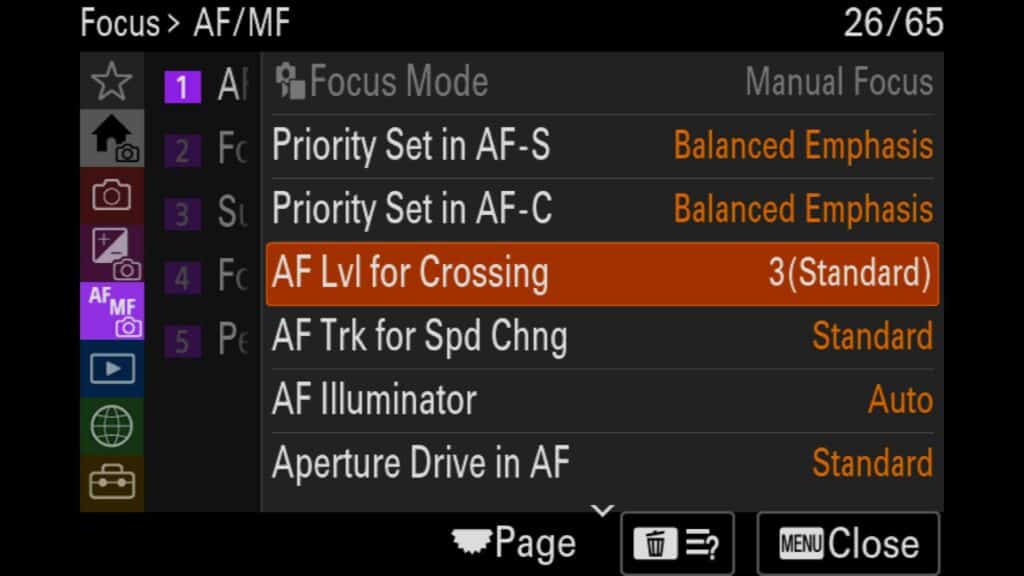
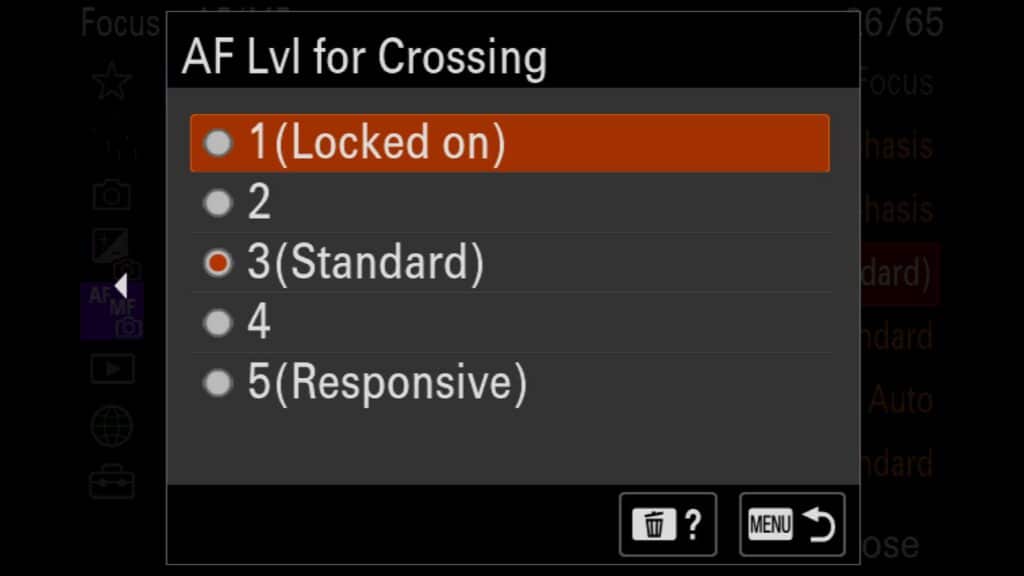
AF Level for Crossing: This setting controls how your camera reacts when an obstacle passes between you and your subject. Options range from 1 (Locked On) to 5 (Responsive). If you are shooting bird photography or tracking a specific subject through a busy environment, choosing a 1 or 2 makes the AF tracking feel much more “sticky,” preventing the lens from aggressively hunting to a new target.
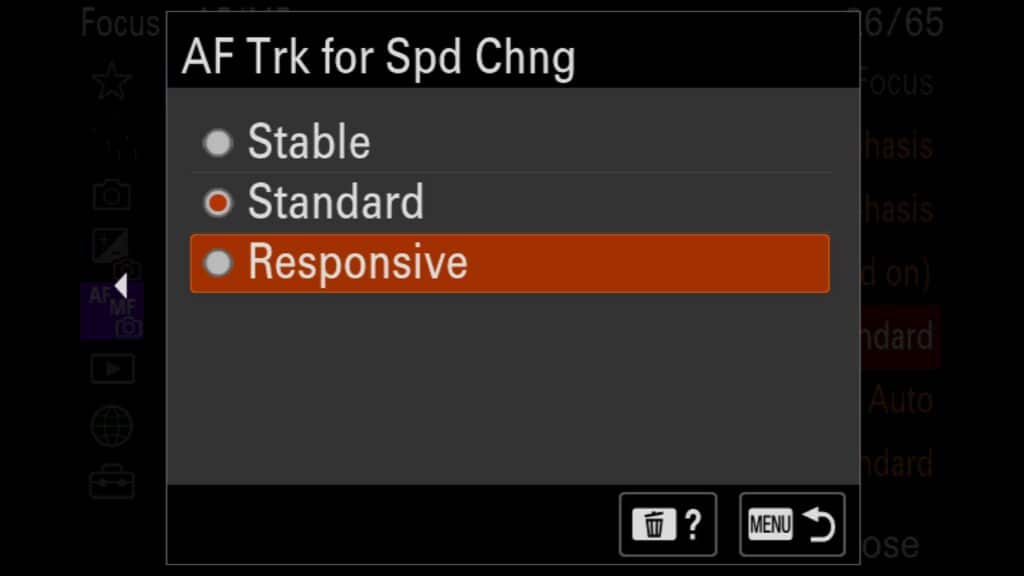
AF Tracking for Speed Change: This configures how quickly the AF system responds to abrupt changes in momentum. You can select Stable (best for static or slow-moving subjects), Standard (the camera’s default balance), or Responsive (ideal for erratic, rapid-moving wildlife or sports subjects).
Menu – Focus – (1) AF/MF – AF Lvl for Crossing
Menu – Focus – (1) AF/MF – AF Trk for Spd Chng
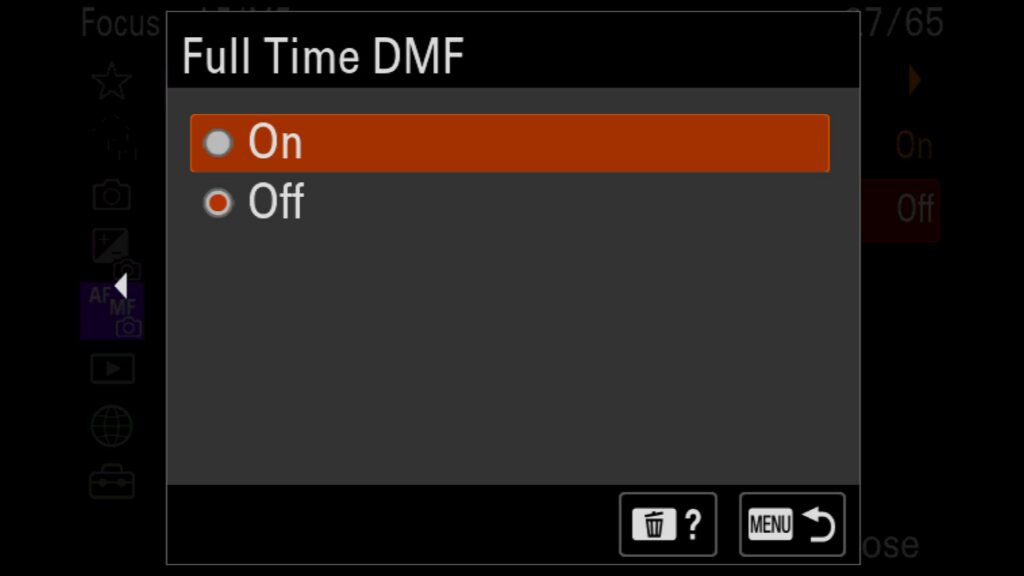
Turn On/Off Full Time Direct Manual Focus
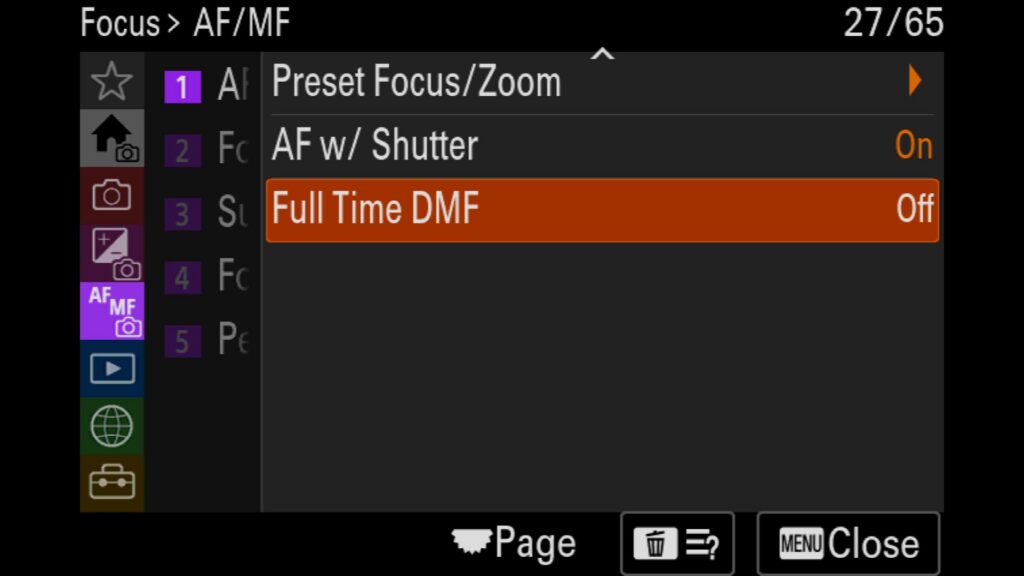
While many of Sony’s top tier GM telephoto lenses have dedicated DMF switches, the Sony a7R VI allows you to turn on Full Time Direct Manual Focus in the menu system as well. This gives you the ability to fine tune your focusing system using the focus ring on your lens while you are also using the systems impressive AF system. The best use case for this feature would be if you were photographing a bird through a series of branches on a tree and the AF system was getting caught on the branches and leaves between you and your subject. With this setting on, you could fine tune the focus to get closer to where the bird is in your frame and then allow the AF system to take over once it locks on.
Menu – Focus – (1) AF/MF – Full Time DMF
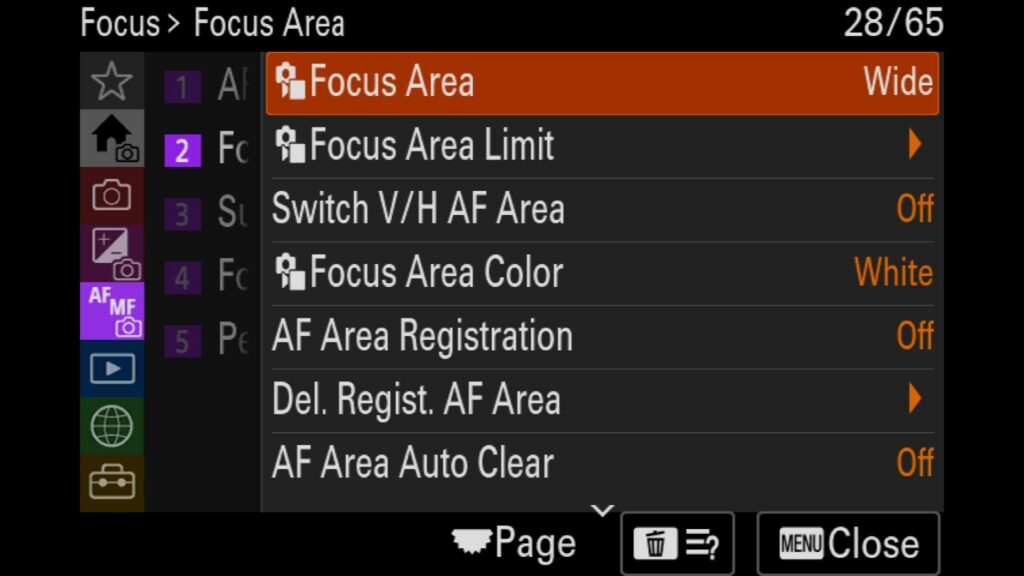
Set Your Focus Area
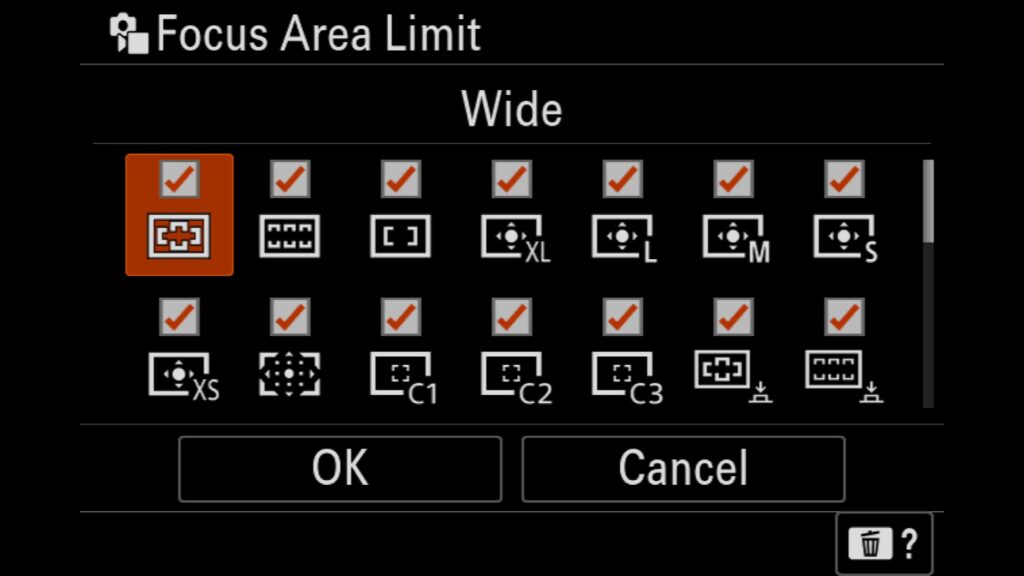
To get the most out of the advanced Sony a7R VI autofocus system, you need to choose the right focus area for your specific subject. If you are upgrading from older models, keep in mind that the Extra Small (XS), Large (L), and Custom AF sizes are incredibly powerful additions to the menu.
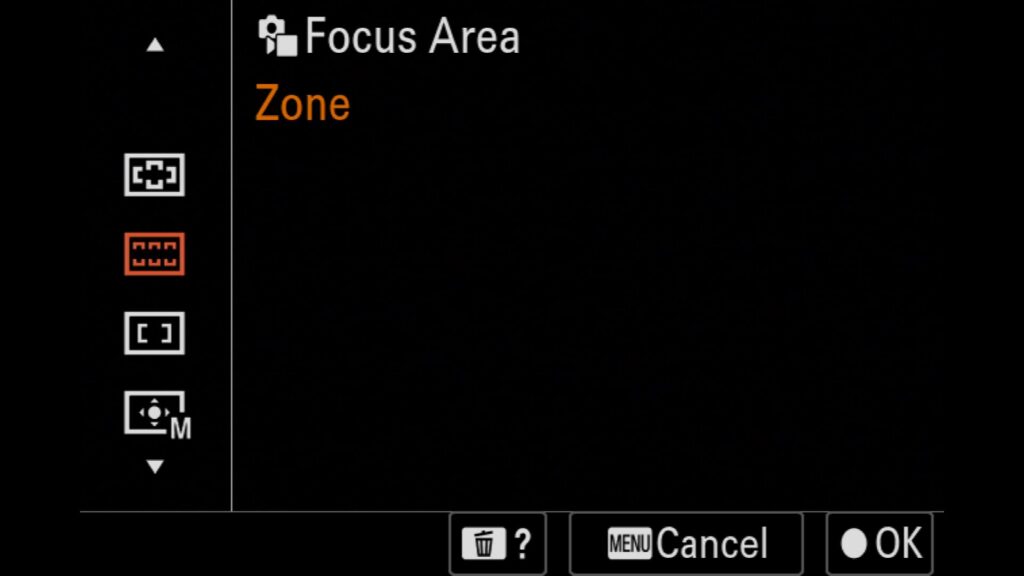
Here is a breakdown of your Sony a7R VI focus area options:
Wide: An all-encompassing mode where the AF system automatically searches the entire frame for a subject.
Zone: A sizeable, moveable box configured via the rear joystick. This is perfect for composition when you want to lock your subject into a specific section of the frame.
Center Fix: Automatically locks focus dead-center—ideal if your subject stays in the middle of your frame at all times.
Spot (XS, S, M, L, or XL): Essential for bird photography and small wildlife. These adjustable focus points can be resized and precision-moved exactly where you need them.
Expanded Spot: A highly accurate single AF point that acts as a safety net; if it loses the subject, it instantly searches the outer edges of the point for alternatives.
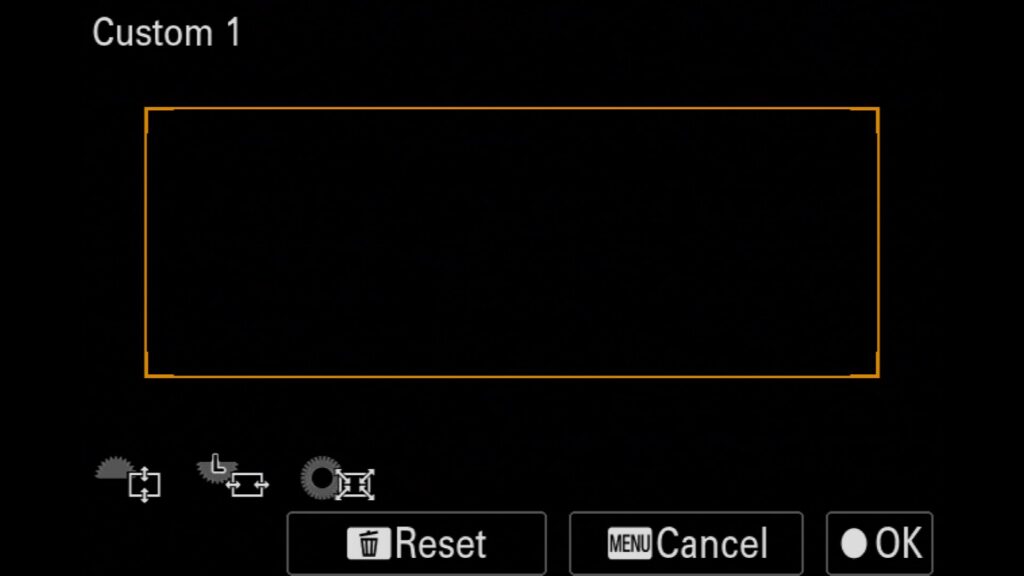
Custom 1, 2, or 3: Allows you to create and save a completely customized AF zone shape and size tailored to your unique shooting style in the field.
Tracking Modes: Activates real-time tracking on top of any of the modes above (except Wide). This is the absolute best setting for erratic, fast-moving subjects.
Menu – Focus – (2) Focus Area – Focus Area
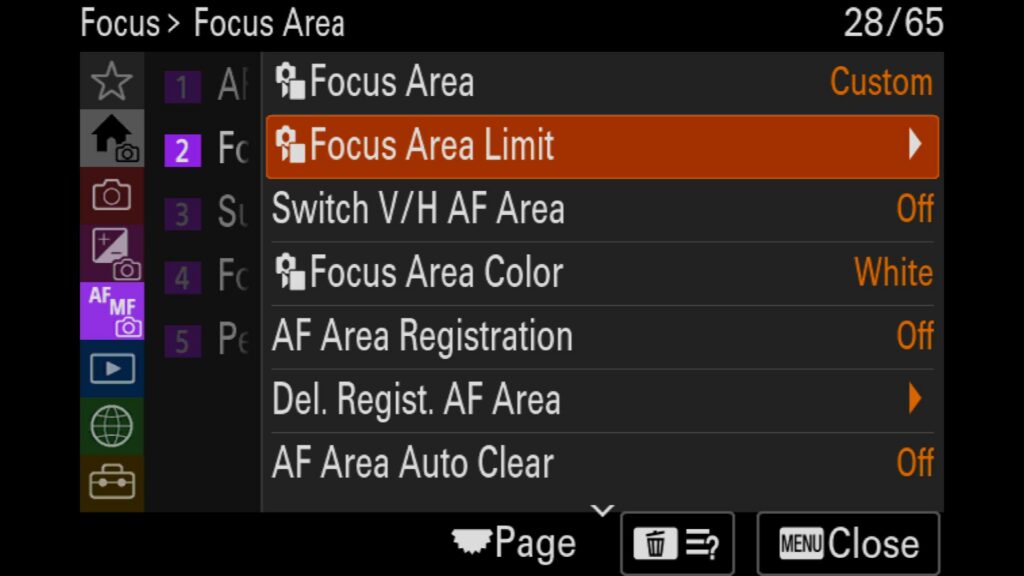
Limit the Number of AF Area Options
While the Sony a7R VI’s autofocus system gives you incredible flexibility, cycling through every single AF area in the field can feel overwhelming. Fortunately, you can streamline your workflow using the “Focus Area Limit” setting. This powerful tool allows you to customize your menu by unchecking the focus modes you rarely use. By removing unwanted choices from your active list, you can toggle through your preferred focus areas much faster, ensuring you never miss a shot because you were stuck diving into menus.
Menu – Focus – (2) Focus Area – Focus Area Limit
Recall Saved AF Areas
AF Area Recall is a powerful custom setting that allows you to save a specific focus point or focus zone and instantly recall it at the press of a button.
Instead of manually picking the AF Area that you want to switch (which can take a second or two), this feature acts like a “bookmark” for your favorite AF Area modes. I often use this feature when I am shooting in the Zone AF area, but find my camera struggling to find a bird tucked away under some branches in a tree. By pressing my saved AF Area Recall button, I can instantly switch to a Mediuam Tracking Adjustable AF spot. Press the same button again and it goes back to what I was originally using.
To set this up, it is a multi-part process:
- Select the AF area you wish to toggle to. In the above example, it would be the Medium Tracking Adjustable Spot.
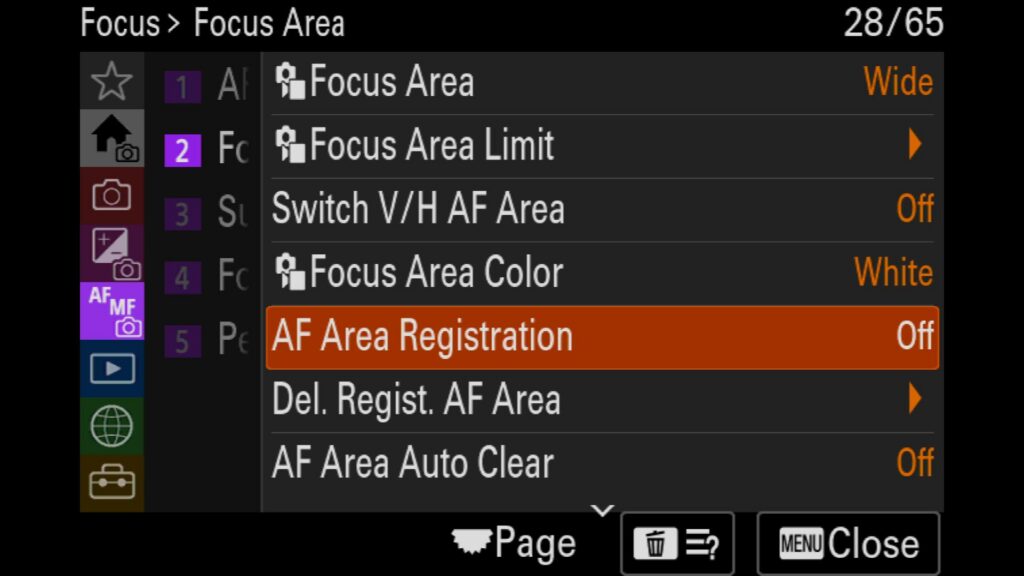
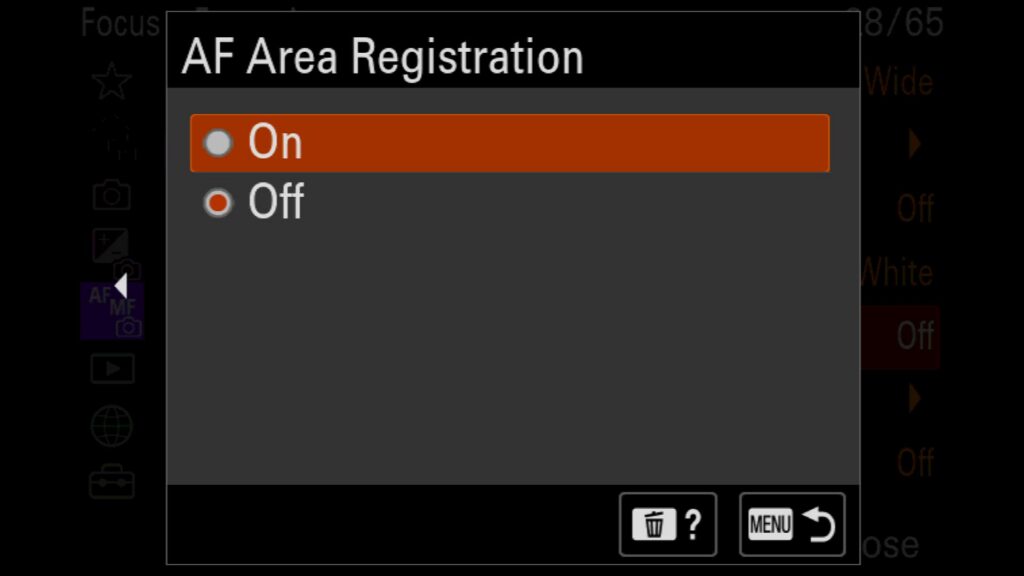
- Head to the cameras menu, select the Purple AF/MF menu, select (2) Focus Area and turn ON “AF Area Registration”.
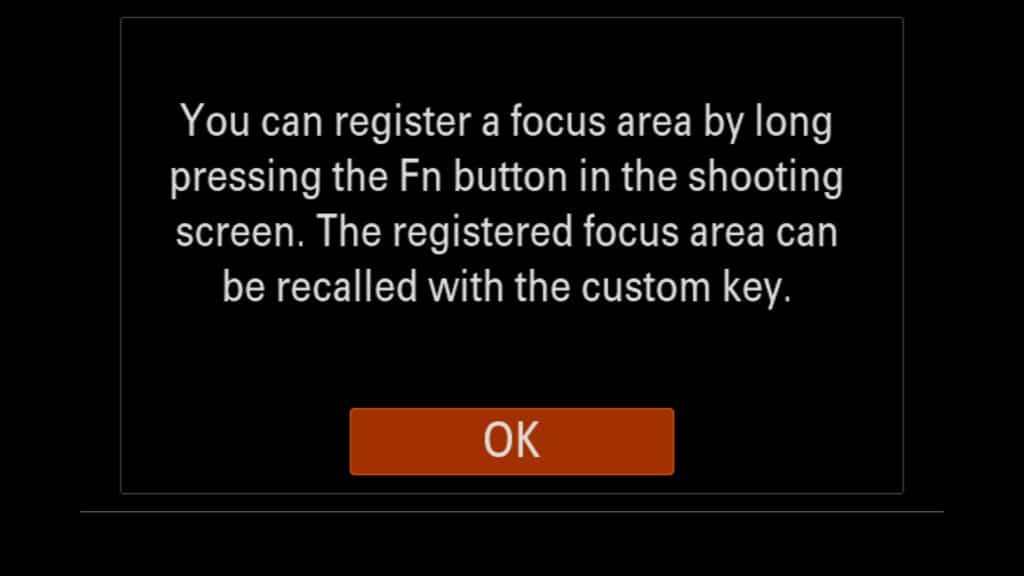
- Now hold down the “Fn” button for a few seconds until you see the “Registered the AF Area” text pop up.
- Lastly, you need to configure one of the buttons on your camera to recall this AF Area. To do this, go to The Yellow Setup Menu, move to (3) Operation Customize and select the Custom Key/Dial Set for Images. Select the button you wish to customize and then select the Purple AF/MF menu, (2) Focus Area and choose either Register AF Area hold or Register AF Area toggle. The hold option requires you to keep holding the button down to maintain the AF area recall while the toggle allows you to press the button once to enable the AF Area Recall and press it again to return to your original AF Area you were using.
Menu – Focus – (2) Focus Area – AF Area Registration
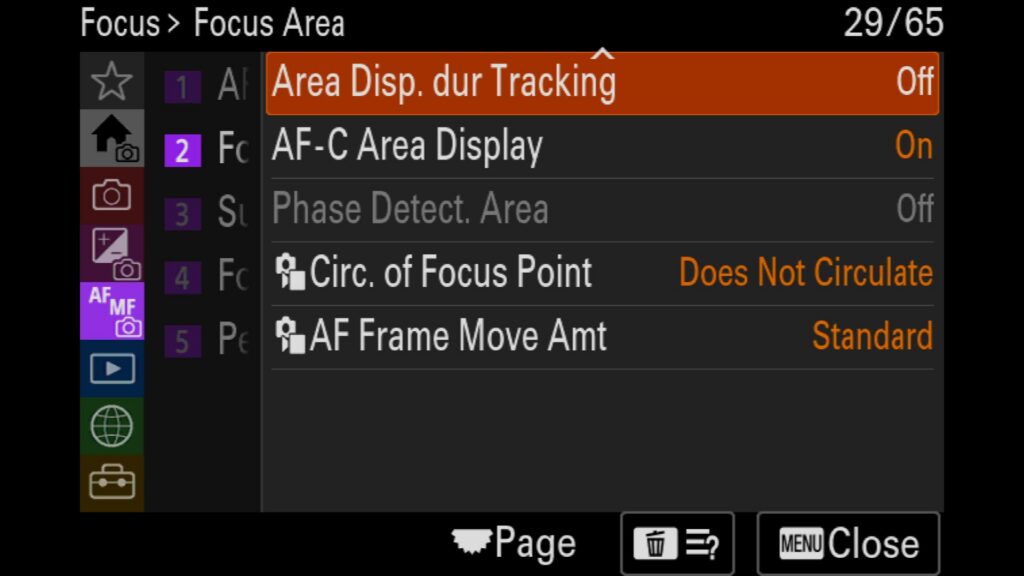
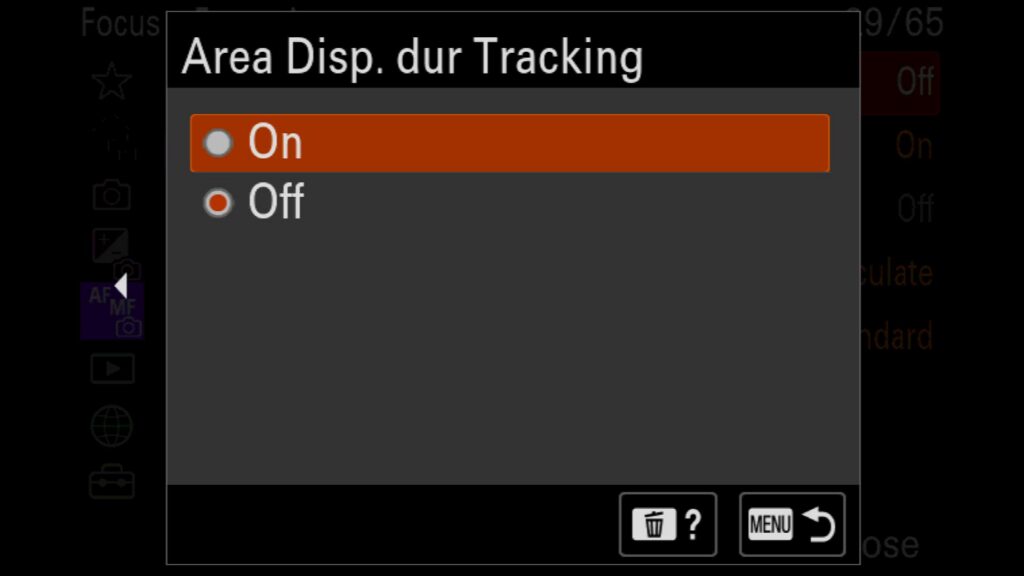
Area Display During Tracking
When the R VI’s AF system is in tracking mode, it no only shows the Focus Area Display mode you had selected and instead opts to the smaller dancing AF points. If you wish to continue to see where the AF Area you selected covers your subject, you can turn it back on with this setting.
Menu – Focus – (2) Focus Area – Area Disp. dur Tracking
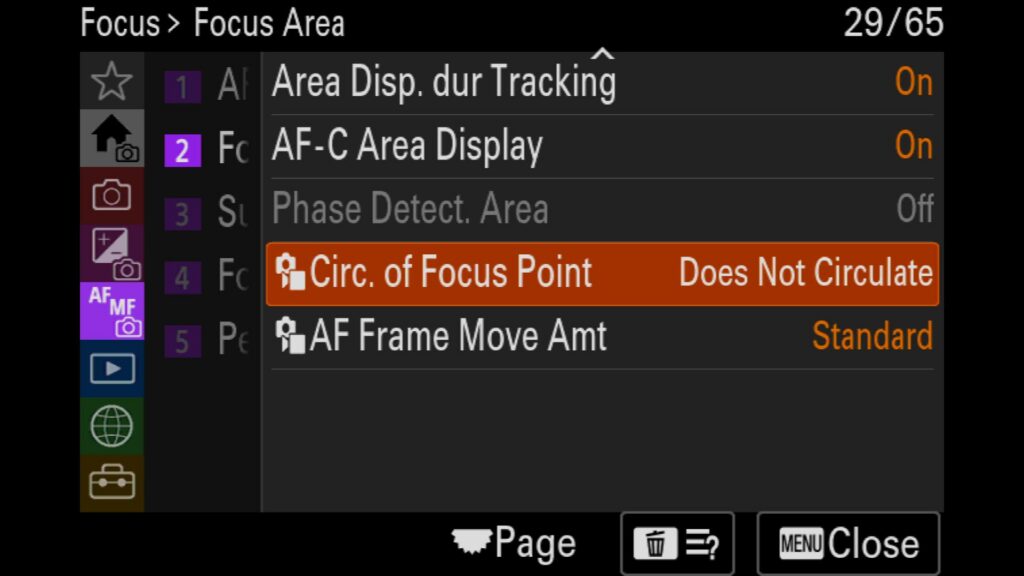
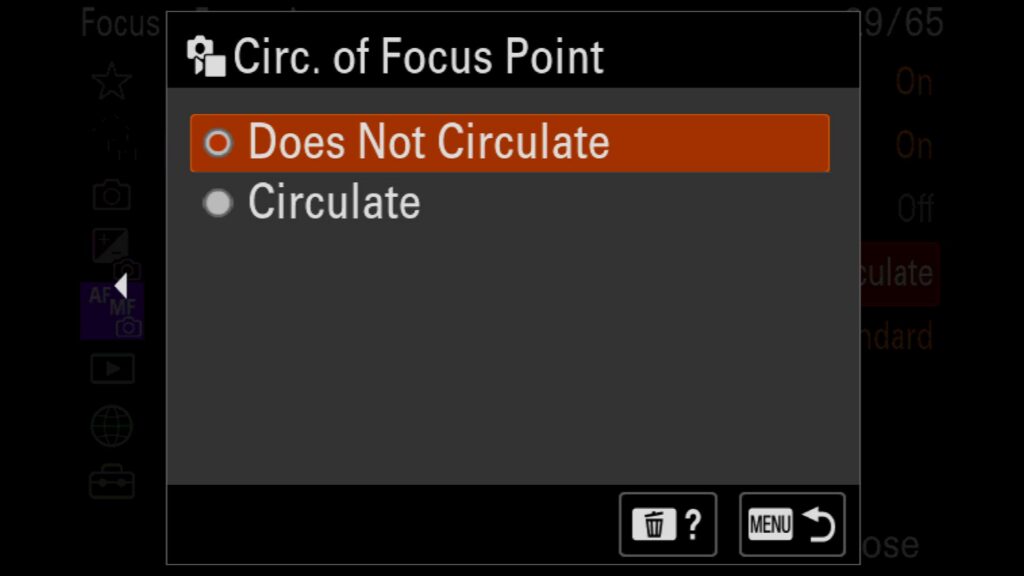
Allow Adjustable Focus Points To Circulate
When using movable AF Area Modes, such as Zone, Adjustable Spot, or one of the new custom AF areas, your movement is limited by the edges of the frame by default. For example, when you move your adjustable spot to the right edge of your frame, it will stop moving once it hits that wall, but it doesn’t’ have to. If you turn on the “Circulate of Focus Points” setting, your AF point will shift to the opposite side of the frame if you try to move it beyond the edge we mentioned above.
Menu – Focus – (2) Focus Area – Dirc. of Focus Point
Understanding the AF Subject Recognition System
One of the most significant upgrades Sony’s AF system has been the addition of a dedicated AI/AF Processor built purely for real-time subject identification and rapid autofocus acquisition. This standalone CPU allows the camera to instantly recognize, track, and prioritize a subject’s eyes, head, or body.
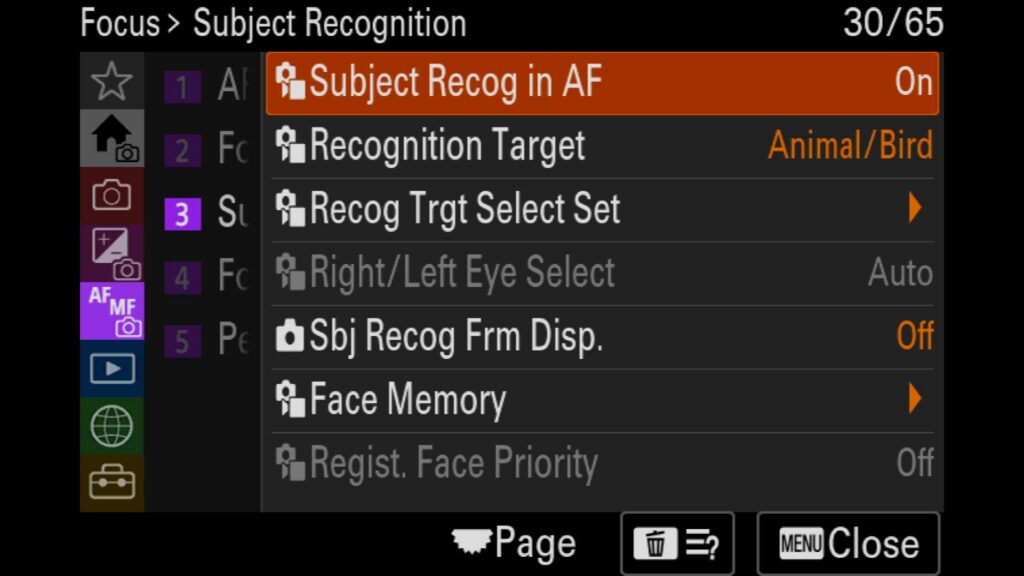
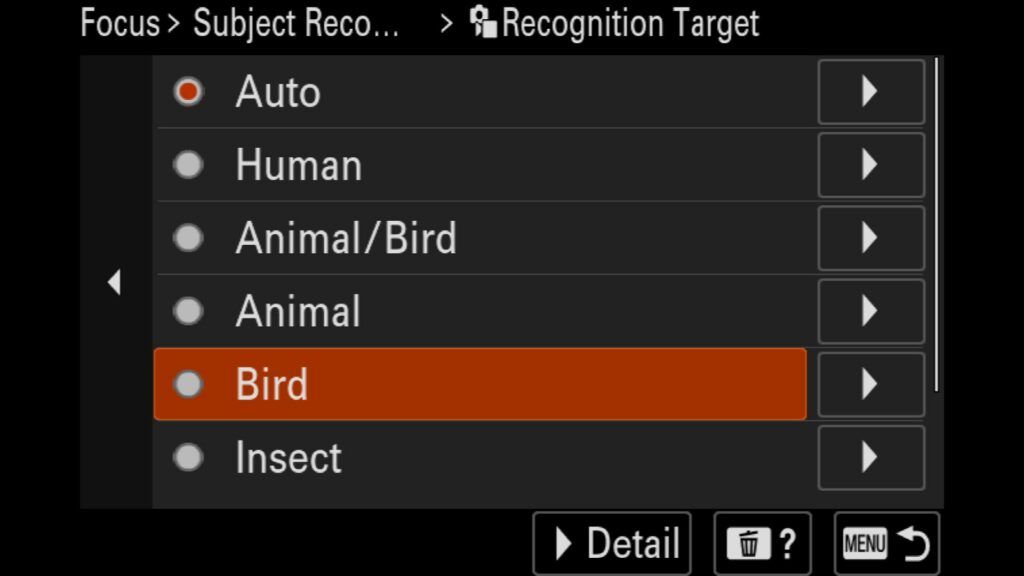
While the default real-world performance is incredible, you can deeply customize how the system tracks different targets. The Sony a7R VI’s subject recognition menu lets you select between Auto, Human, Animal/Bird, Animal, Bird, Insect, Car/Train, or Airplane. Even better, you can fine-tune the tracking parameters for each individual subject type.
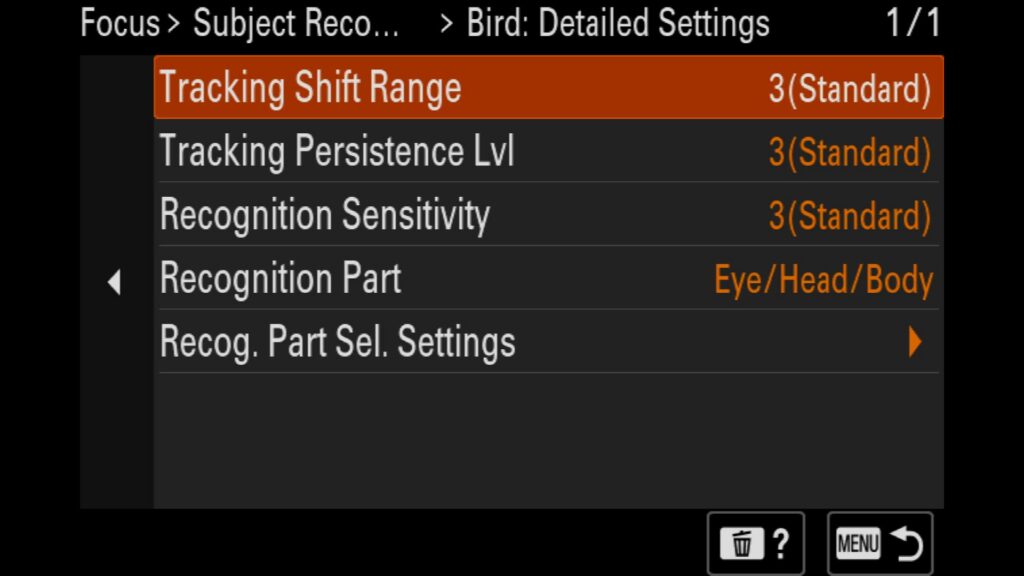
For instance, highlight Animal and press Right on the rear control wheel to open the Animal: Detail Setting menu, where you can configure these options:
Tracking Shift Range: Controls the tracking frame distance (from Narrow to Wide) relative to your moving subject.
Tracking Persistence Level: Adjusts how “sticky” the autofocus remains once it locks onto an animal.
Recognition Sensitivity: Adapts the AI’s detection algorithms. Raise this sensitivity if the camera struggles to identify a specific animal; lower it to keep the focus targeted strictly within the primary animal group.
Recognition Part: Dictates what the AI prioritizes—choose between Eye/Head/Body, Eye/Head, or Eye Only.
Regog. Part Sel. Settings: Simplifies your interface by unchecking any of the structural parts you don’t want visible in your quick menus.
Another valuable feature to consider is the subject recognition frame. When enabled, the camera overlays a visual box around any subject it detects within your composition. This is an incredibly helpful tool for real-time validation, allowing you to see exactly what the dedicated AI-based AF processor is tracking and prioritizing before you ever press the shutter button.
Menu – Focus – (3) Subject Recognition
Setup Peaking Display for Manual Focus
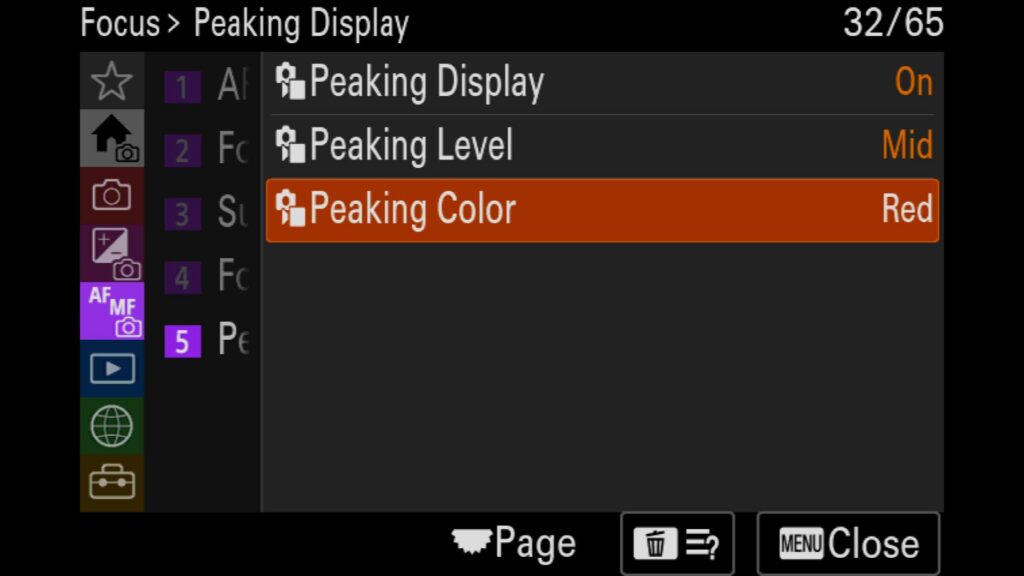
Focus Peaking is an incredibly valuable assist tool on Sony’s mirrorless cameras, and it works beautifully on the high-resolution Sony a7R VI sensor. When enabled, a colored highlight overlay appears in your viewfinder or on the LCD screen to indicate which parts of your frame are closest to being sharp. It serves as an excellent visual guideline when using Sony manual focus lenses or fine-tuning a shot.
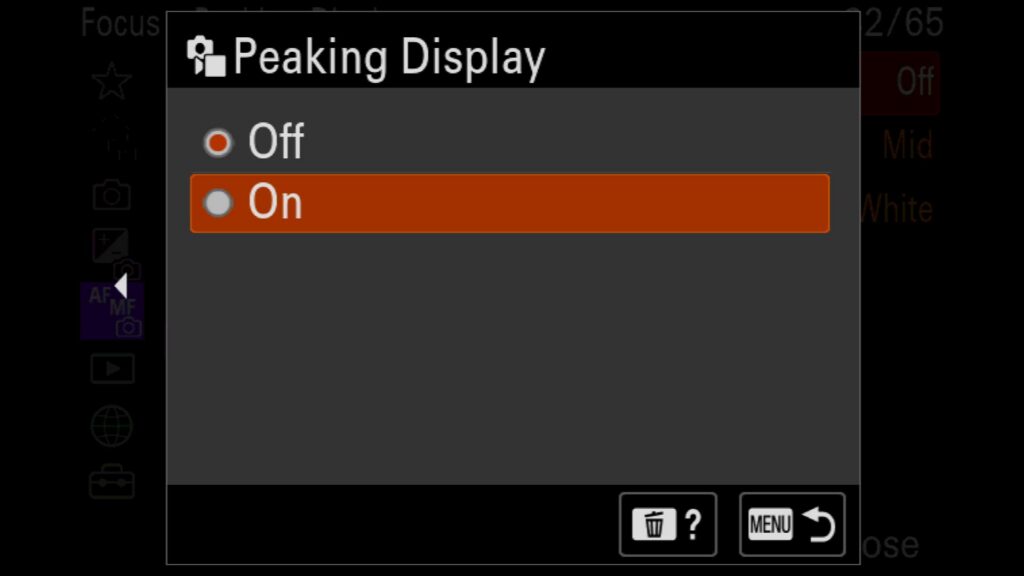
To configure this feature, navigate to the Focus menu, scroll to 5: Peaking Display, and adjust the following settings:
Peaking Display: Toggle this setting to On.
Peaking Level: Choose between Low, Medium, or High. (I recommend Medium for most shooting scenarios).
Peaking Color: Select Red, Yellow, Blue, or White. (I highly recommend Red, as they offer the highest contrast and are the easiest to spot in the field).
Menu – Focus – (5) Peaking Display
The Playback Menu
Here are a few settings worth looking at in the Blue Playback menu.
Settings for Playback of a Timelapse
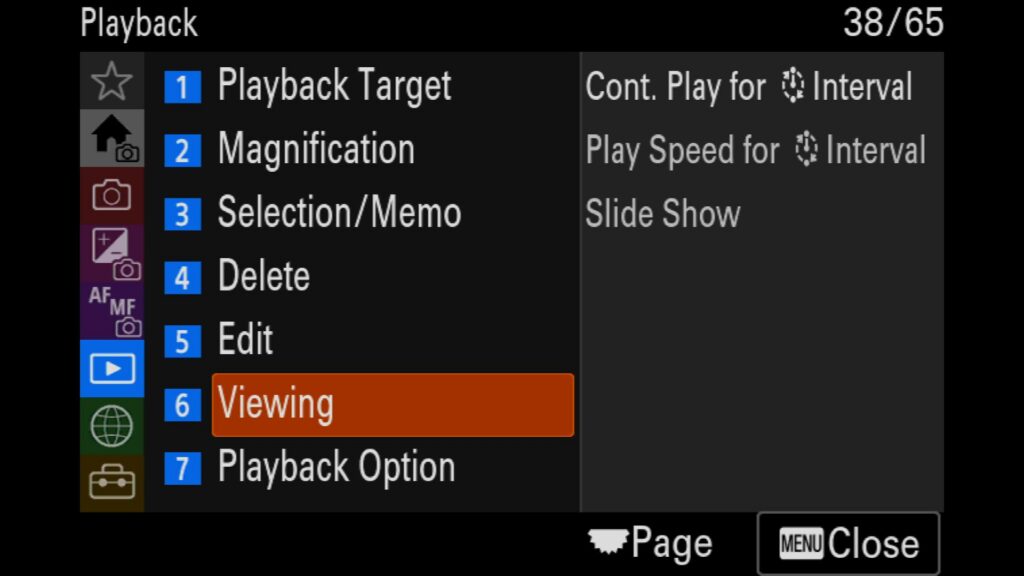
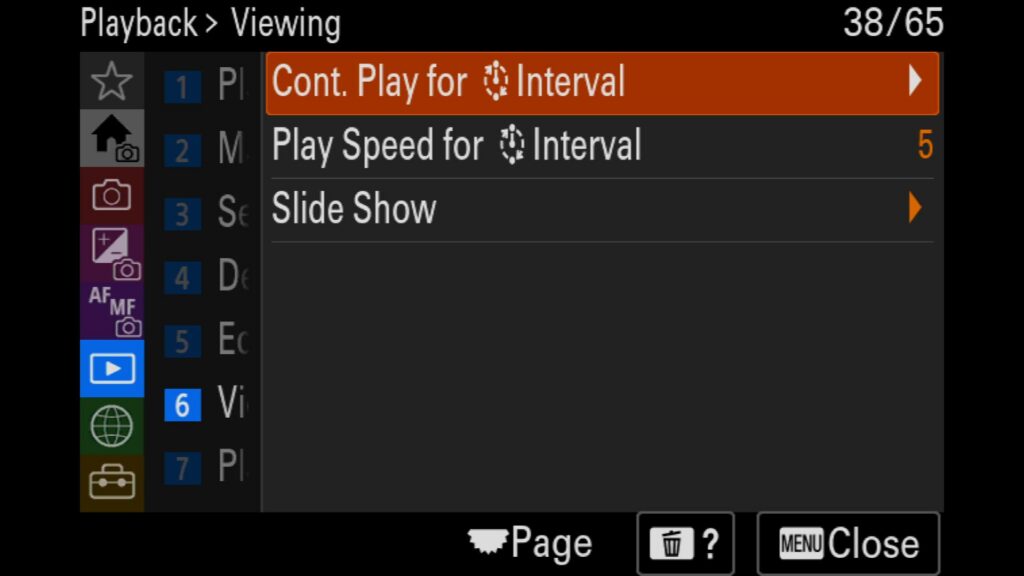
If you shot timelapse on your Sony a7R VI using the Interval Shoot Function, you are left with hundreds if not thousands of images. But what if you wanted to get a feel for how the timelapse might look if it was a video file? In the playback menu you have two settings under the “Viewing” menu that are worth looking at:
Cont. Play for Interval – Allows you play back images in Groups as a makeshift video format.
Play Speed for Interval – Allows you to control the speed of the playback. This is handy if you want to get a sense of how your timelapse might look in slow motion for example.
Menu – Playback – (6) Viewing
Burst Images Set as a Group
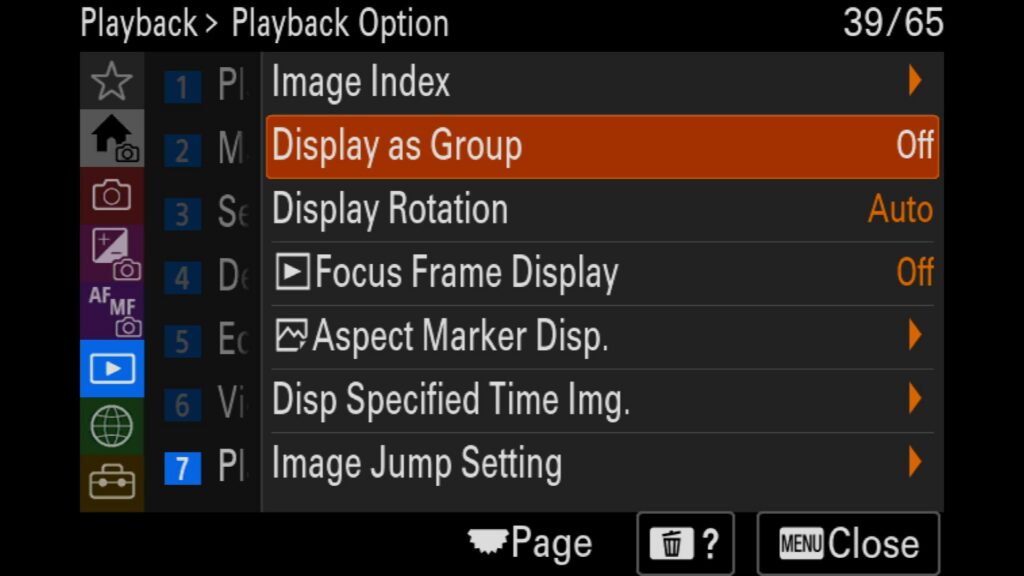
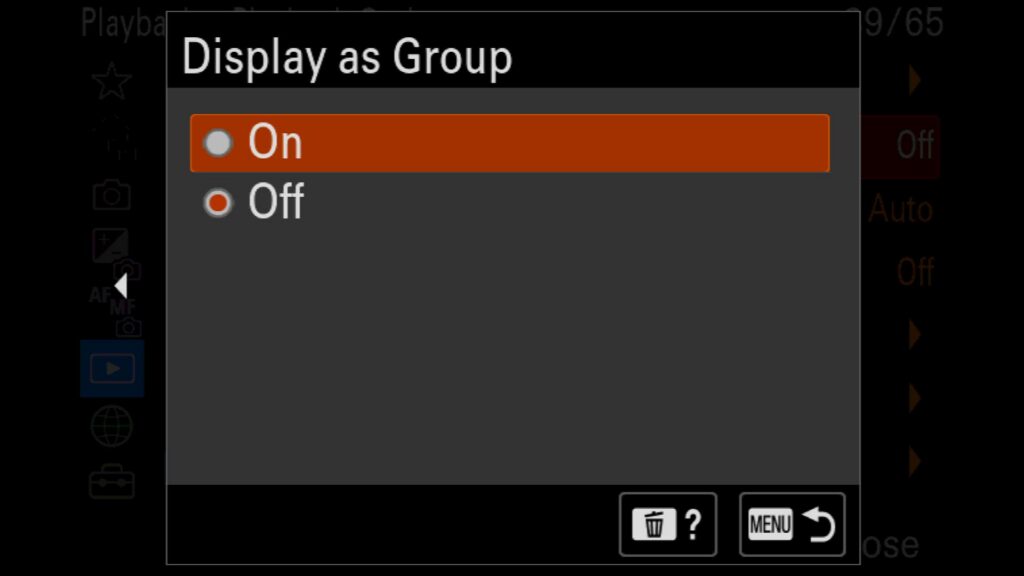
One of the biggest challenges of shooting with high-frame-rate cameras is culling the massive amount of files at the end of the day. To speed up your workflow, try enabling the “Display as Group” setting, which automatically bundles your burst photos together in Playback mode. Since you typically only want to keep a few frames from a continuous sequence, you can manually “Protect” your favorite images (using your camera’s custom button shortcut) and then delete the entire burst group. The camera will automatically delete the unwanted frames while safely keeping your protected files.
Menu – Playback – (7) Playback Option – Display as Group
Show the Focus Point on Images You Have Taken
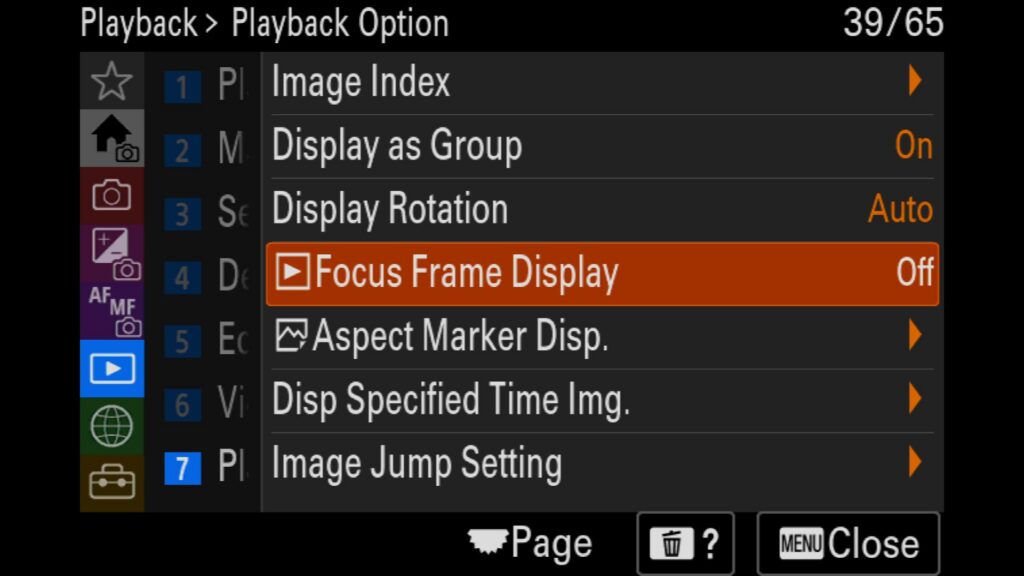
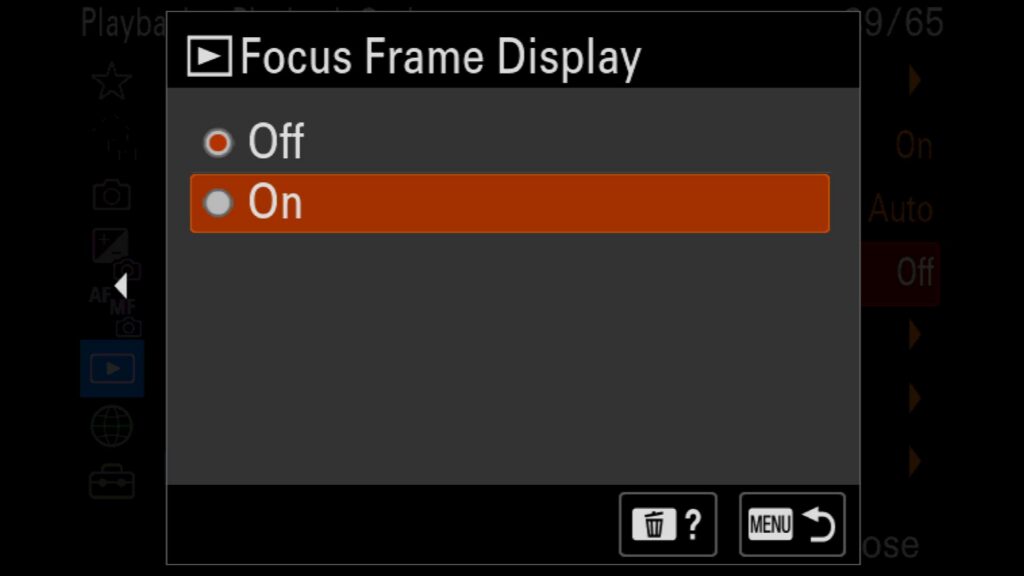
If you want to verify exactly where your camera locked focus on a captured image, you can enable the “Focus Frame Display” feature. When turned on, the camera overlays a small green box on your image during review to show the precise focal point used at the moment of capture. Keep in mind that this visual overlay is an in-camera tool only visible while browsing your images in Playback mode.
Menu – Playback – (7) Playback Option – Focus Frame Display
The Network Menu
Lorem ipsum dolor sit amet, consectetur adipiscing elit. Ut elit tellus, luctus nec ullamcorper mattis, pulvinar dapibus leo.
Streaming Via USB Settings
A lesser-known feature of modern Sony mirrorless bodies is their ability to function as a premium plug-and-play webcam—perfect for dramatically upgrading your work Zoom calls or live streams.
Step-by-Step Sony a7R VI USB Webcam Setup:
Step 1: Plug a high-quality USB-C cable (a USB-C 3.2 cord is highly recommended for maximum bandwidth and quality) into the side of your Sony a7R VI and connect the other end to your computer.
Step 2: A connection prompt will pop up on the camera’s LCD screen. Choose Live Stream (USB Streaming) from the list of options (which also includes Image Transfer and Remote Shooting).
Step 3: Open your preferred video conferencing software (like Zoom or Microsoft Teams) on your computer and select the Sony a7R VI as your active webcam video source.
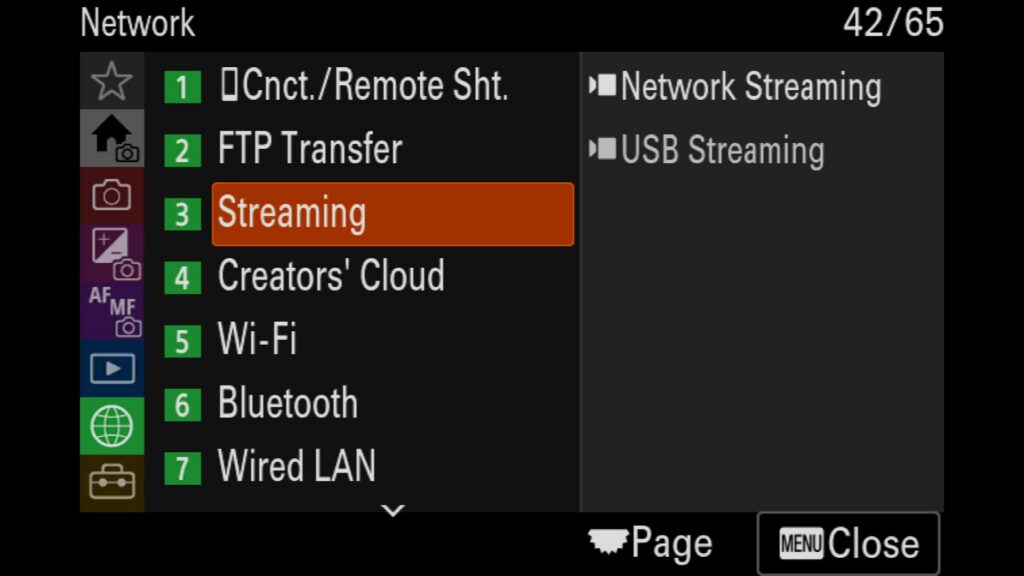
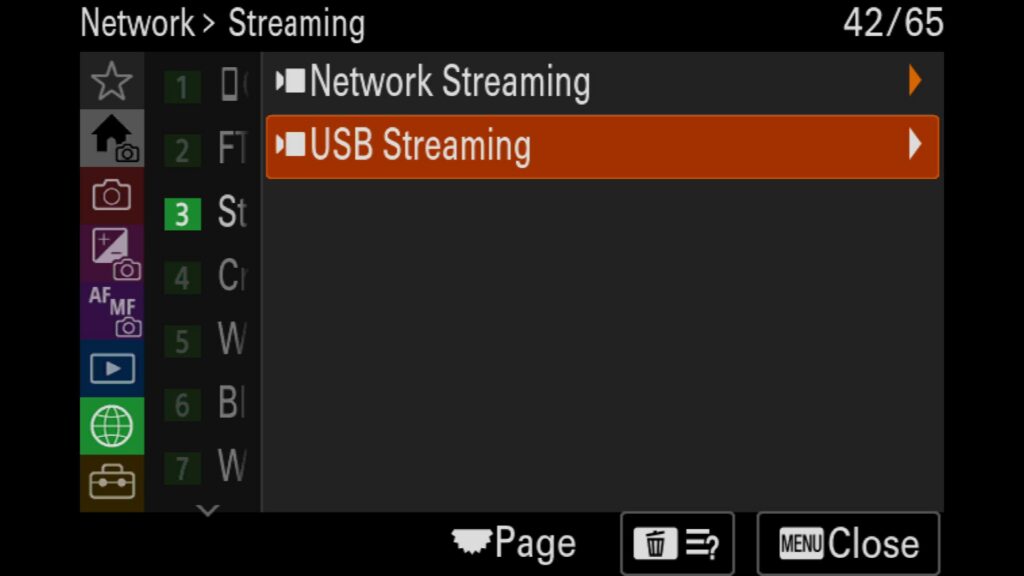
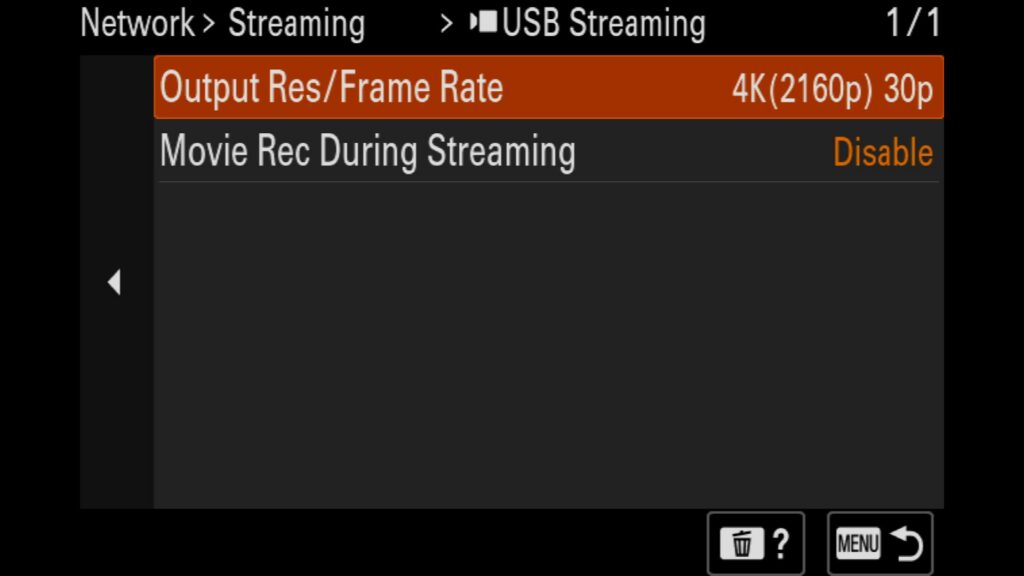
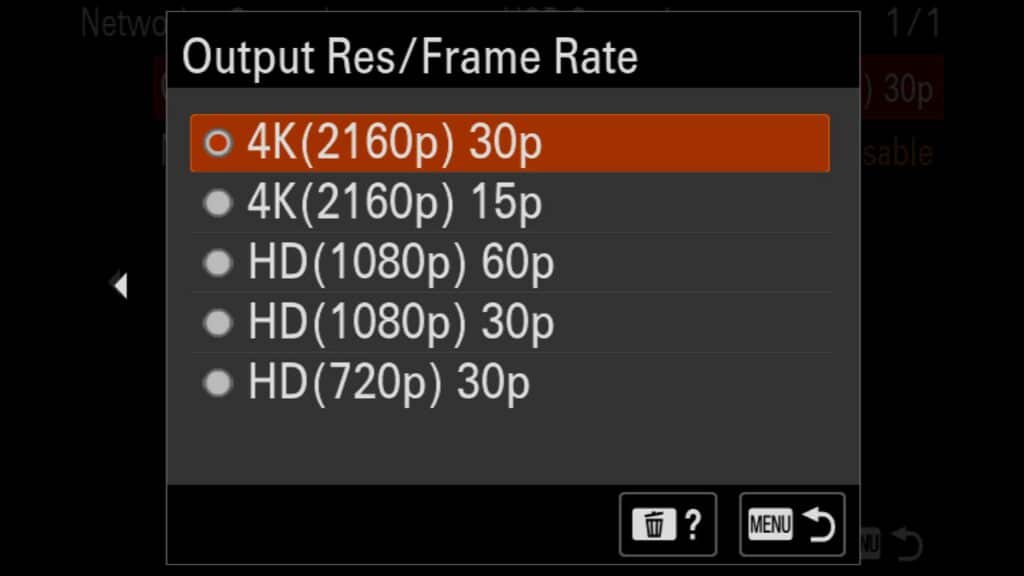
To fine-tune your streaming resolution and frame rates, navigate to the camera menu under Network > 3: Streaming > USB Streaming. From there, you can adjust Output Res/Frame Rate and enable Movie Rec During Streaming if you want an in-camera backup of your live broadcast.
Menu – Network – (3) Streaming – USB Streaming
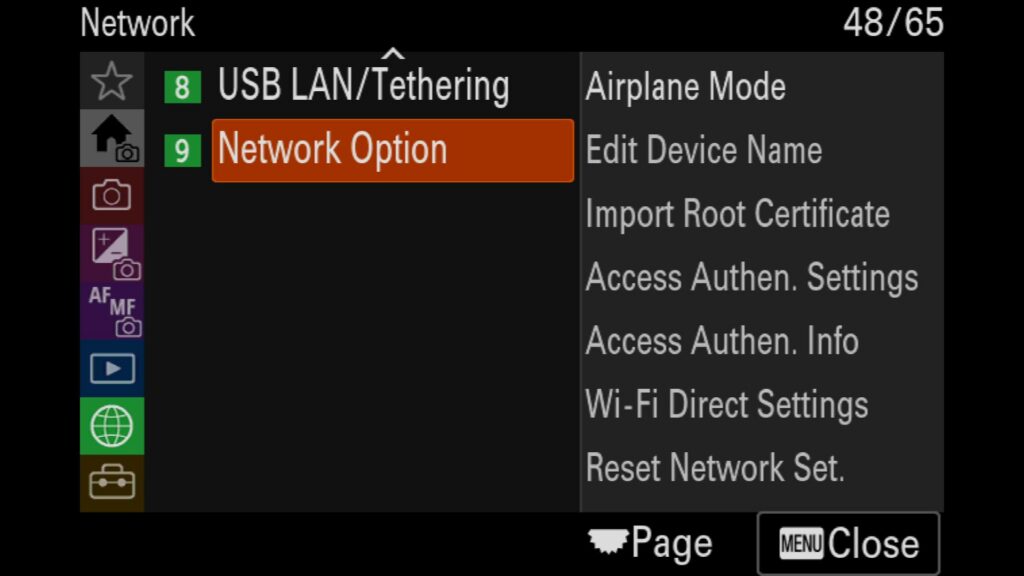
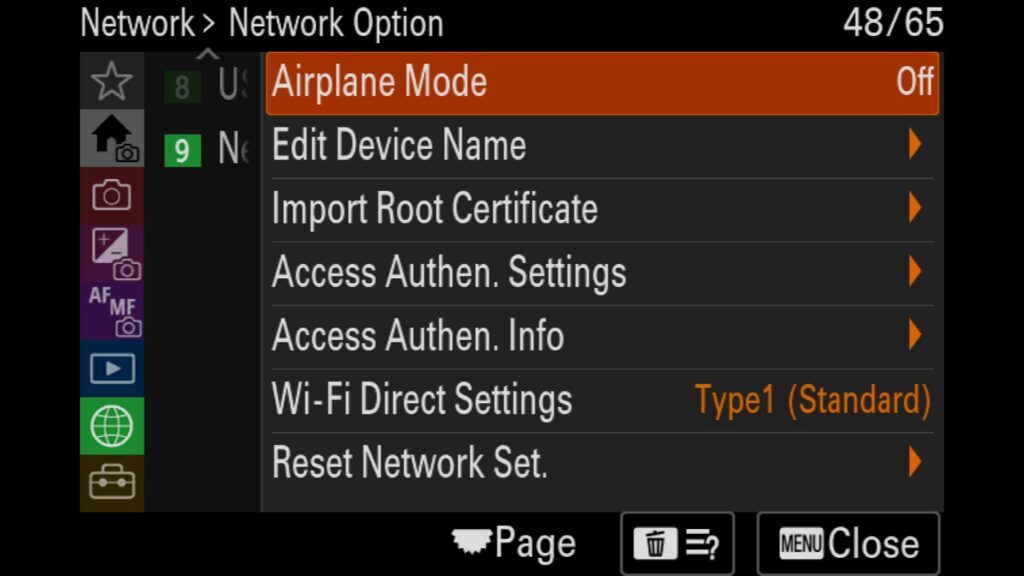
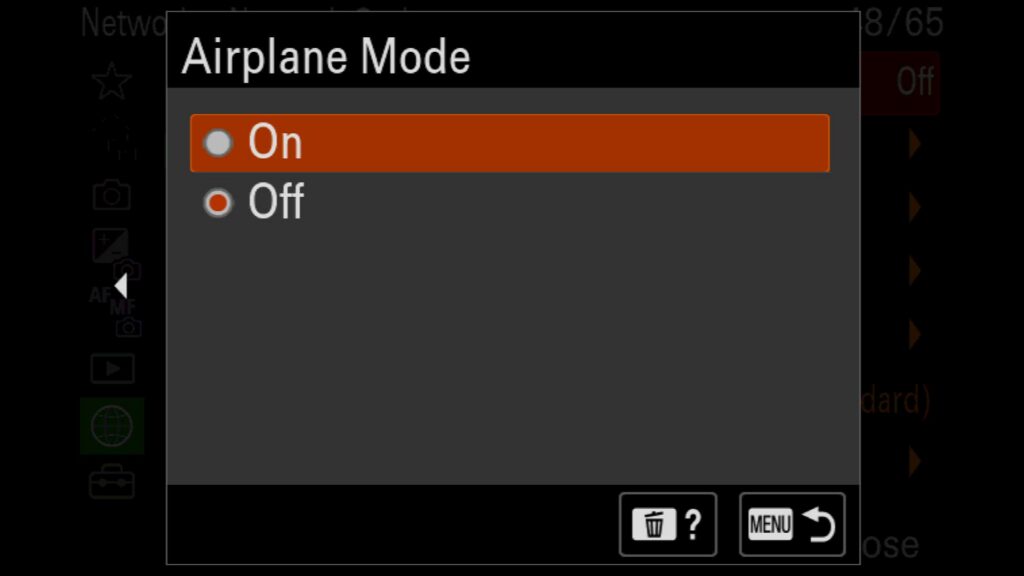
Turn on Airplane Mode to Save Battery Life
Because mirrorless systems are entirely digital, they can drain battery power quickly. One of the easiest ways to extend your camera’s battery life is to enable Airplane Mode. Turning this on instantly cuts off background Wi-Fi and Bluetooth connections, preserving valuable power for shooting in the field when you don’t need wireless connectivity.
Menu – Network – (9) Network Option – Airplane Mode
The Setup Menu
In the yellow Setup menu (Icon is a Toolbox), you have a variety of important settings that you will want to know more about.
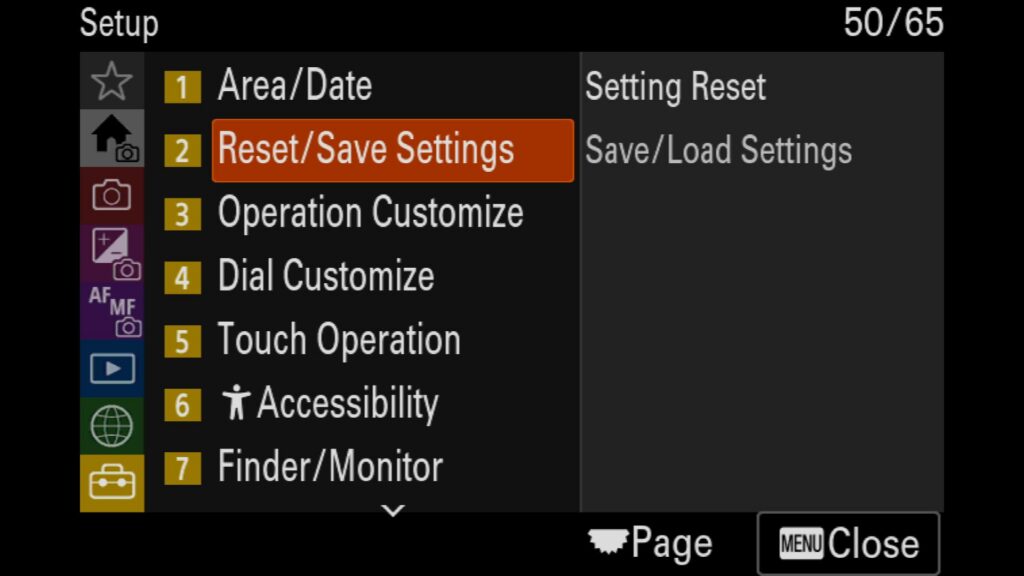
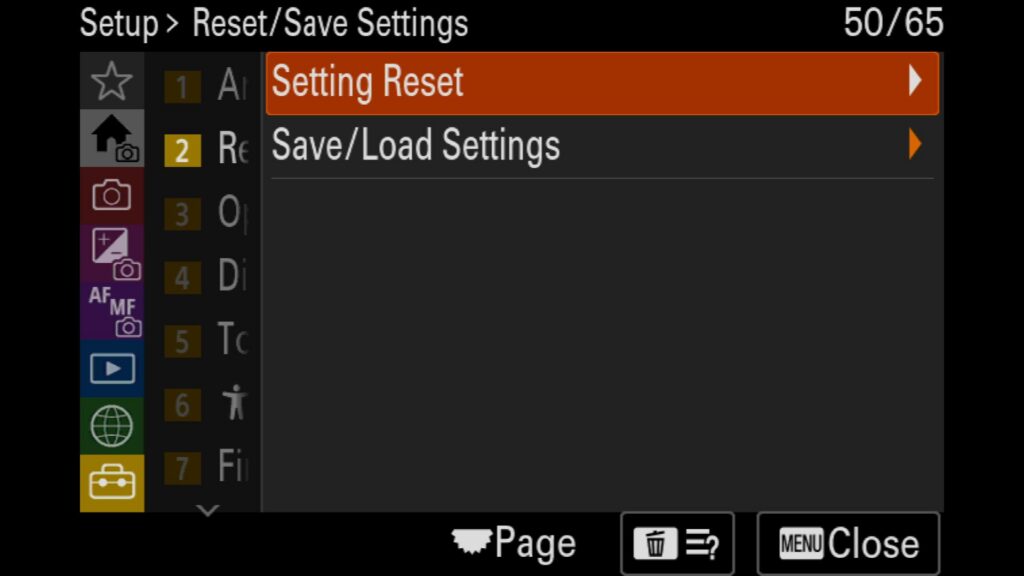
Reset all of your Settings
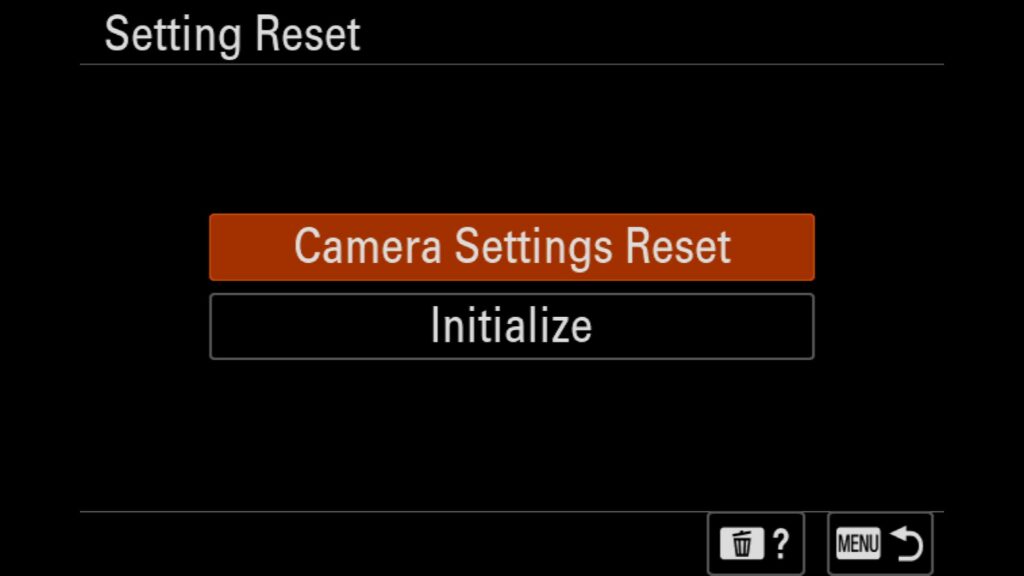
If you ever find yourself wanting a complete start fresh with your Sony a7R VI, be it for troubleshooting an issue or if you wish to sell the camera in the future, you will want to reset your camera. Here you have two options:
Camera Settings Reset – This resets only the main camera settings
Initialize – This restores general settings to their defaults and deletes registered data.
Menu – Setup – (2) Reset/Save Settings – Settings Reset
Save/Load Previously Saved Settings
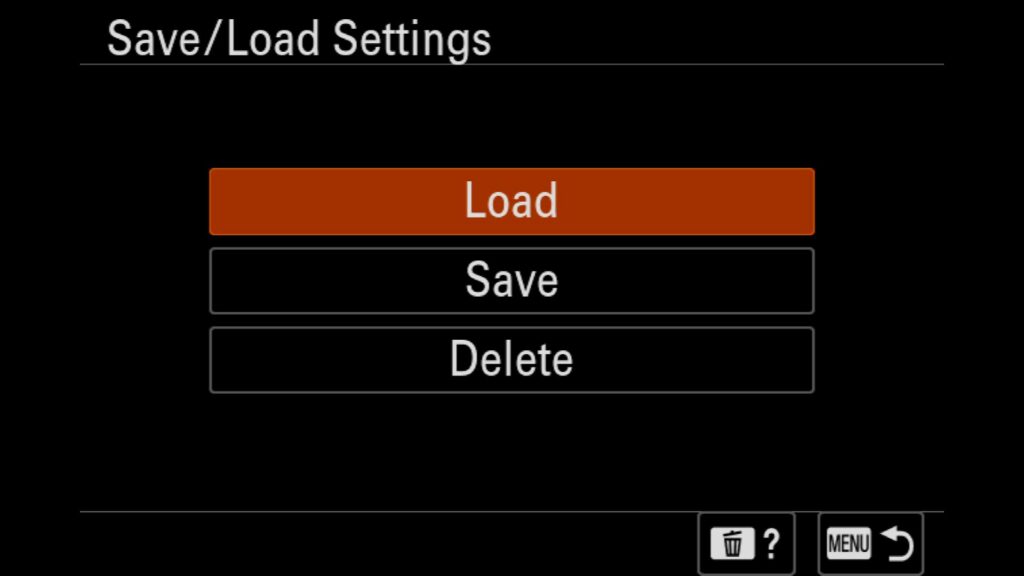
One of my favorite features found in the newest Sony mirrorless cameras is the ability to save and load all of your camera settings to your memory card. This is great if you happen to own two of the same camera bodies or if you are someone like me, that likes to write these setup and customization guides. It makes it very easy for me to give you my settings file for the Sony a7R VI so that you can run with all my adjustments to the camera in just minutes.
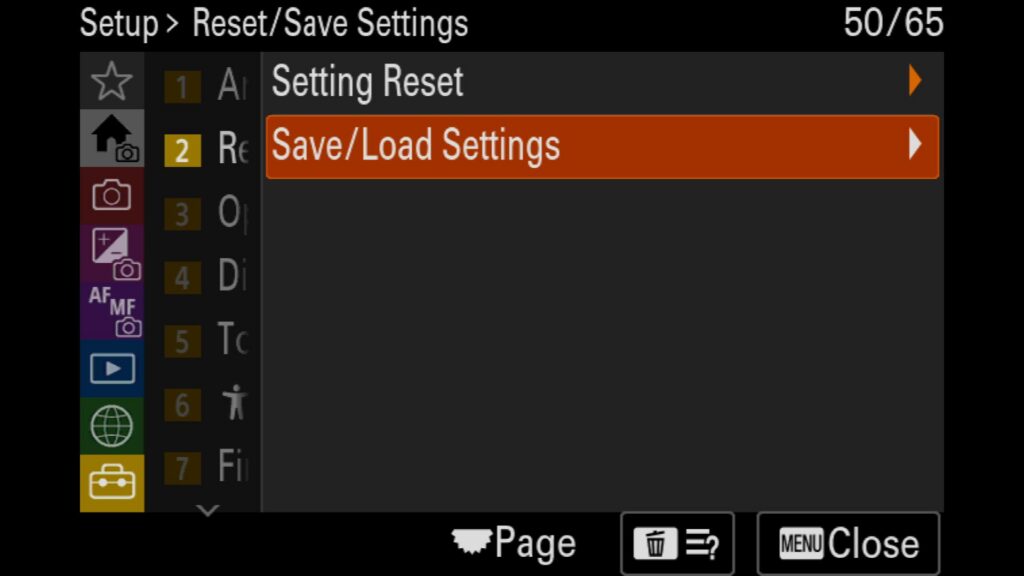
So how does it work? Just head to the Settings menu and select (2) Reset/Save Settings. There you can choose to save and name your current settings, load alternative settings files or delete any saved settings file.
If you plan on loading someone else’s settings file, such as mine, I recommend you first save your own settings file to your memory card. Why? Because this will easily create the exact folder structure necessary on the memory card that will be needed. With that done, pull out your memory card and plug it into your computer. Navigate to the following folder structure and place the alternative saved settings file in the folder mentioned.
Memory Card Root Folder -> SONY -> SETTING -> 7RM6 -> CAMSET
* This is not required if you are just loading your own settings file on a second Sony a7R VI, as all you need to do is move the memory card to the second body and select load from this same settings menu.
Menu – Setup – (2) Reset/Save Settings – Save/Load Settings
Customize Your Sony a7R VI
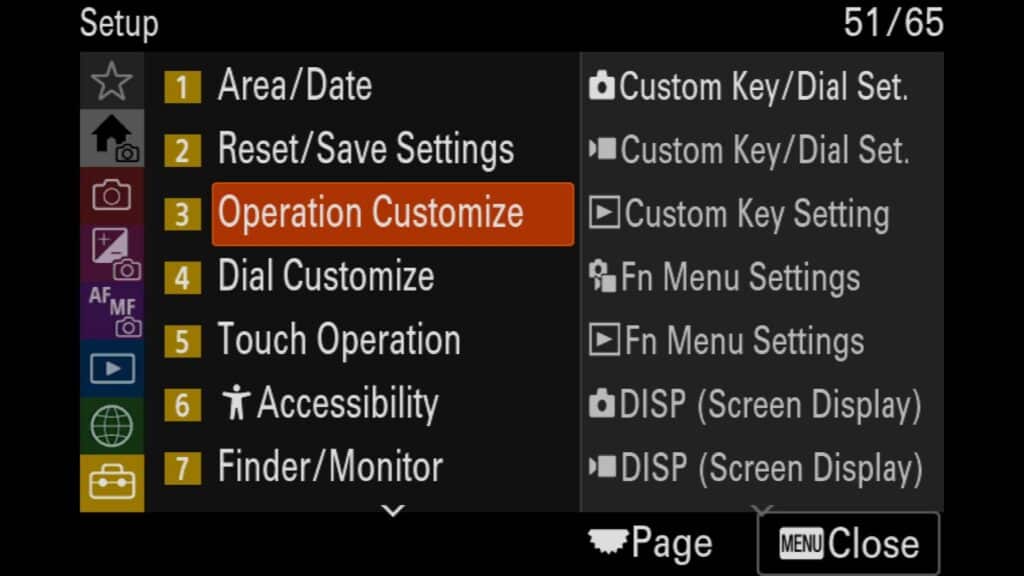
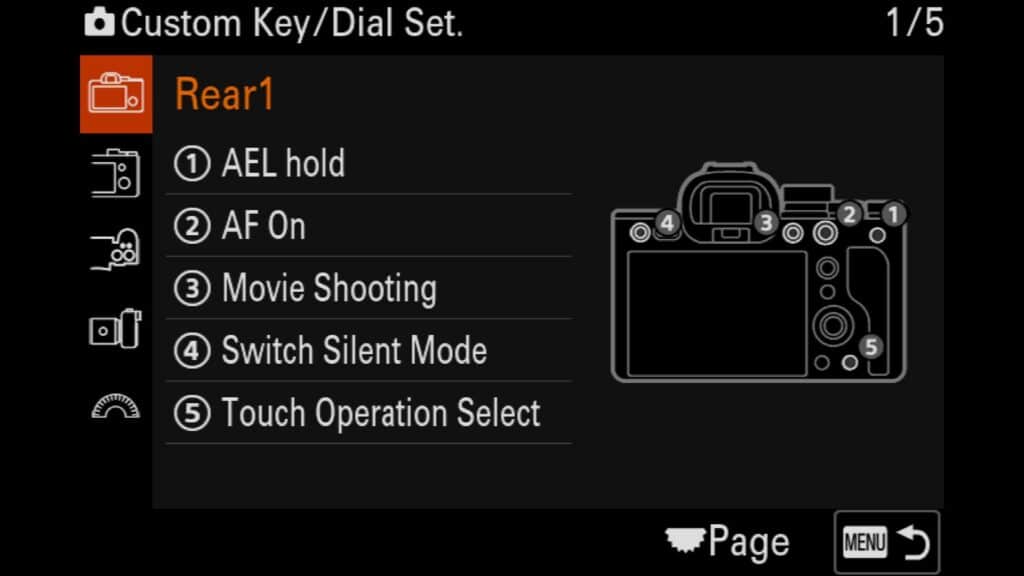
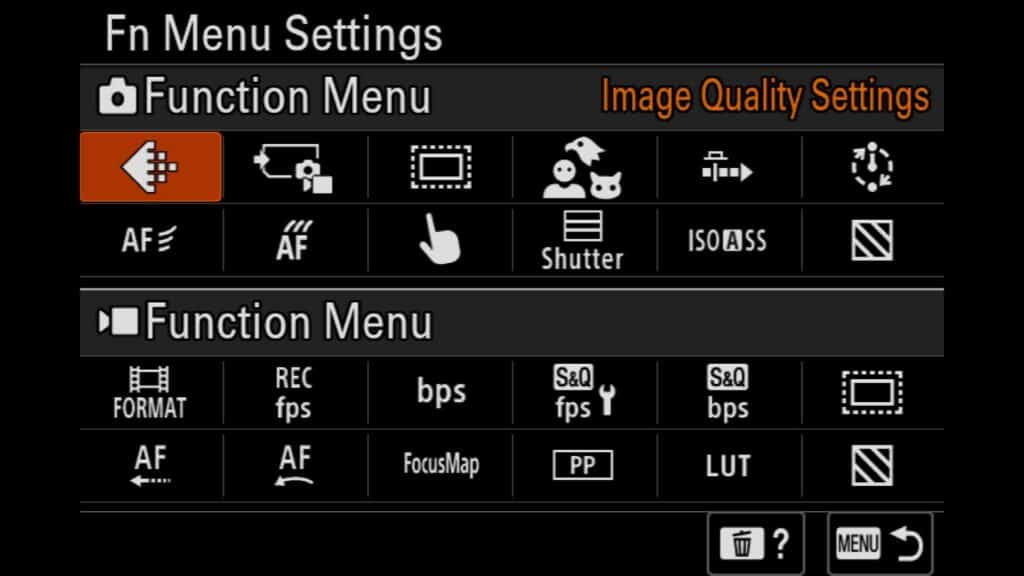
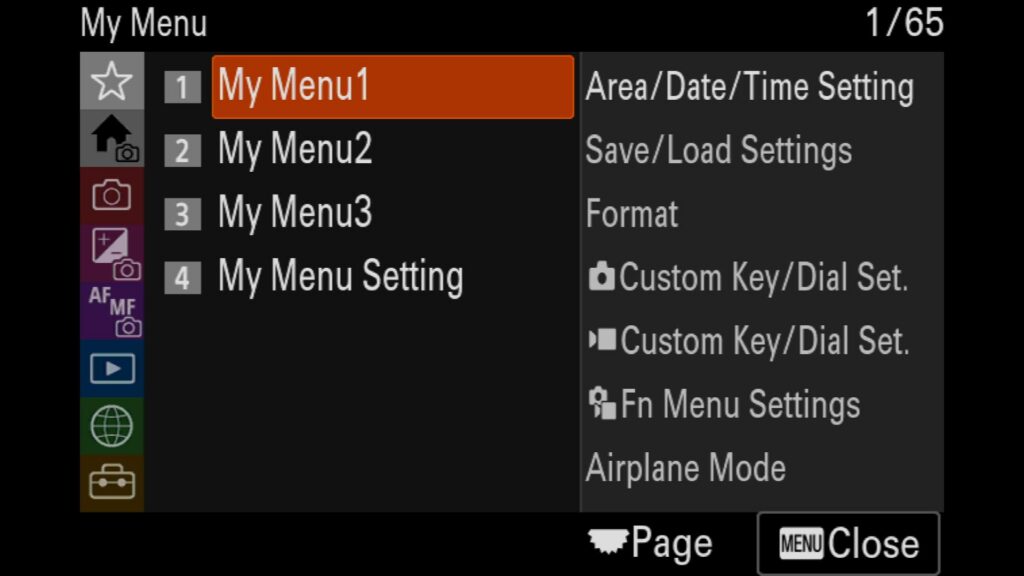
One of the best things you can do to get the most out of your Sony a7R VI is to fully customize your camera. The menu system gives you the flexibility to reprogram nearly every custom button and control dial, alongside the flexible Fn (Function) and My Menu systems. If you want quicker access to activate a truly silent shooting mode or instantly switch your subject recognition tracking from Animal to Insect, tailoring these settings to your workflow is essential.
You can completely optimize your Sony a7R VI custom setup using three primary methods: custom buttons/dials, the Fn Menu, or the custom My Menu layout.
Look, customizing a camera is an entirely personal thing, but I know just how overwhelming and tedious it can be to dive through endless submenus. That is why I put together a separate, deep-dive guide called Customizing Your Sony a7R VI. If you want a closer look at my personal workflow, that post outlines exactly how I map my buttons and why I chose those configurations.
Want to skip the manual setup completely? I’m giving away my personal Sony a7R VI setup profile. You can load this configuration file right onto your camera to get it field-ready in seconds. You can find more information in my Customizing Your Sony A7R VI guide, which is also completely free on this Blog!
Menu – Setup – (3) Operation Customize
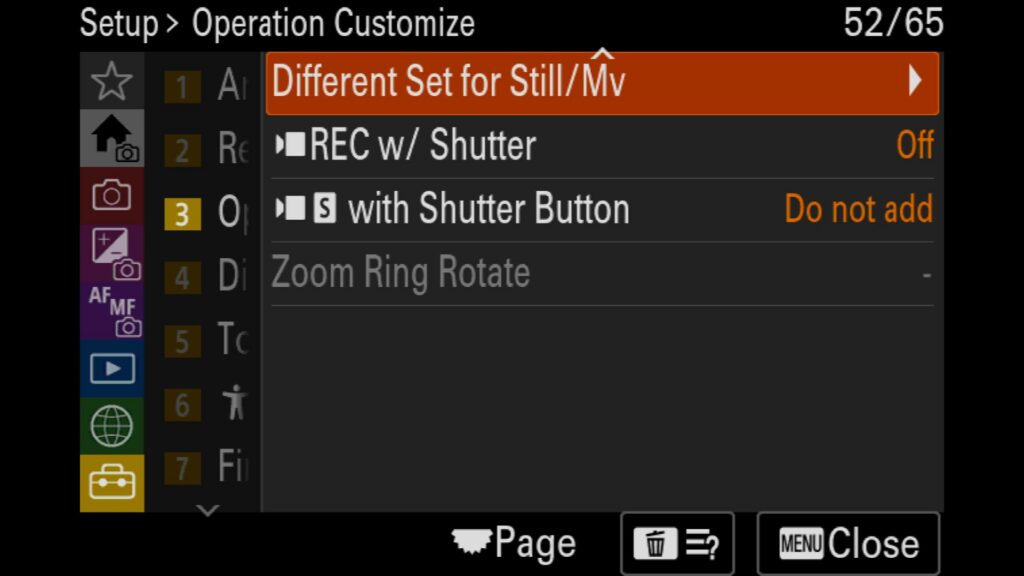
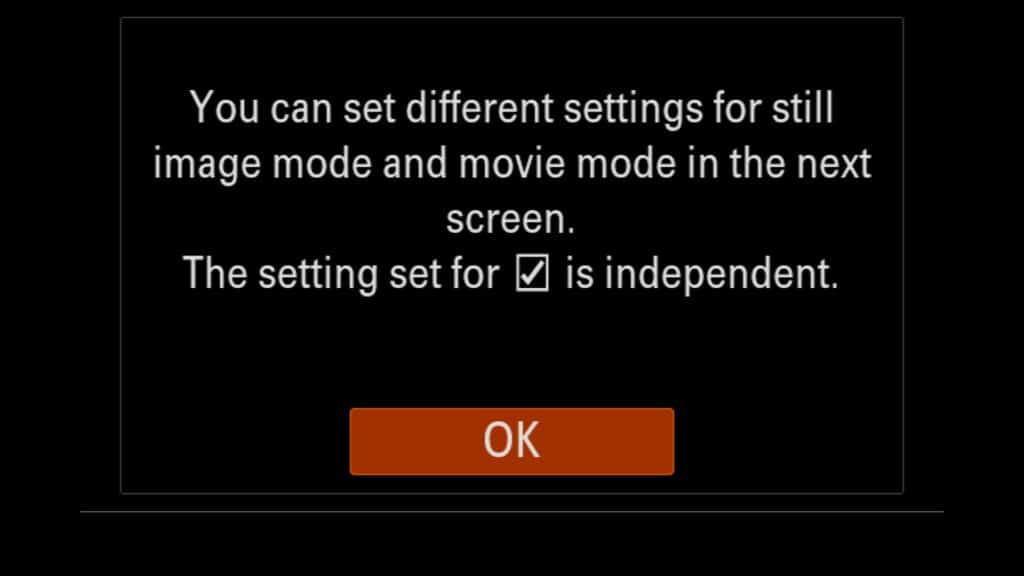
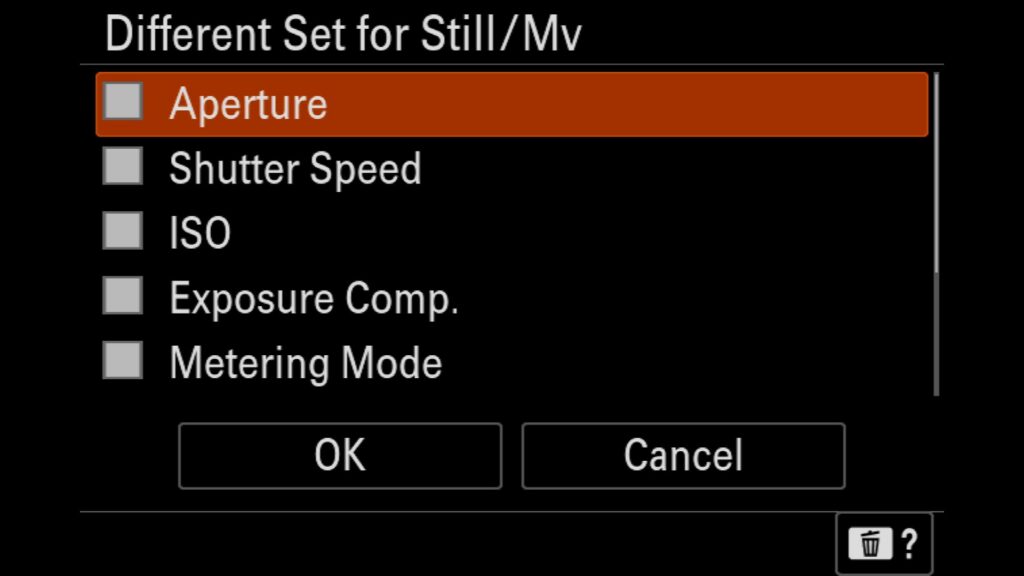
Set Independent Exposure Settings for Stills/Video Shooting
If you regularly shoot both still photography and video, you already know how drastically your camera configurations must change between the two modes to achieve professional results. This is why I like to keep my base camera settings for Still & Video shooting separate. I can switch between each camera mode and maintain the settings I adjusted in each mode respectively. For example, this allows me to shoot at slower shutter speeds for cinematic slow motion video while maintaining a high shutter speed in stills mode for birds in flights
Menu – Setup – (3) Operation Customize – Different Set for Still/Mv
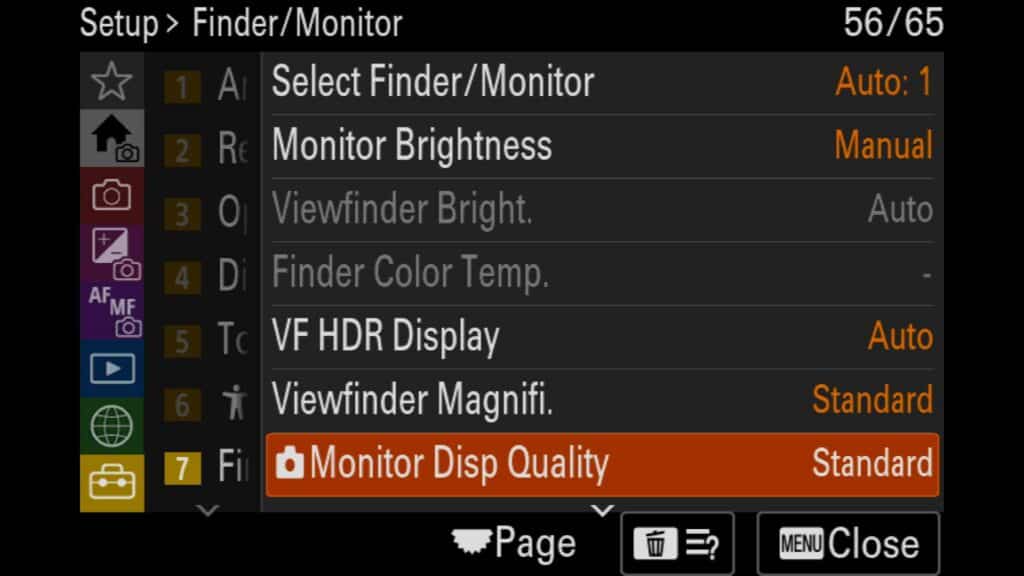
Set the Quality of the Rear Display & Viewfinder
The Sony a7R VI electronic viewfinder (EVF) features an impressive high-resolution display designed for precision composition. Depending on whether you are shooting fast action or static landscapes, you can adjust a couple of key Sony EVF settings to get the absolute best performance out of your viewfinder.
Navigate to your setup menu to fine-tune these three parameters:
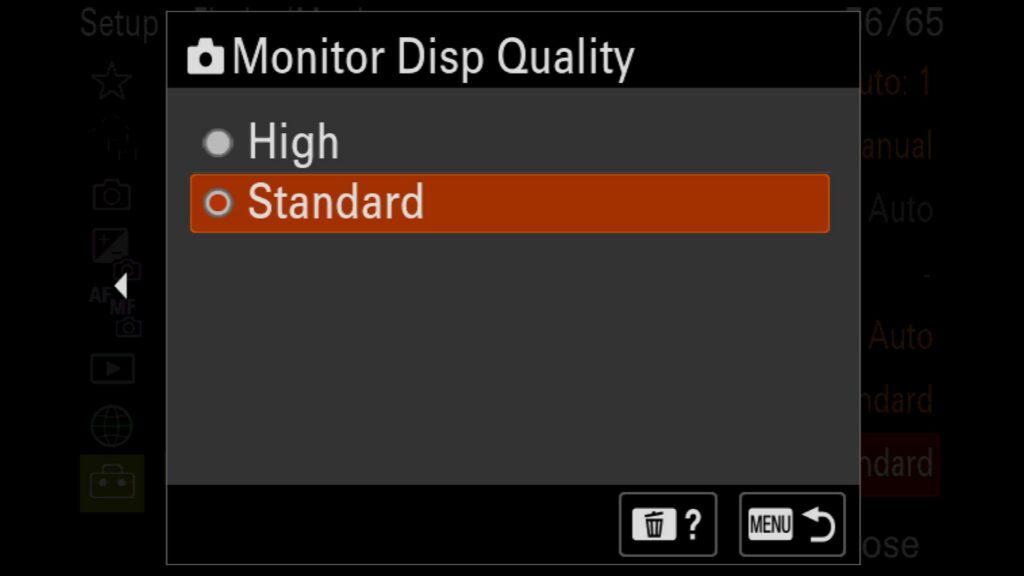
Display Quality: You can toggle the viewfinder resolution between Standard and High. Selecting High delivers a ultra-sharp, high-resolution preview that makes checking focus effortless, though it does come at the cost of a little extra battery life.
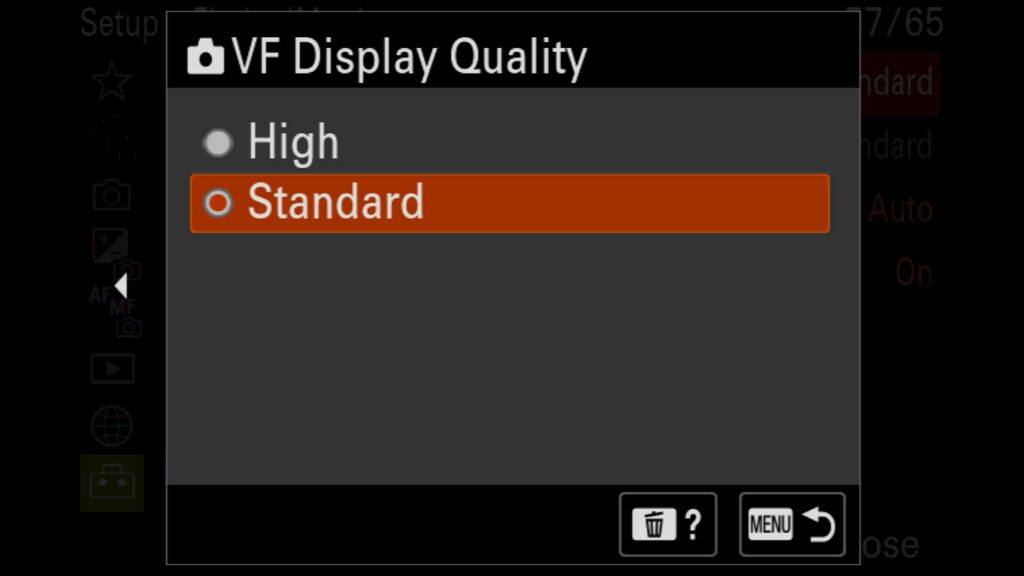
VF Display Quality: Here you can set the Viewfinder display quality to a higher resolution. Your options are High or Standard.
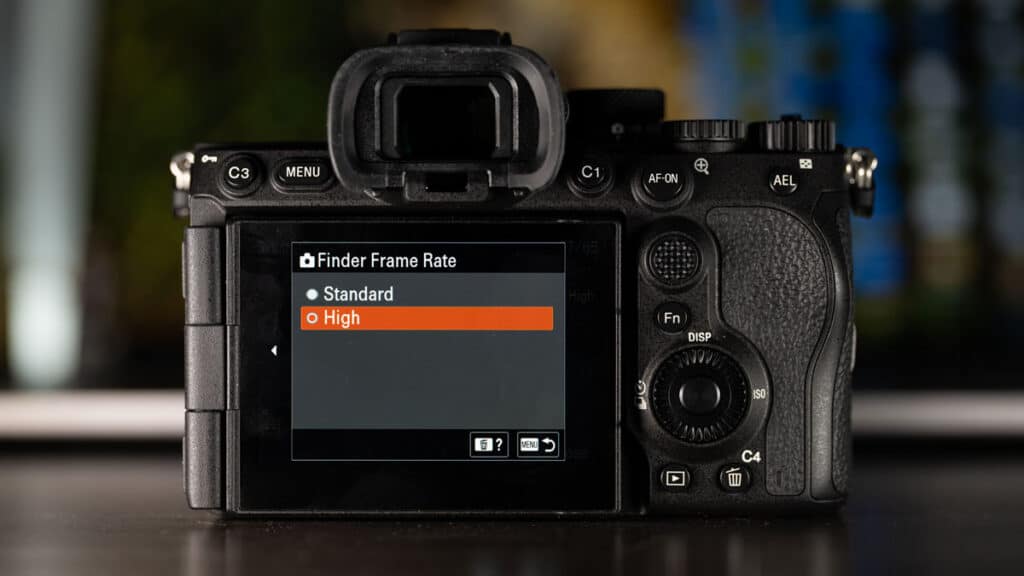
Finder Frame Rate: This setting adjusts the EVF refresh rate from Standard to High or Higher. A faster frame rate is essential for tracking fast-moving subjects, as it eliminates motion blur in the viewfinder. Just keep in mind that boosting the frame rate automatically locks the Display Quality to Standard—the camera cannot simultaneously run a High display resolution alongside a High or Higher refresh rate.
Menu – Setup – (7) Finder/Monitor – Monitor Disp Quality
See How Many Images You Have Remaining On Your Card
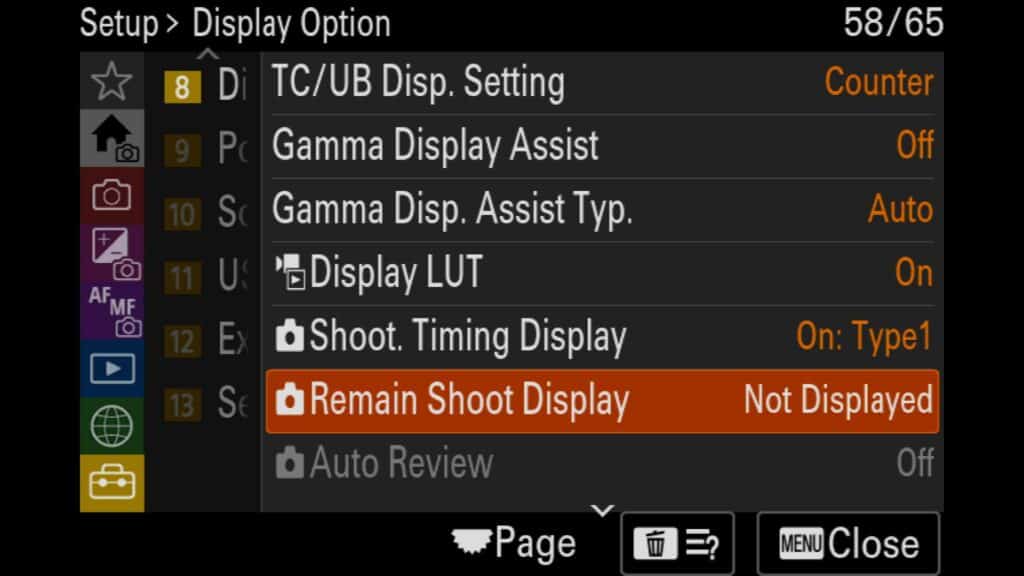
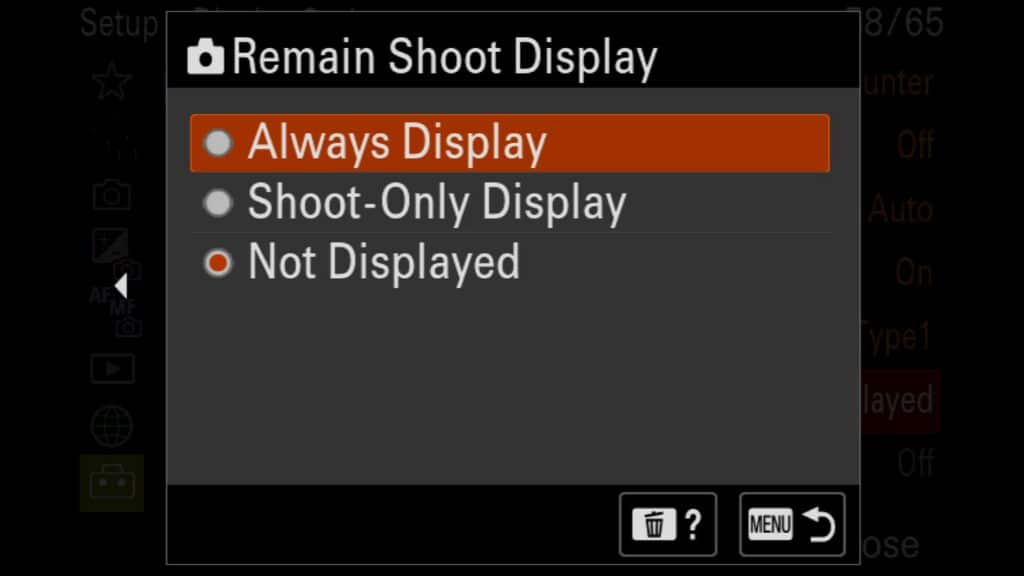
A crucial tool for high-speed action photography on the Sony a7R VI—especially when pairing the camera’s high frame rates with RAW Pre-Capture—is keeping track of your image buffer. By enabling the “Remain Shoot Display” feature, a visual indicator bar appears on the left side of your viewfinder or LCD screen to represent your remaining buffer capacity.
When your buffer is completely full and clear, the bar displays as solid white. As you shoot a high-speed continuous burst, the bar drains from the top down. If the indicator empties completely, you have officially hit your camera’s buffer limit, and your frame rate (FPS) will drop significantly while the camera writes data to your memory card.
You can configure the Sony a7R VI Remain Shoot Display with three distinct menu options:
Always Display: Keeps the buffer indicator bar visible on your screen at all times.
Shoot-Only Display: Only overlays the buffer bar onto the frame while actively holding down the shutter.
Not Displayed: Completely hides the image buffer status bar.
Menu – Setup – (8) Display Option – Remain Shoot Display
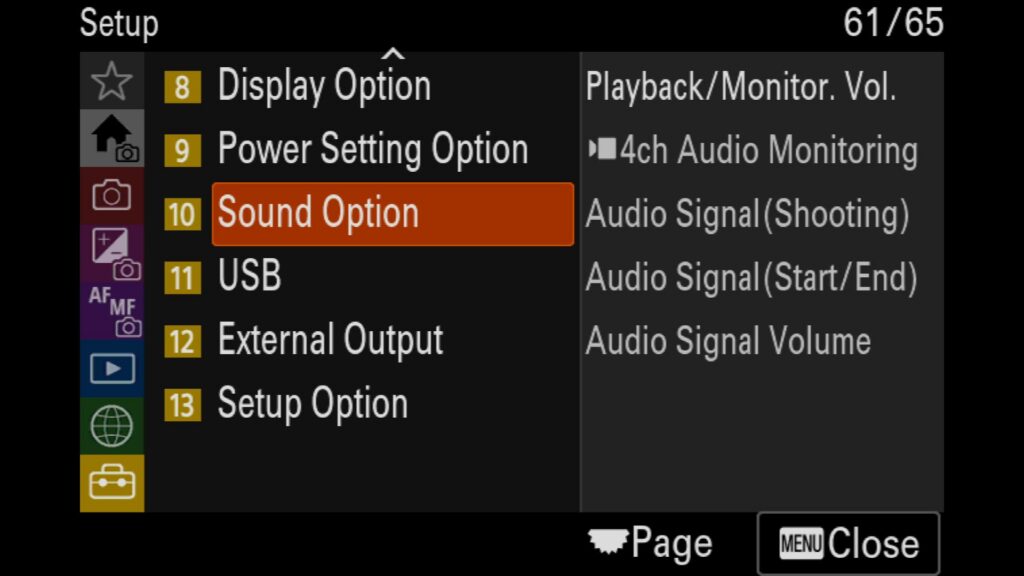
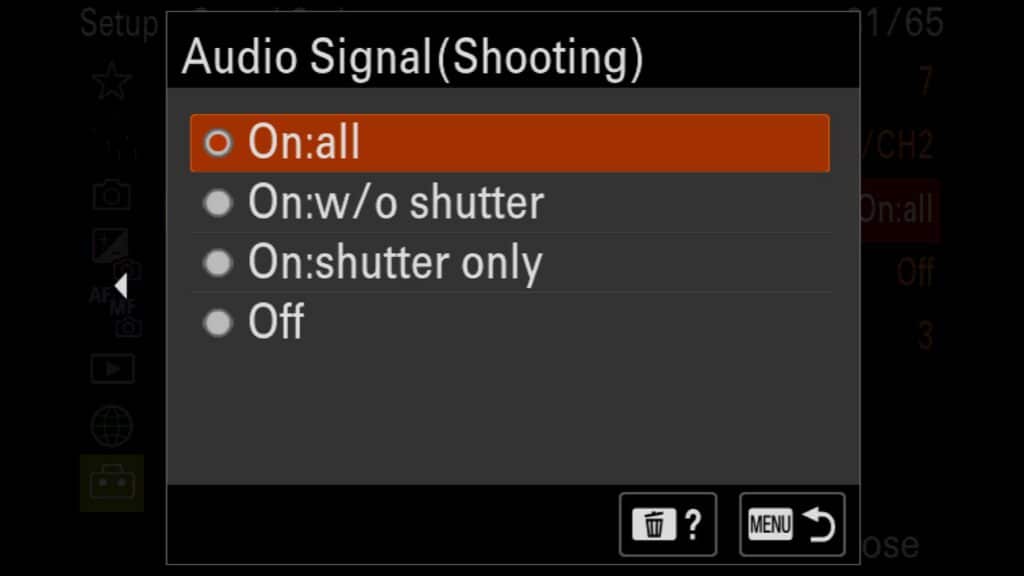
Turn Off All Beeps and Sounds
There is nothing more frustrating than unboxing a brand-new mirrorless camera capable of completely silent shooting, only to be interrupted by loud menu beeps. Out of the box, default camera alerts will chirp when you achieve focus, during a self-timer delay, or when starting and stopping video recordings. If you want a truly stealthy setup, turning off these built-in camera audio signals is one of the first configuration changes you should make.
Menu – Setup – (10) Sound Option
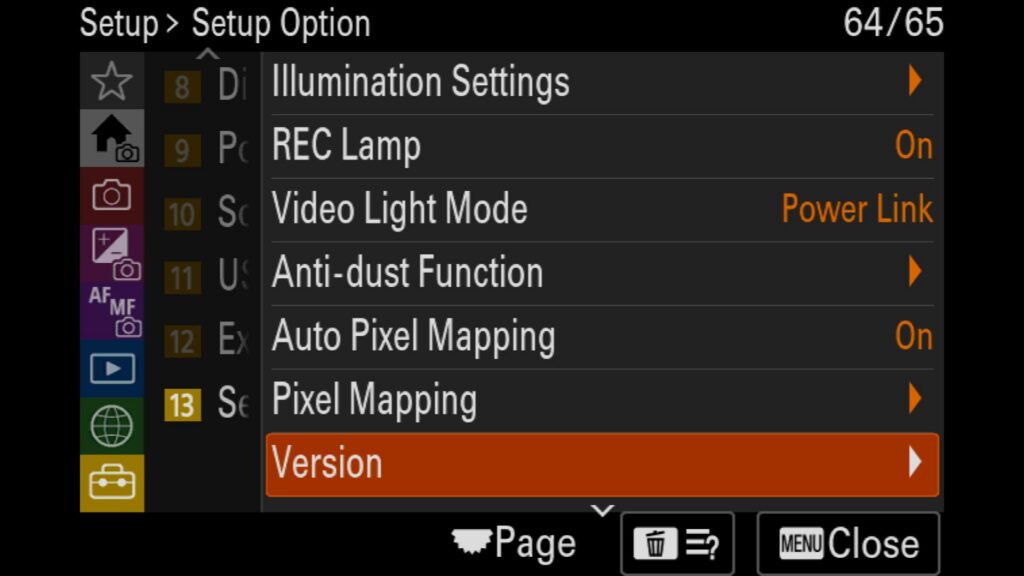
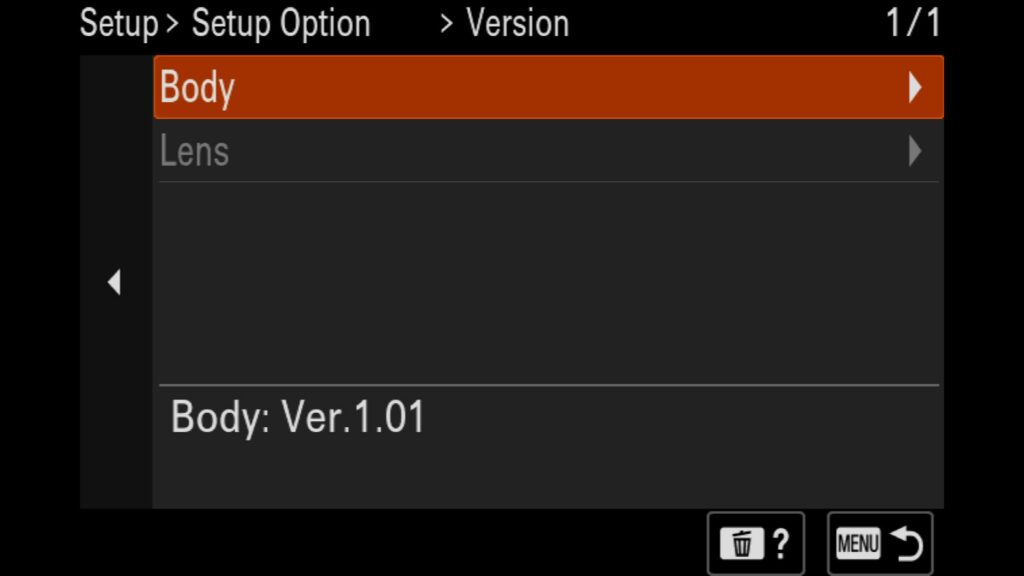
What is the Firmware Version of my Camera?
Anytime a new firmware comes out for your Sony a7R VI, you should know where to look to find what version you are currently on. Luckily, this is very easy to do inside the Setup Menu.
Menu – Setup – (13) Setup Option – Version
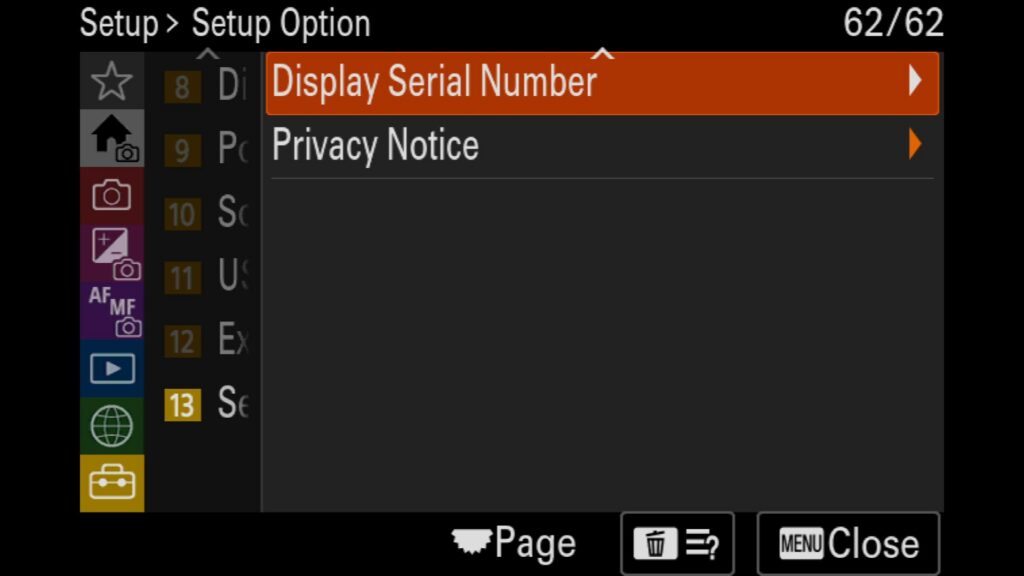
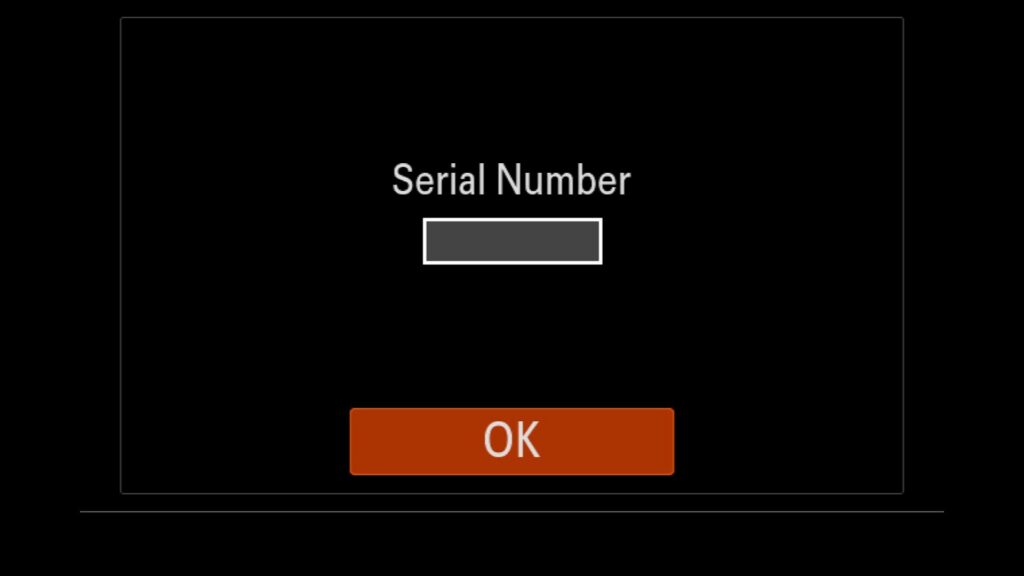
What Is the Serial Number of my Camera?
If you ever needed to contact Sony support or if you wanted to write down your cameras Serial # for insurance purposes, you should know where to find that info in the menu system.
Menu – Setup – (13) Setup Option – Display Serial Number
Important Video Mode Settings
While the Sony a7R VI is an incredible still camera, it also offers a lot of impressive features in the video space as well. Here are some of the most important in my mind.
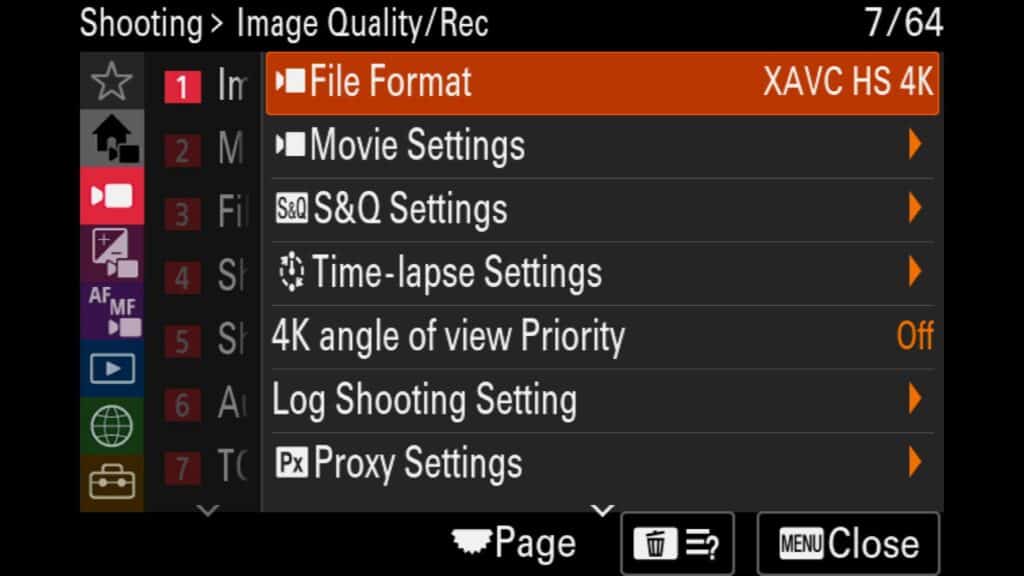
Adjust the Video File Format
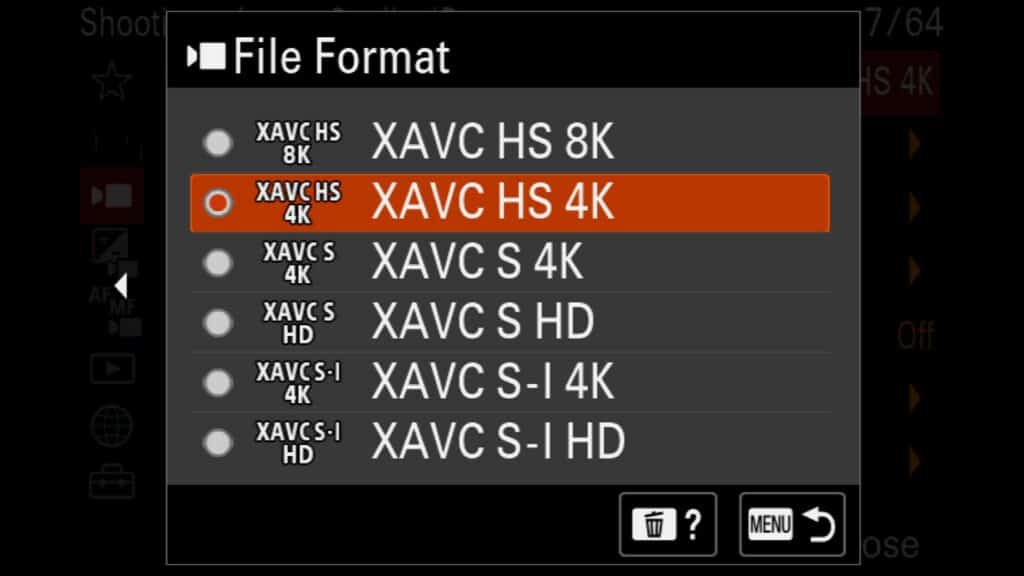
If you are diving into the Sony a7R VI video settings, the file format menu can look a bit like alphabet soup. However, picking the right codec is critical for balancing your image quality against your editing performance.
Here is a breakdown of the available Sony video formats:
XAVC HS 8K: Captures the absolute maximum resolution possible with the camera, providing unparalleled detail and flexibility for cropping in post-production.
XAVC HS 4K: Utilizes highly efficient H.265 compression to deliver the highest quality 4K video mode while keeping file sizes optimized.
XAVC S 4K: The standard H.264 compressed 4K recording mode, offering excellent versatility and broad compatibility with most editing software.
XAVC S HD: The baseline format for standard high-definition (1920×1080p) video capture.
XAVC S-I 4K: An intra-frame (All-Intra) codec that dramatically reduces computer processing load for smoother, faster 4K editing—though file sizes are significantly larger.
XAVC S-I HD: An All-Intra version for standard 1080p footage, offering effortless editing performance at the expense of increased storage space.
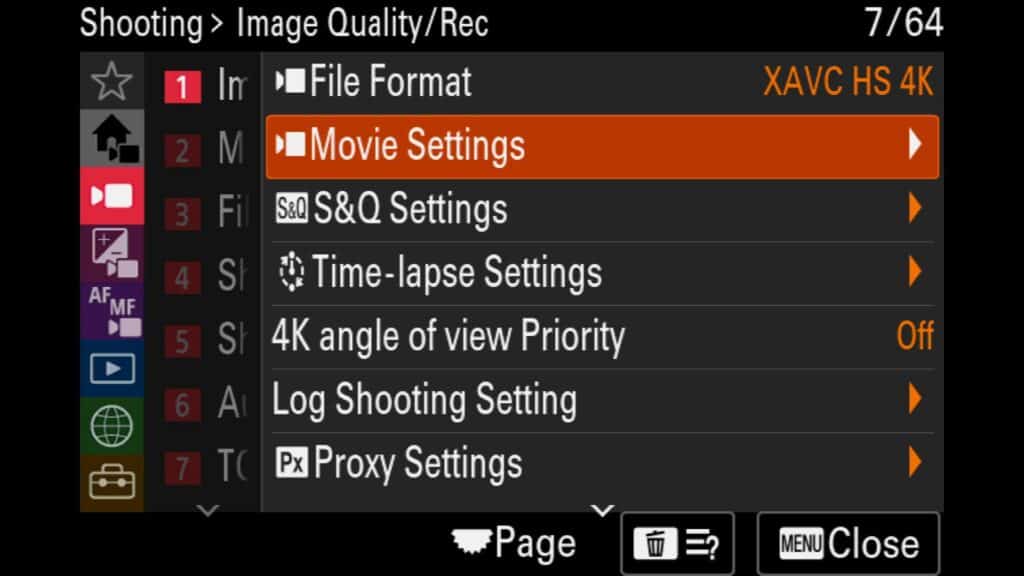
Menu – Shooting – (1) Image Quality/Rec – File Format
Make Changes to the Video Settings
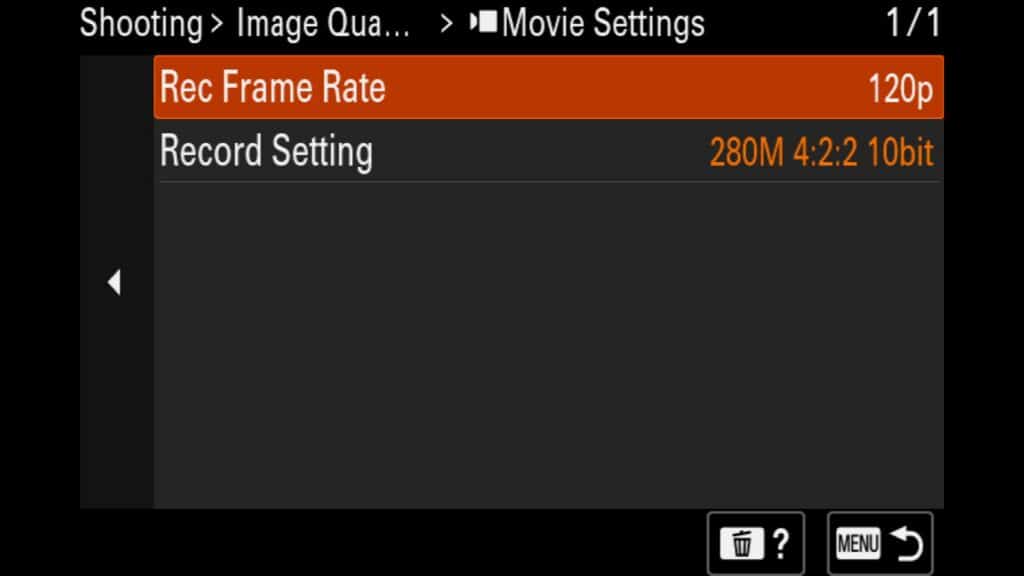
Once you have configured your camera’s video resolution, the next step is to select your video frame rate. Depending on the recording resolution you chose in the previous step, the Sony a7R VI offers several frame rate options tailored to different visual styles and post-production workflows:
24p: Delivers a traditional, cinematic film-like look and feel to your footage.
30p: Ideal for standard internet video, vlogging, or matching clips captured on a smartphone.
60p: A high-FPS mode that provides excellent flexibility, allowing you to create smooth slow-motion footage in post-production (up to a 2x slowdown).
120p: The ultimate choice for dramatic slow motion, offering the ability to slow a clip down by up to 5x when tracking fast-moving action.
Next, dive into the Record Settings menu to configure your camera’s video quality, bitrate, and color profiles. Keep in mind the golden rule of video production: the higher your bitrate, bit-depth, and color sampling, the larger your final video file sizes will be.
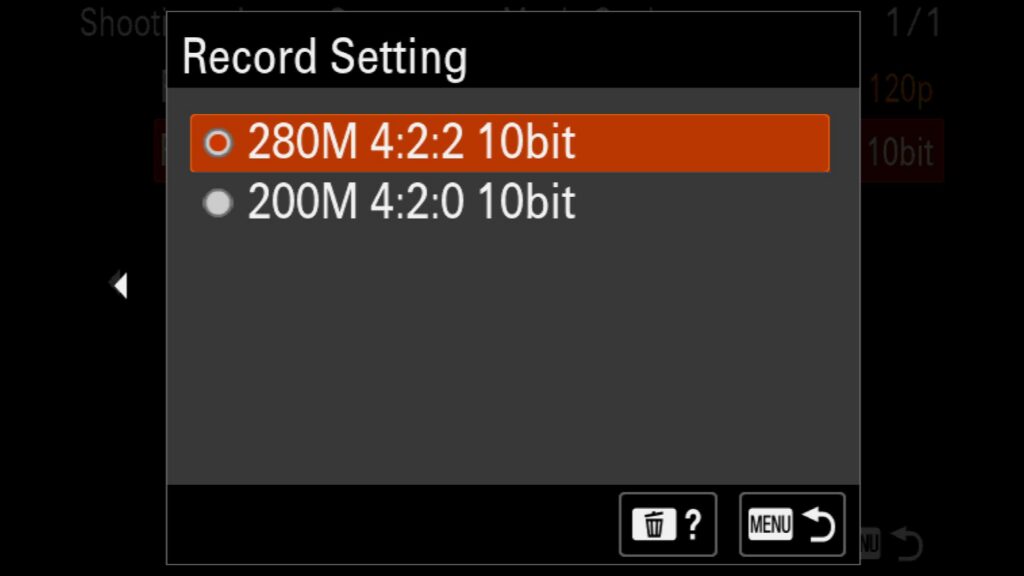
To understand how these parameters work together, let’s break down a common R VI recording profile option: 200M 4:2:2 10bit.
200M (Bitrate): This represents the video data rate (Megabits per second). A higher bitrate preserves more detail and delivers superior image quality, but it causes file sizes to swell quickly.
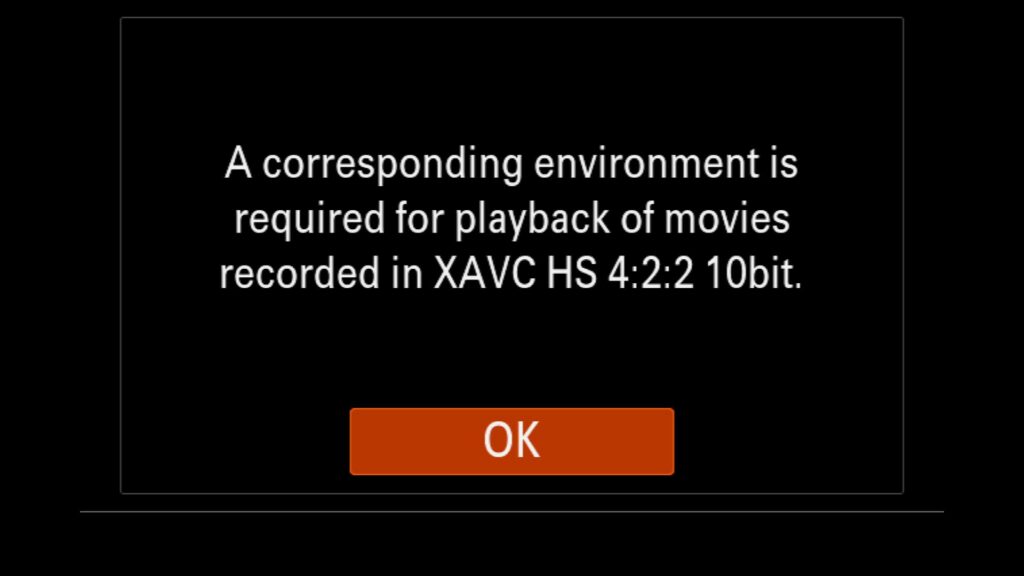
4:2:2 (Chroma Subsampling): This numbers matrix dictates how much color information the sensor records. Higher values capture richer color accuracy and smoother gradations, making a 4:2:2 workflow far superior to 4:2:0 for color grading.
10bit (Bit-Depth): This determines the overall color palette complexity. While 8-bit files are locked to roughly 16.7 million colors, a 10-bit video file records up to 1.07 billion colors, effectively eliminating ugly color banding in skies and gradients.
Menu – Shooting – (1) Image Quality/Rec – Movie Settings
Adjust Your S&Q (Slow & Quick) Video Settings
S&Q stands for “Slow & Quick,” which is the dedicated in-camera slow-motion and timelapse video mode found across modern Sony mirrorless bodies.
While standard video mode requires you to capture high frame rates (like 60p or 120p) and manually interpret them on a computer timeline, Sony a7R VI S&Q mode handles the processing automatically. The camera outputs a video file that instantly plays back in slow motion—saving you extra post-production steps. The only trade-off is that you lose the ability to play the clip back at normal speed later.
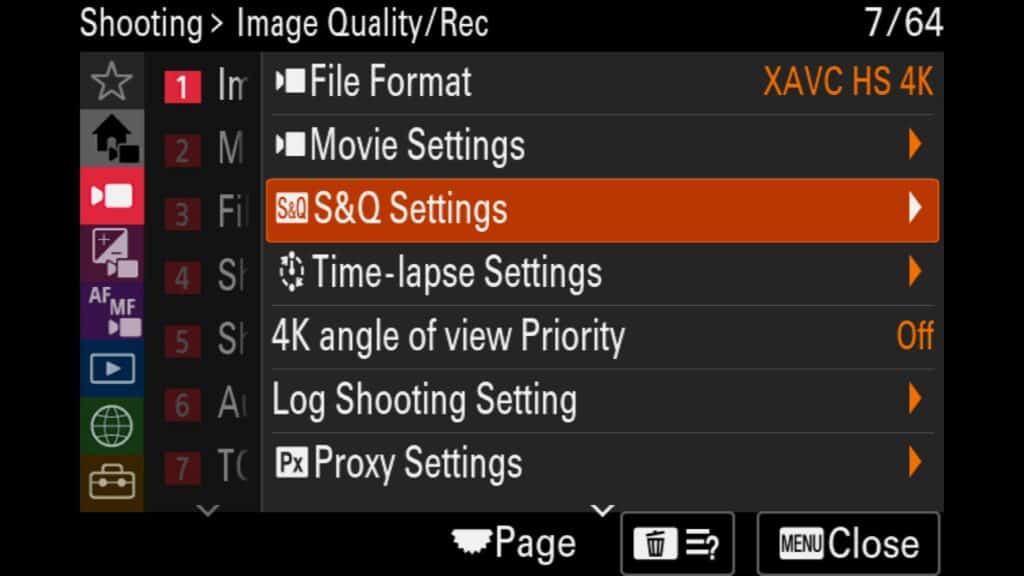
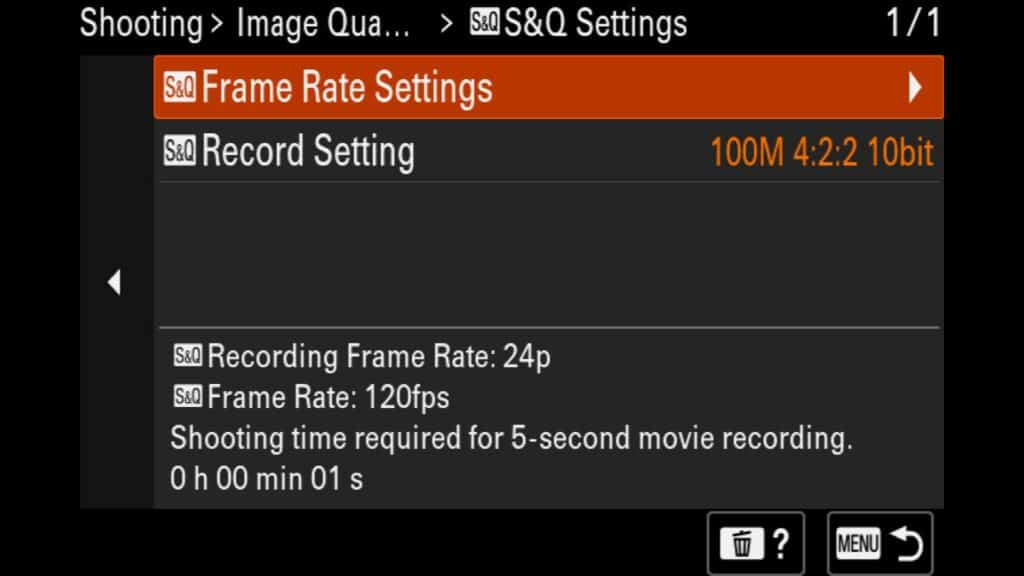
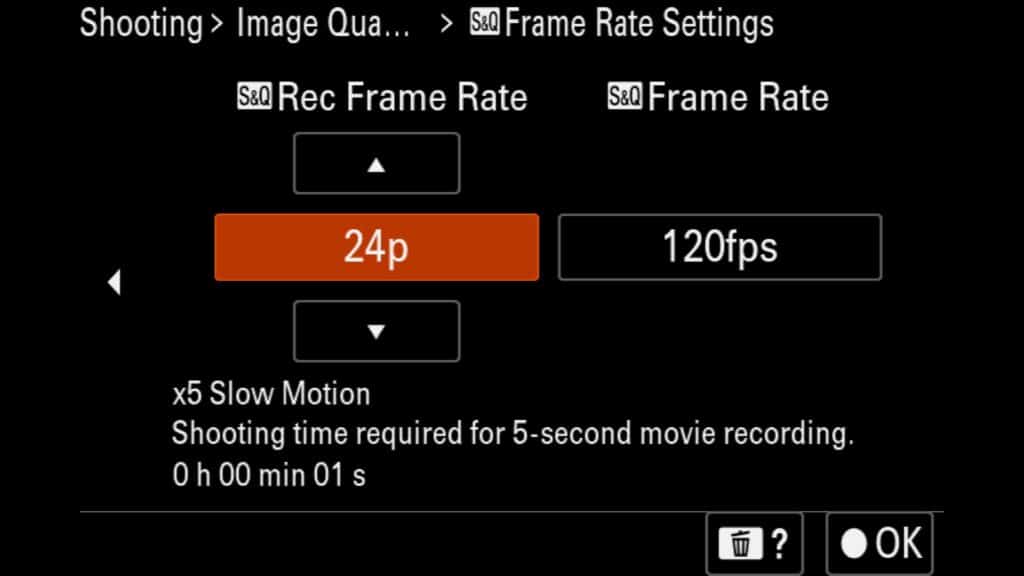
Setting up this feature is simple. Switch your camera dial to S&Q, and configure these three core options in the Sony a7R VI video settings:
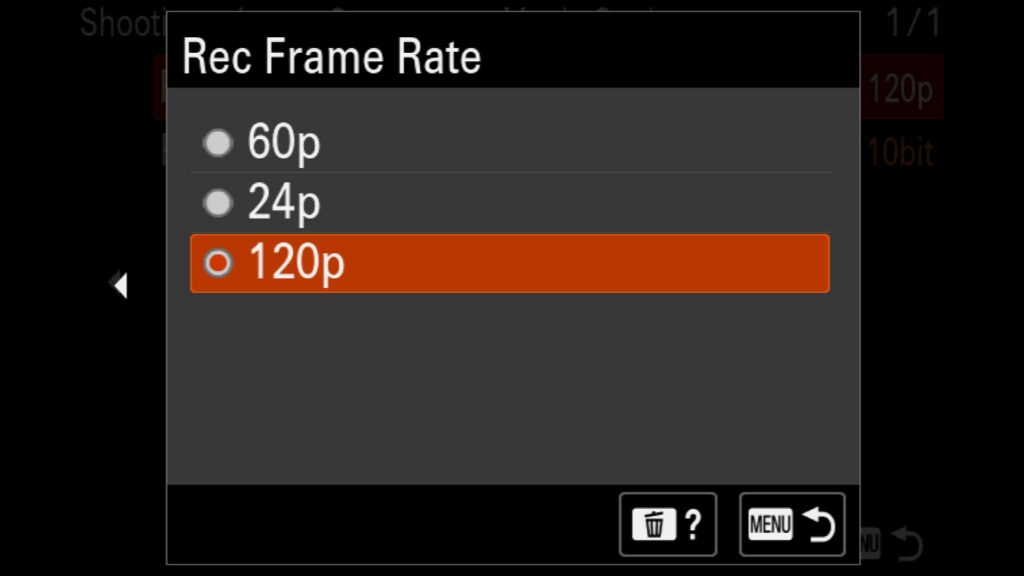
S&Q Rec Frame Rate: This is the base playback frame rate for your final project. Options include 24p, 30p, or 60p. (I highly recommend 24p for a cinematic, movie-like aesthetic).
S&Q Frame Rate: This dictates how many physical frames the sensor captures per second, determining the strength of your slow-motion effect. For example, selecting a 24p recording frame rate paired with a 120p capture frame rate yields a beautiful 5x slow-motion effect (120fps / 24fps). Choosing 60p results in a 2x slowdown.
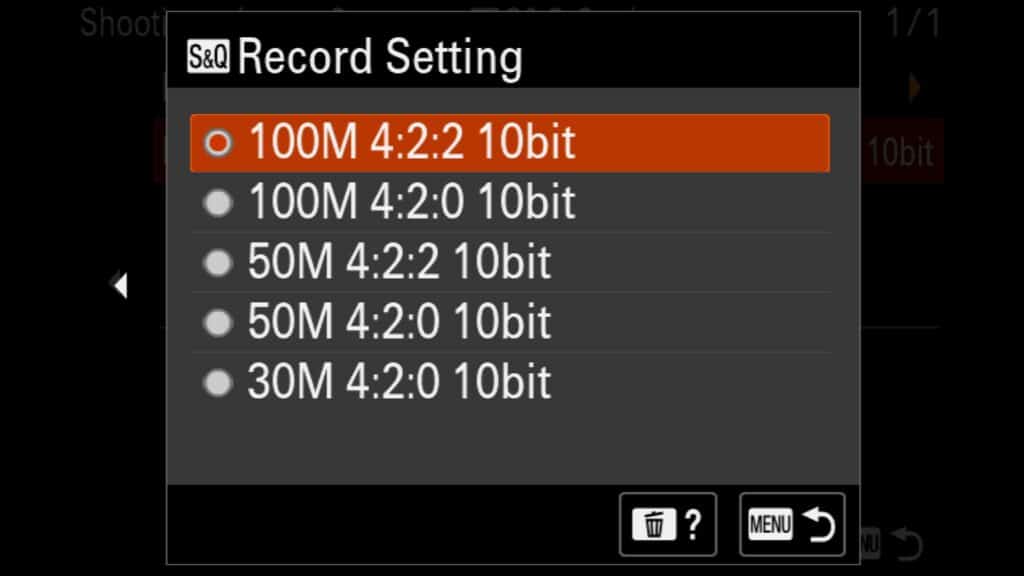
S&Q Record Settings: Based on your frame selections, this determines your video’s bitrate, image quality, and color depth (e.g., 50M 4:2:2 10bit). Note that your choices here will be slightly more limited than in standard video recording modes.
Menu – Shooting – (1) Image Quality/Rec – S&Q Settings
Shoot Video in LOG & Using LUTS
Otherwise known as S-Log, this powerful video feature offers a massive amount of leeway when color grading, allowing you to maximize the dynamic range and color fidelity of the Sony a7R VI sensor.
Important Menu Behavior:
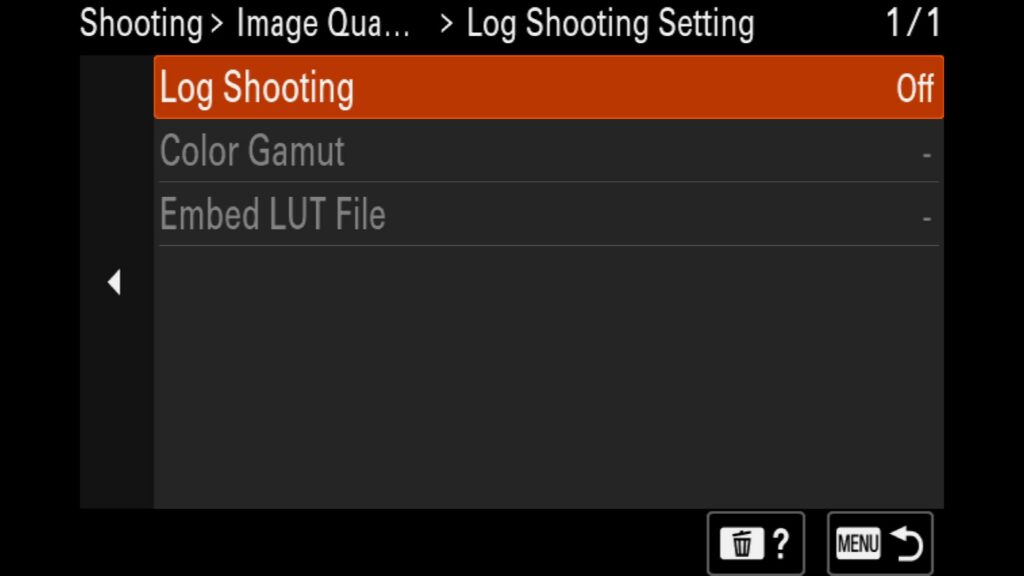
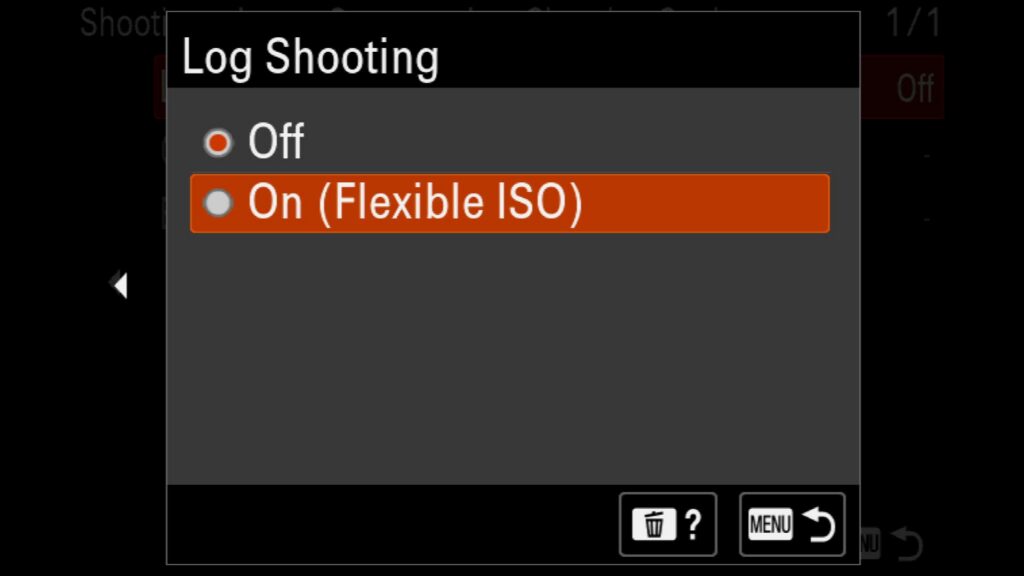
Picture Profile Override: Once you enable Log shooting, it will automatically turn off any standard Picture Profiles (like S-Cinetone) you currently have selected.
The Standard: On the Sony a7R VI, you will want to shoot in S-Log3 to capture the maximum highlight and shadow detail possible for post-production.
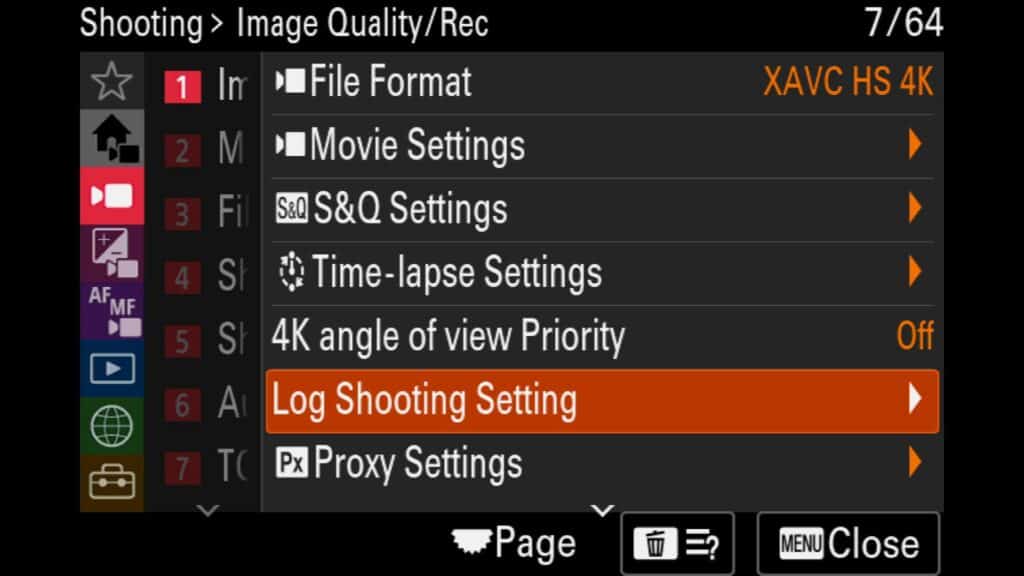
Menu – Shooting – (1) Image Quality/Rec – Log Shooting Setting
LUTs (Lookup Tables) act as an advanced color matrix used to instantly transform the tones, contrast, and overall creative look of your images or video. You can utilize them temporarily as a monitor preview to visualize your final grade while shooting, or bake them directly into the recorded video file.
Core Rules for Using LUTs:
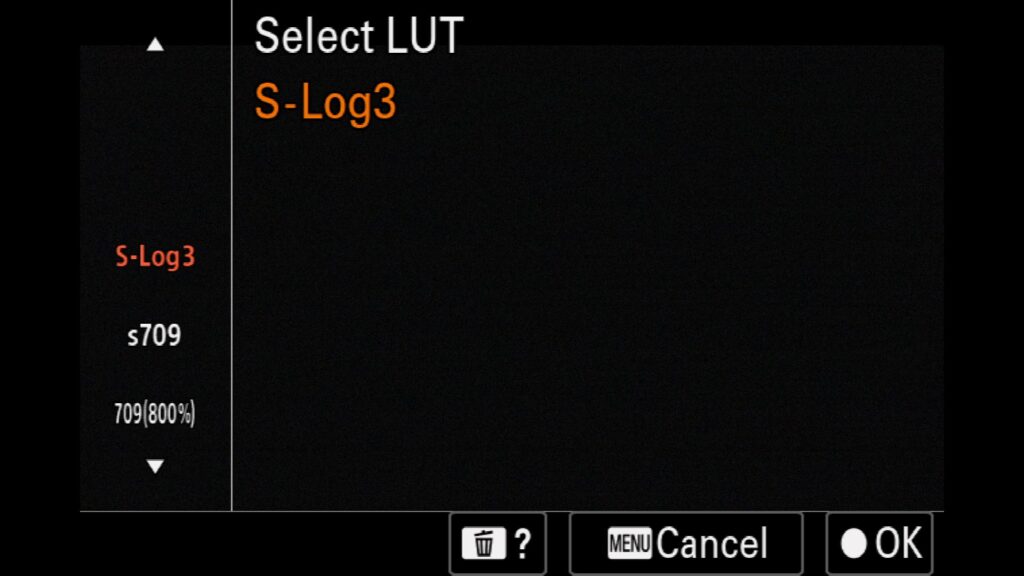
Required Gamma Profile: To apply a LUT successfully, you must be actively shooting in a flat log profile like S-Log3.
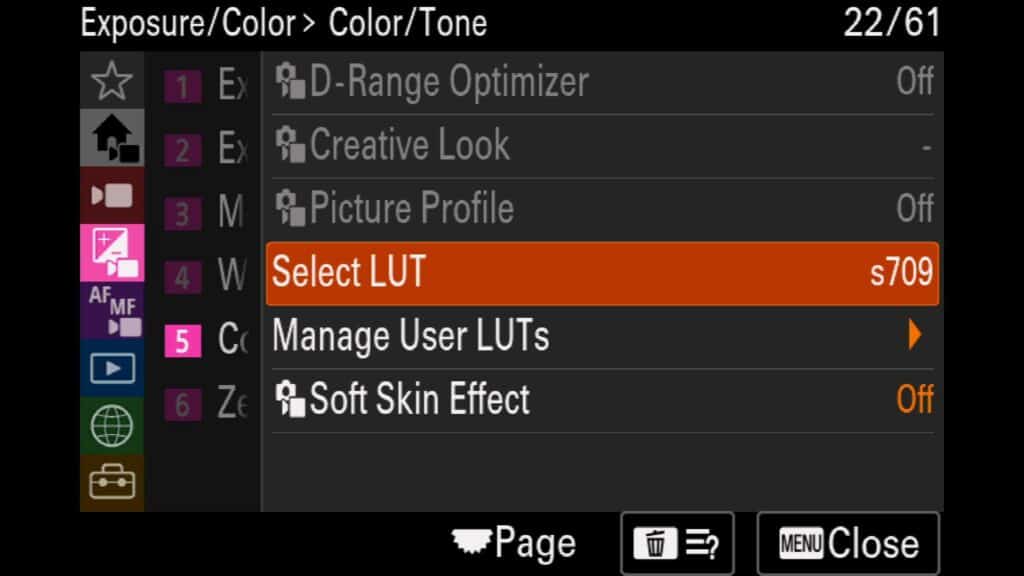
Built-In Presets: Modern mirrorless bodies include pre-installed monitoring LUTs (such as S-Log3, s709, and 709 [800%]).
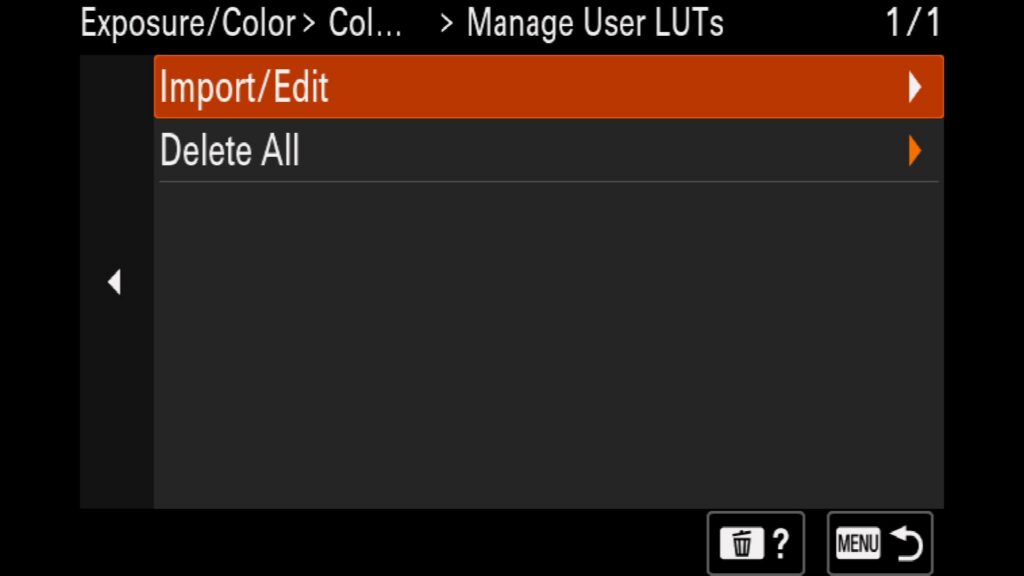
Custom Profiles: You can easily import your own custom .cube user LUTs directly onto the camera via a memory card to apply your signature color style in the field.
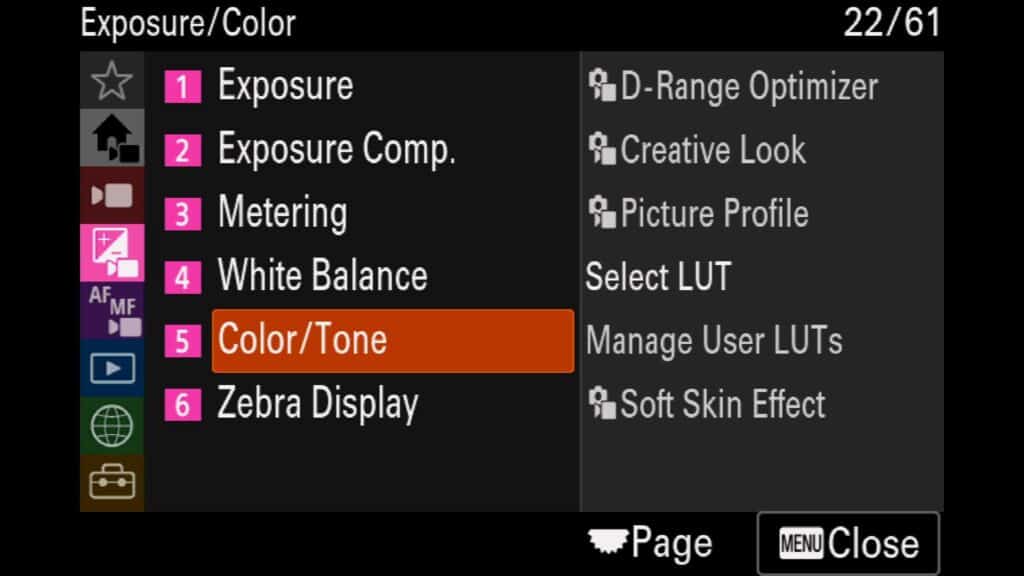
Menu – Exposure/Color – (5) Color/Tone – Select LUT
Add Proxy Files to Your Videos
If you have ever struggled with laggy timelines while editing high-resolution footage, utilizing in-camera proxy videos is a lifesaver. Enabling this feature tells your camera to simultaneously record a low-resolution, low-bitrate mirror copy of your video alongside your primary high-quality files.
While you can always generate proxies later on your computer, having them ready to go straight from your memory card saves massive amounts of post-production time. This workflow is incredibly convenient if you want to shoot Sony a7R VI 8K video but don’t have a high-end workstation to process files that large. Editing the lightweight proxy files instead makes your post-production seamless, especially on older laptops.
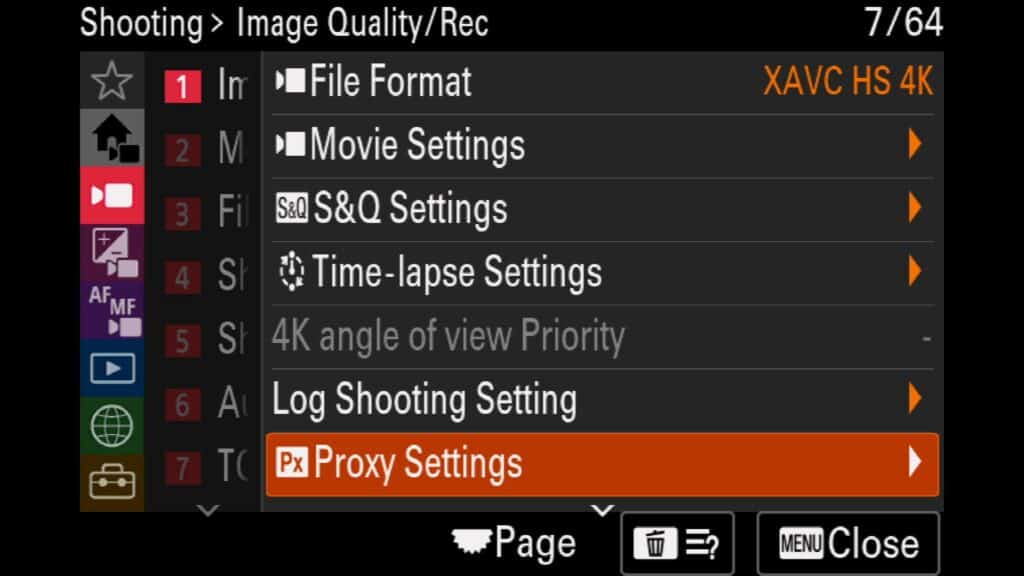
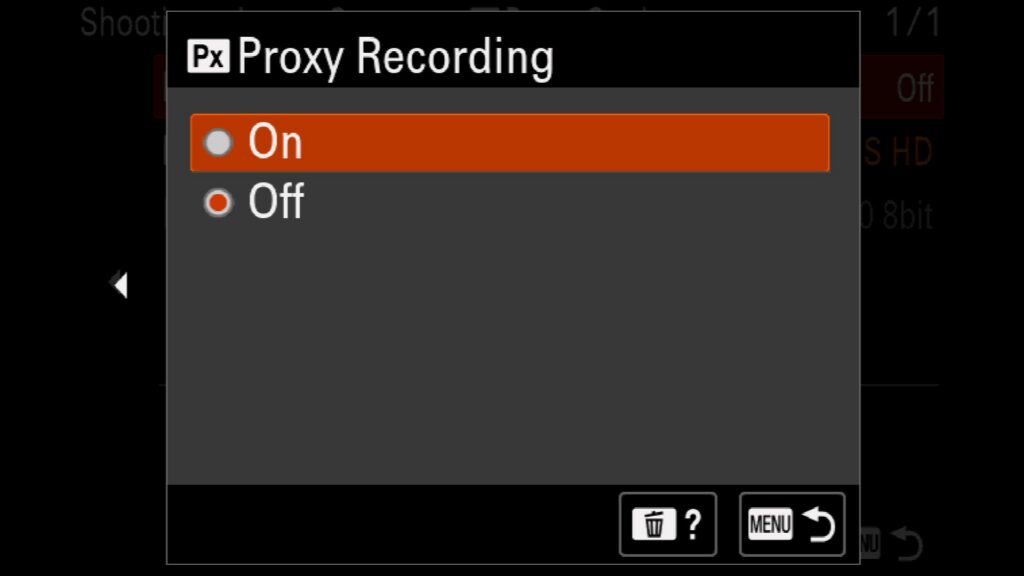
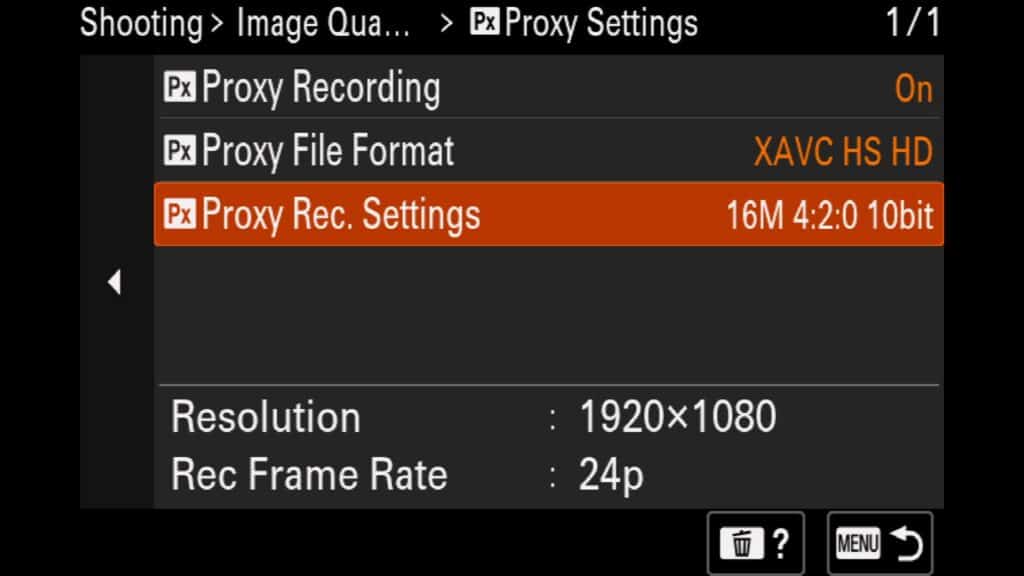
To set this up, navigate to your movie menu to configure the Sony a7R VI proxy settings:
Proxy Recording: Toggle this option to On or Off to control background proxy creation.
Proxy File Format: Choose your proxy resolution. Your options typically include XAVC HS HD (1920×1080) for a crisp editing experience or XAVC S HD (1280×720) for the smallest possible file sizes.
Proxy Rec. Settings: Select your target bitrate. Your available options here will shift dynamically depending on your chosen file format and primary recording frame rate.
Menu – Shooting – (1) Image Quality/Rec – Proxy Settings
Choose To Shoot In Full-Frame or Super-35 Video Modes
With the Sony a7R VI, you have the ability to shoot video in either Full Frame mode or S35 (Super-35) video modes (which has a slight crop in) depending on the other video settings you have choosen. Luckily, this setting is easy to find.
Menu – Shooting – (1) Image Quality/Rec – APS-C S35 Shooting
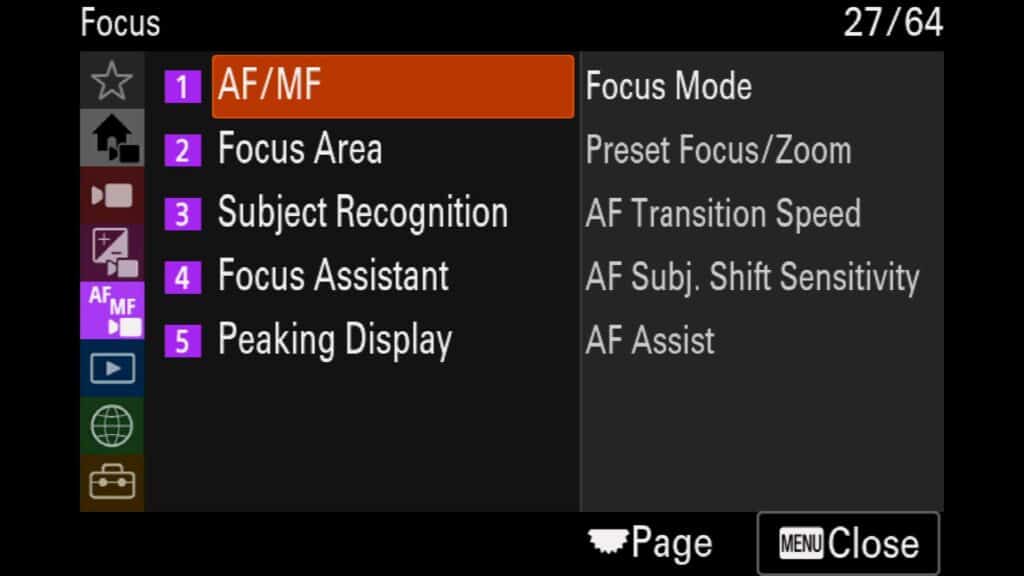
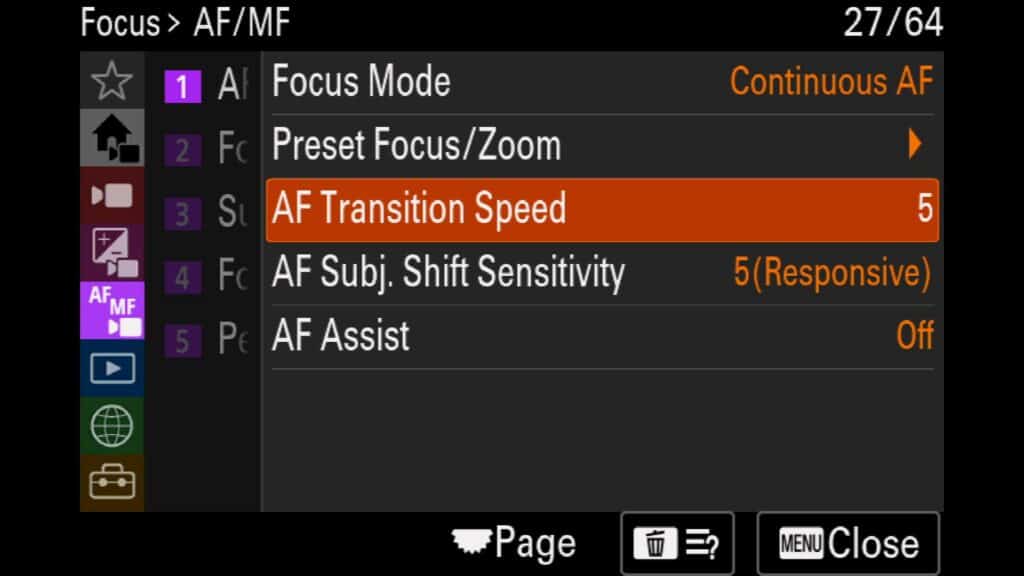
Adjusting AF Settings for Video
If you want to get better at shooting video, especially with faster moving subjects, it. isimportant to master the Sony a7R VI video autofocus settings. Under the AF/MF menu when in video mode, you can fine-tune how your lens tansitions focus and shifts between targets using two critical features:
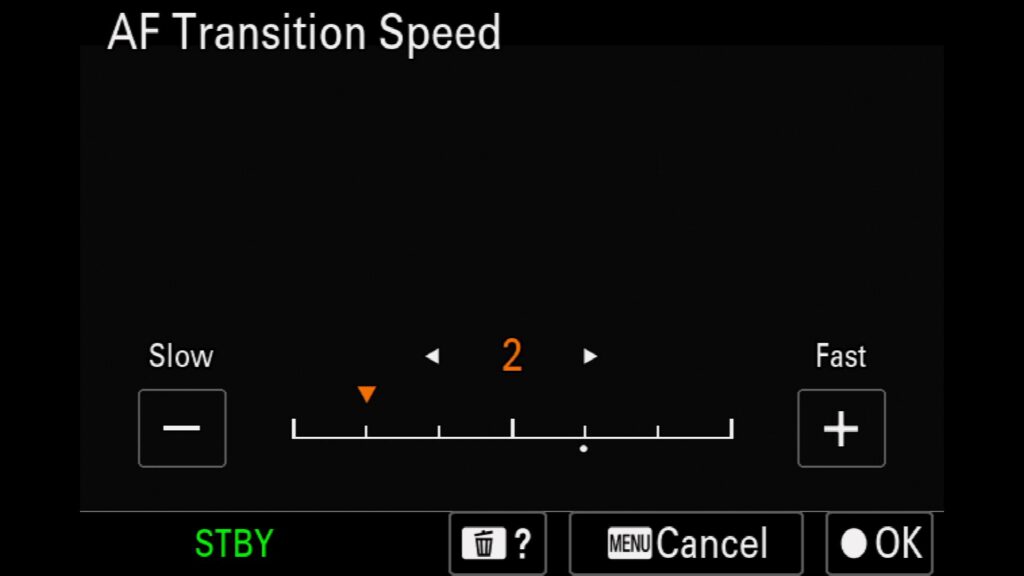
AF Transition Speed: This setting controls how quickly or slowly the lens shifts focus from one subject to another. For dramatic, organic focal changes (like a rack focus between two actors), select a slower speed (1–3). For fast-moving action or sports where instant acquisition is required, crank this setting up to a faster speed (5–7).
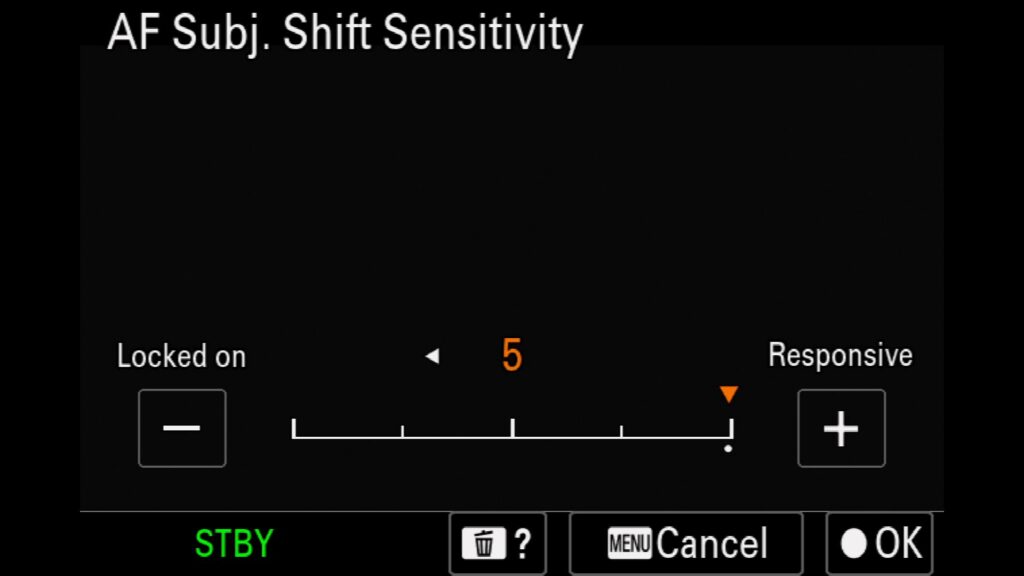
AF Subject Shift Sensitivity: This dictates how aggressively the camera’s AI tracking sticks to your original subject when an obstacle passes through the frame. Setting this to 1 (Locked On) ensures the camera ignores distractions (like a person walking across your shot), while setting it to 5 (Responsive) allows the autofocus to instantly shift to a new, closer subject entering the composition.
By balancing a smooth AF Transition Speed with a sticky AF Subject Shift Sensitivity, you can completely eliminate erratic focus hunting and capture pristine, cinema-grade footage on the Sony a7R VI sensor.
Menu – AF/MF – (1) AF/MF – AF Transition Speed
Recommended Accessories for the Sony a7R VI
Now that you have purchased your Sony a7R VI, you might want to take a look at some of my favorite accessories for this incredible camera.
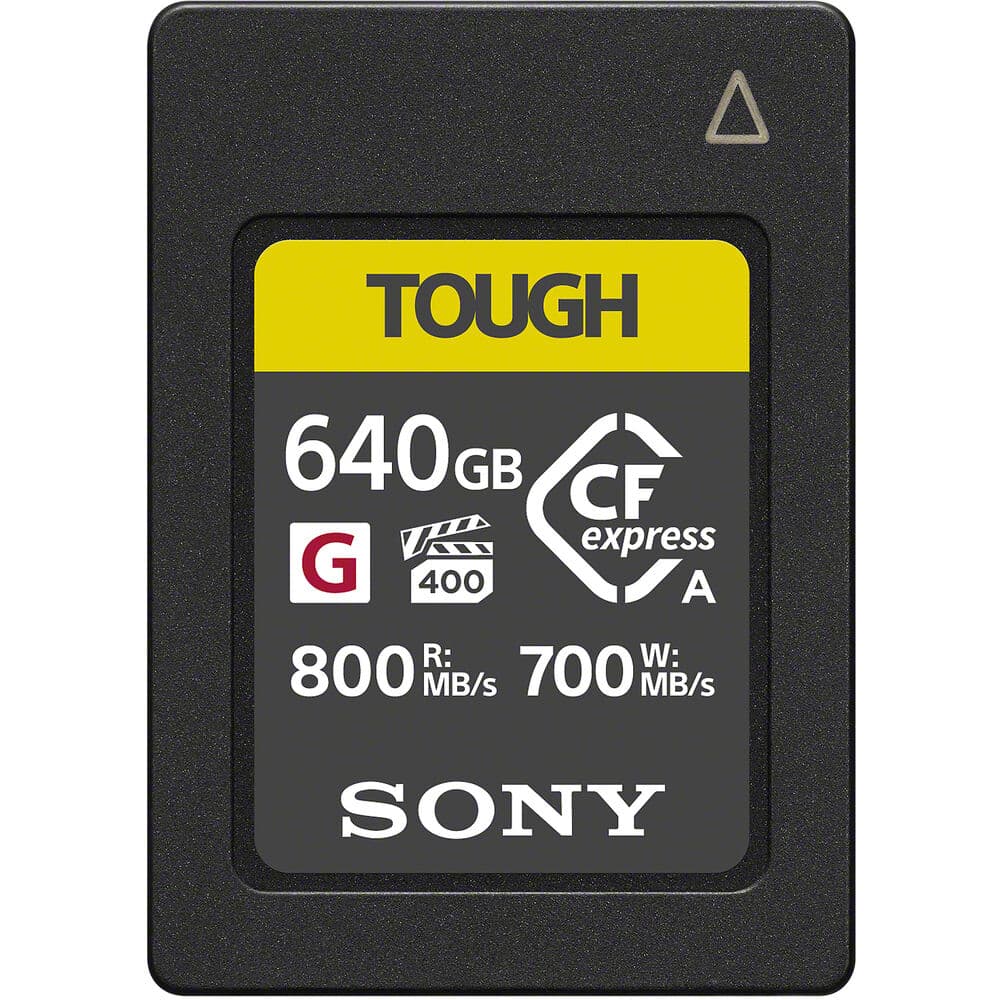
CF Express Type A Cards
To fully support the ultra-high resolution and massive file sizes of the Sony a7R VI, I HIGHLY recommend picking up a couple of CFexpress Type A cards instead of relying solely on older, slower SD cards. The benefits of these faster CFexpress cards will be felt immediately in how quickly your buffer clears when shooting continuous bursts of high-megapixel raw files, as well as how rapidly your data-heavy images and 8K videos offload from your memory cards to your computer.
Extra Sony NP-SA100 Batteries
Like all digital mirrorless cameras, the Sony a7R VI, if used extensively (or left turned on), will drain its power reasonably quickly compared to older DSLRs. To combat this, I highly recommend carrying a few genuine Sony NP-SA100 batteries with you at all times. While you might eventually find more affordable third-party alternatives, I don’t recommend them because you never truly know whether they were engineered to meet the exact specifications Sony demands for its flagship bodies. A faulty third-party battery could potentially damage your camera’s electronics, so to me, it simply isn’t worth the risk—even if that risk is small.
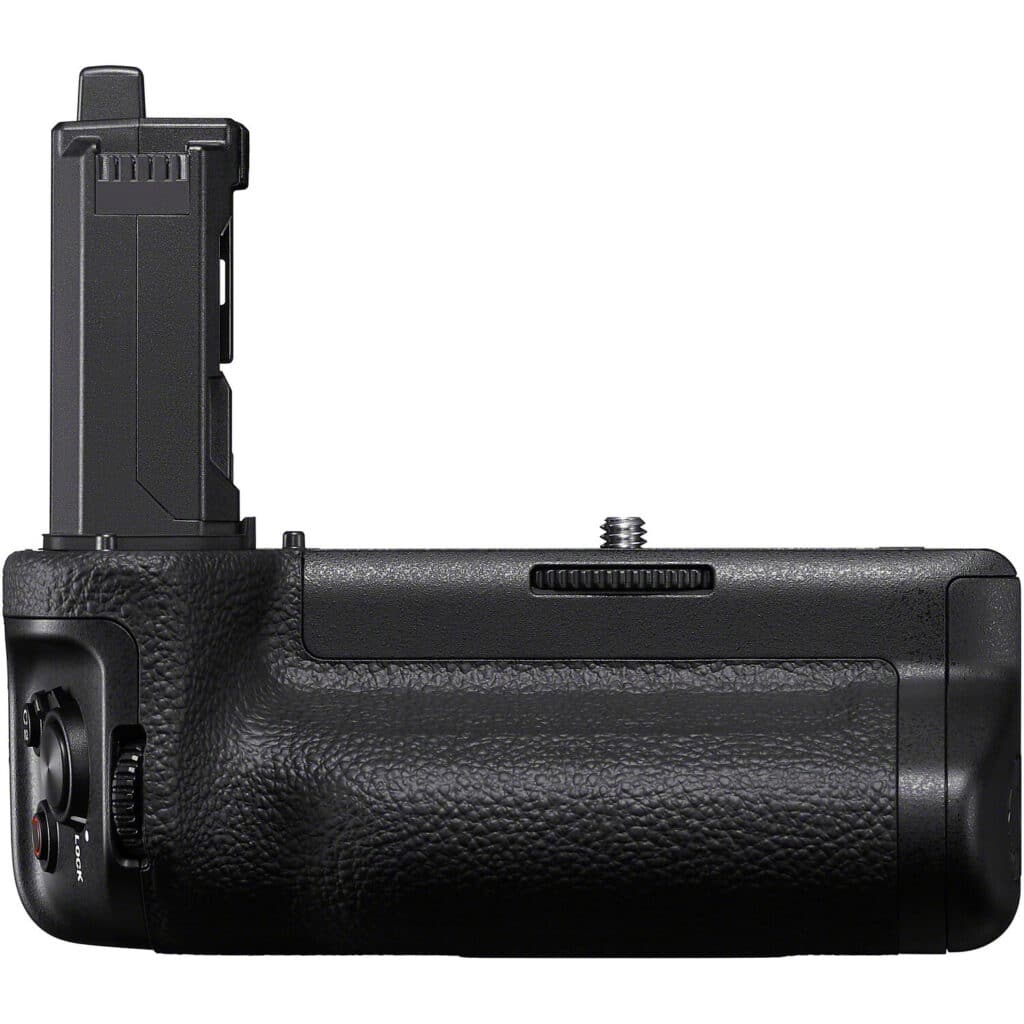
The Sony VG-C6 Vertical Battery Grip
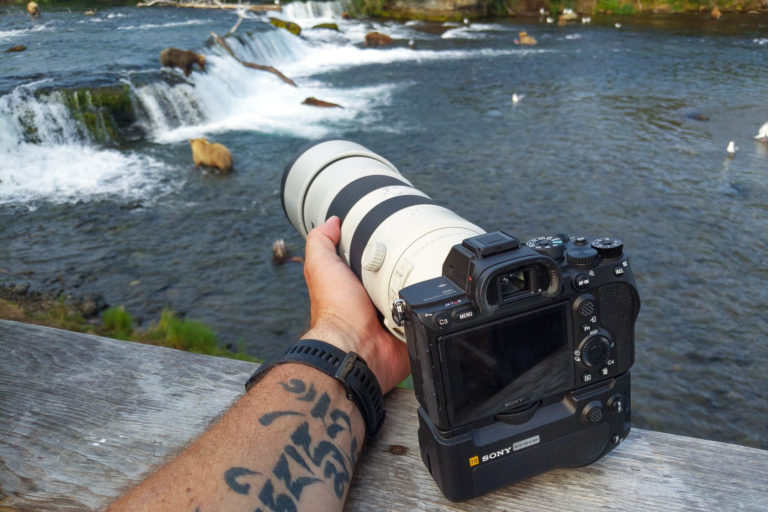
While Sony prides itself on creating compact, highly portable mirrorless bodies, adding the Sony VG-C6 vertical battery grip can completely transform your shooting experience. By housing two NP-SA100 batteries simultaneously, it effectively doubles your operating time so you never miss a critical moment. It also allows you to seamlessly transition between landscape and portrait orientations, keeping identical control placement and button functionality right at your fingertips. Furthermore, when paired with a camera like the Sony a7R VI, the VG-C6 provides essential ergonomic balance, making it much easier to steady and support heavy telephoto lenses during extended handheld sessions.
Extended Eye Cup
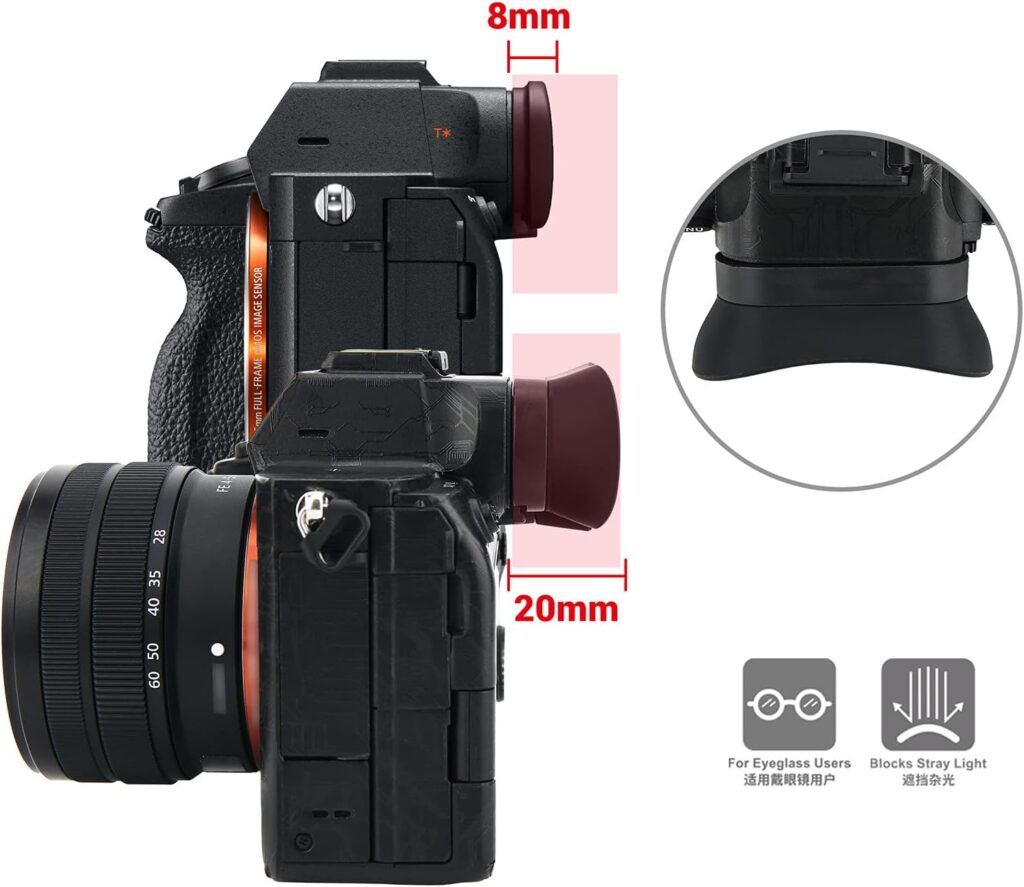
Easily one of my favorite accessories for any Sony camera, getting an Extended Eye Cup for the a7R VI will help when shooting in bright situations, such as the middle of the day. The extended eye cup protrudes much further out from the camera body, making it easier to block any stray ambient light that might interfere with your view. When you’re trying to critical-focus or compose a shot using that gorgeous, high-resolution electronic viewfinder, this inexpensive accessory is a MUST, in my opinion!
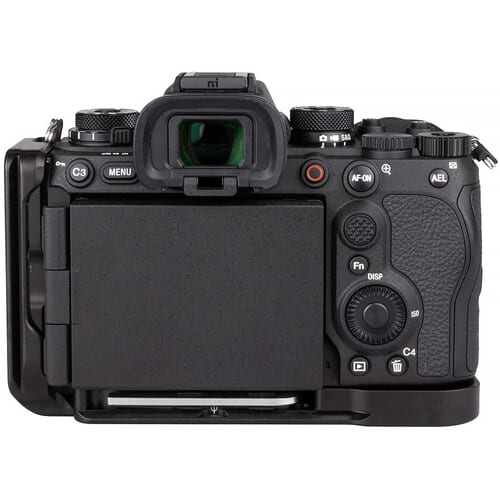
L Bracket for the Sony a7R VI
If you are a landscape or studio photographer who often shoots from a tripod, an L-Bracket is necessary for any camera you own. That said, an L-bracket for the a7R VI has not been released yet. I will update this section as soon as one becomes available to purchase.
Gimbal Head for the Sony a7R VI
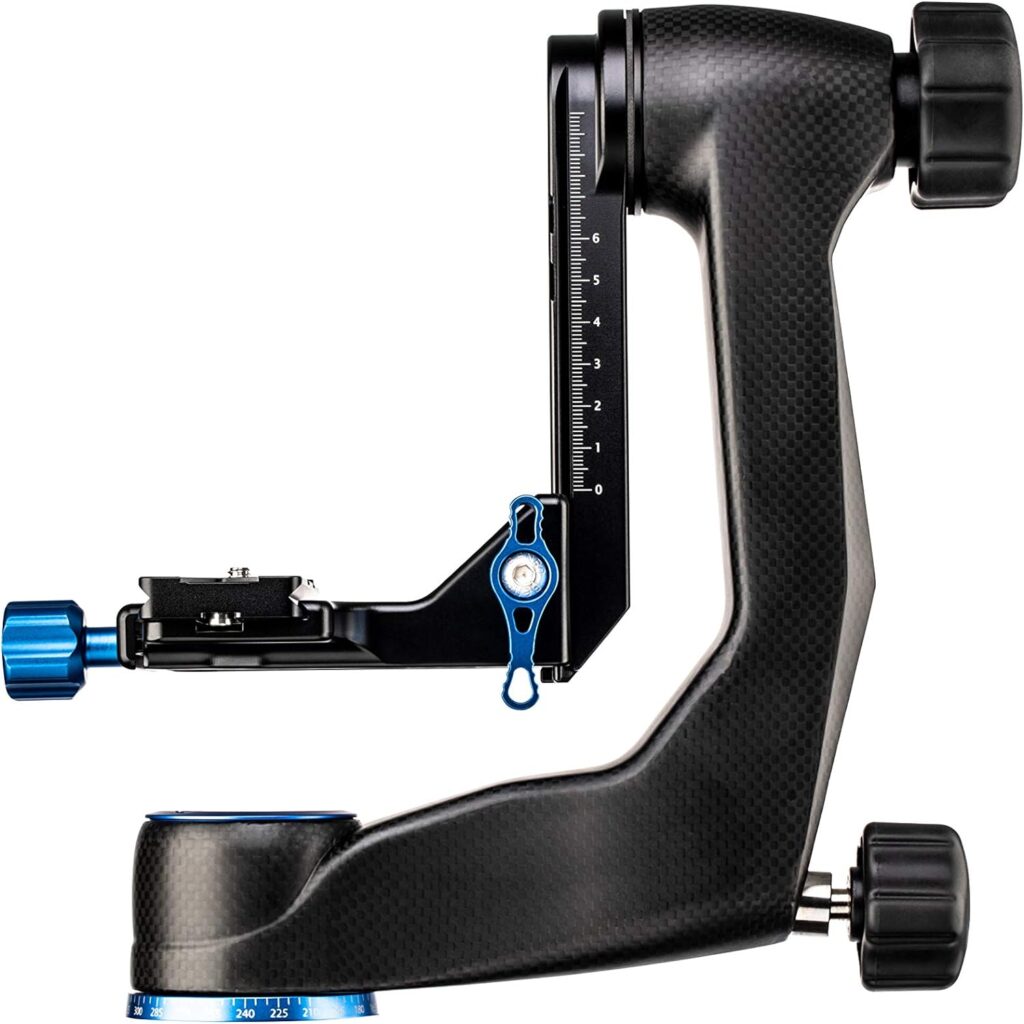
For many of us out in the field—especially those dedicated to tracking fast and erratic avian subjects—a high-quality gimbal head is an absolute necessity. A great gimbal completely neutralizes the weight of a heavy telephoto lens, giving you the fluid freedom and stability to effortlessly track a bird in flight across multiple axes of motion without fighting your gear. Here are a few of my favorite gimbal heads that have earned a permanent spot in my kit.
Benro GH5C Carbon Fiber Gimbal Head: Amazon | BH Photo
Leofoto PG-1 Gimbal Head: Amazon | BH Photo
Monopod System for the Sony a7R VI
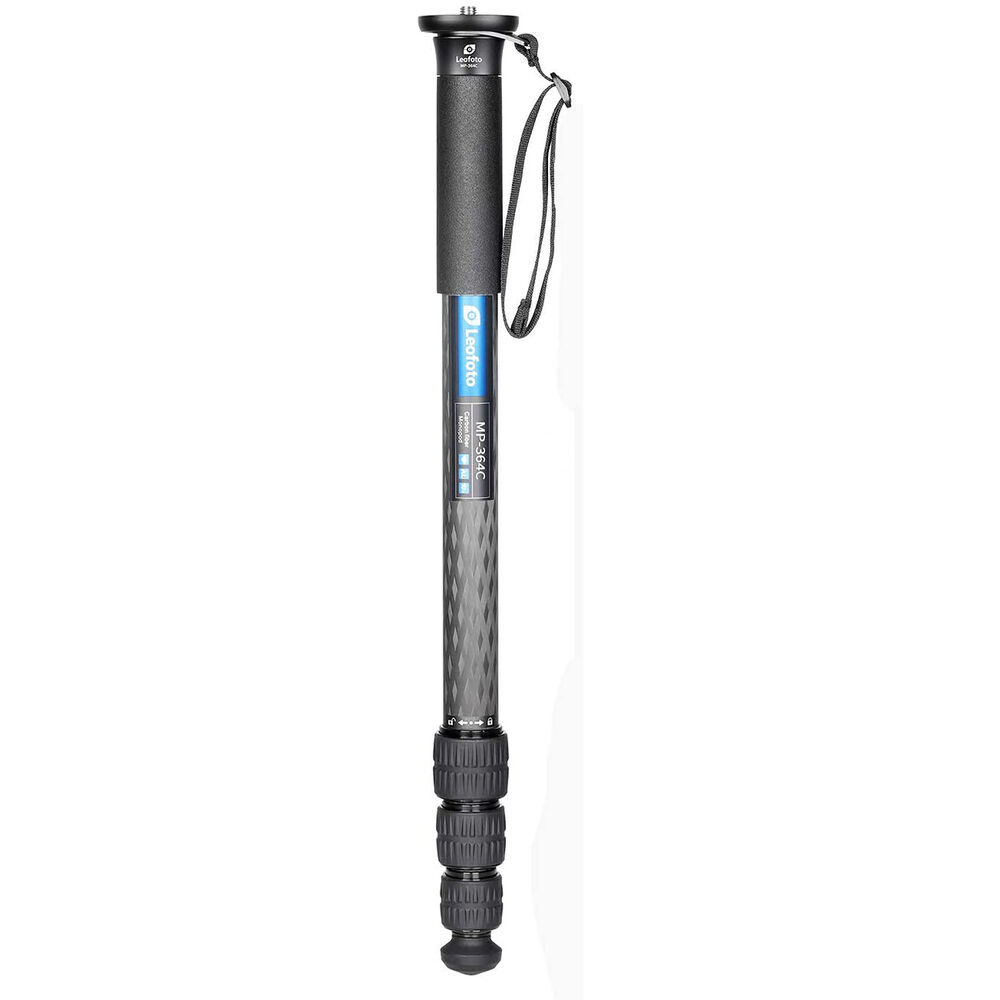
Given how many of us use the Sony a7R VI for demanding wildlife and bird photography, we need to discuss the importance of adding a quality monopod to your kit. When you’re managing the massive resolution of this camera alongside long, heavy telephoto lenses, even the slightest camera shake can ruin a shot; a monopod provides that essential stability without sacrificing mobility.
My current favorite field setup is a two-part system combining a Benro or Leofoto monopod with a Wimberley monopod head. This combination gives you much of the fluid flexibility of a full gimbal to track fast-moving subjects—like birds in flight—without forcing you to lug around the crushing weight of a heavy tripod system.
Leofoto MP-364C Monopod: BH Photo
Monopod Head – Wimberly MH – 100: Amazon | BH Photo
Wireless Remote Control
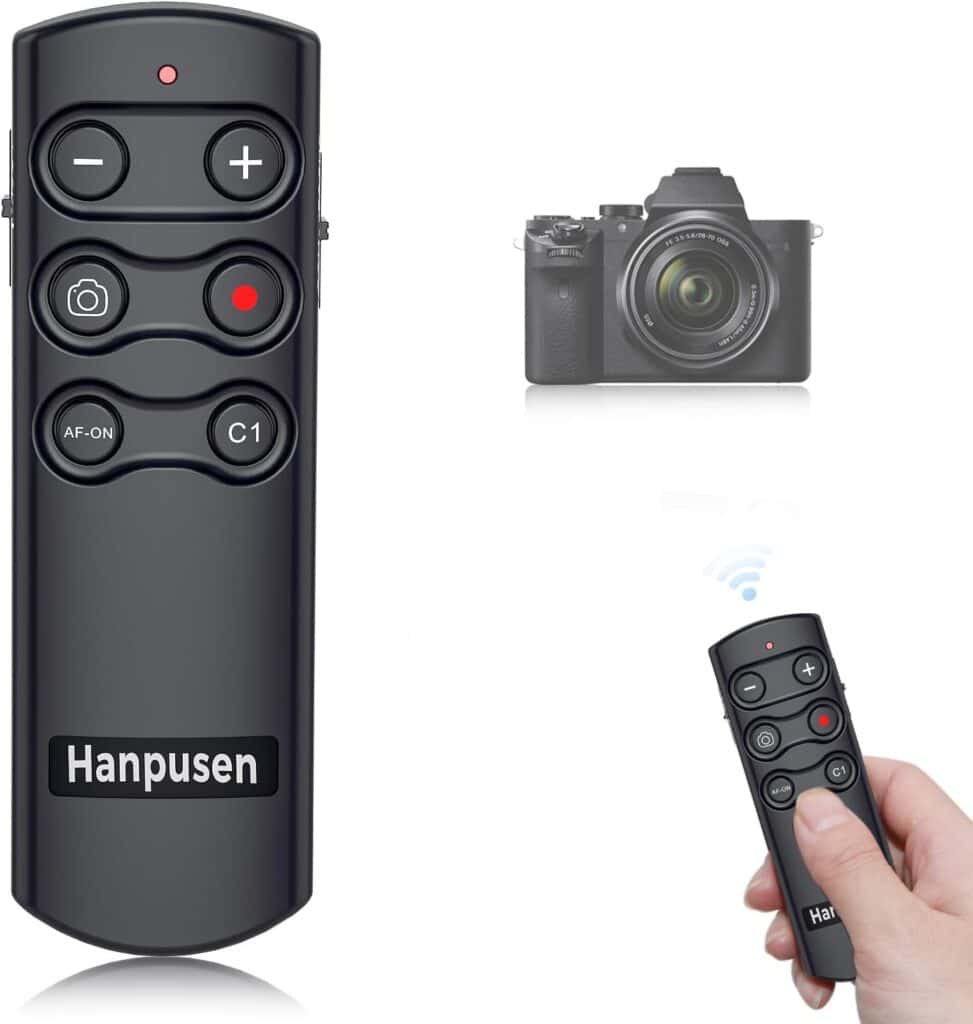
For many photographers—especially those shooting long exposures, macro, or landscapes where avoiding camera shake is critical—capturing an image or starting a video without touching the camera body is essential. While you can always connect to your Sony a7R VI using the Sony Creator’s App to trigger it remotely, that workflow tends to drain both your camera and phone batteries much faster. To save your battery life for a long day in the field, I highly recommend picking up a dedicated wireless remote control instead. Sony makes their own official wireless remote, but it carries a hefty price tag. Instead, I recommend checking out this third-party option—it does the exact same job at a fraction of the cost.
Fast External HD for Travel
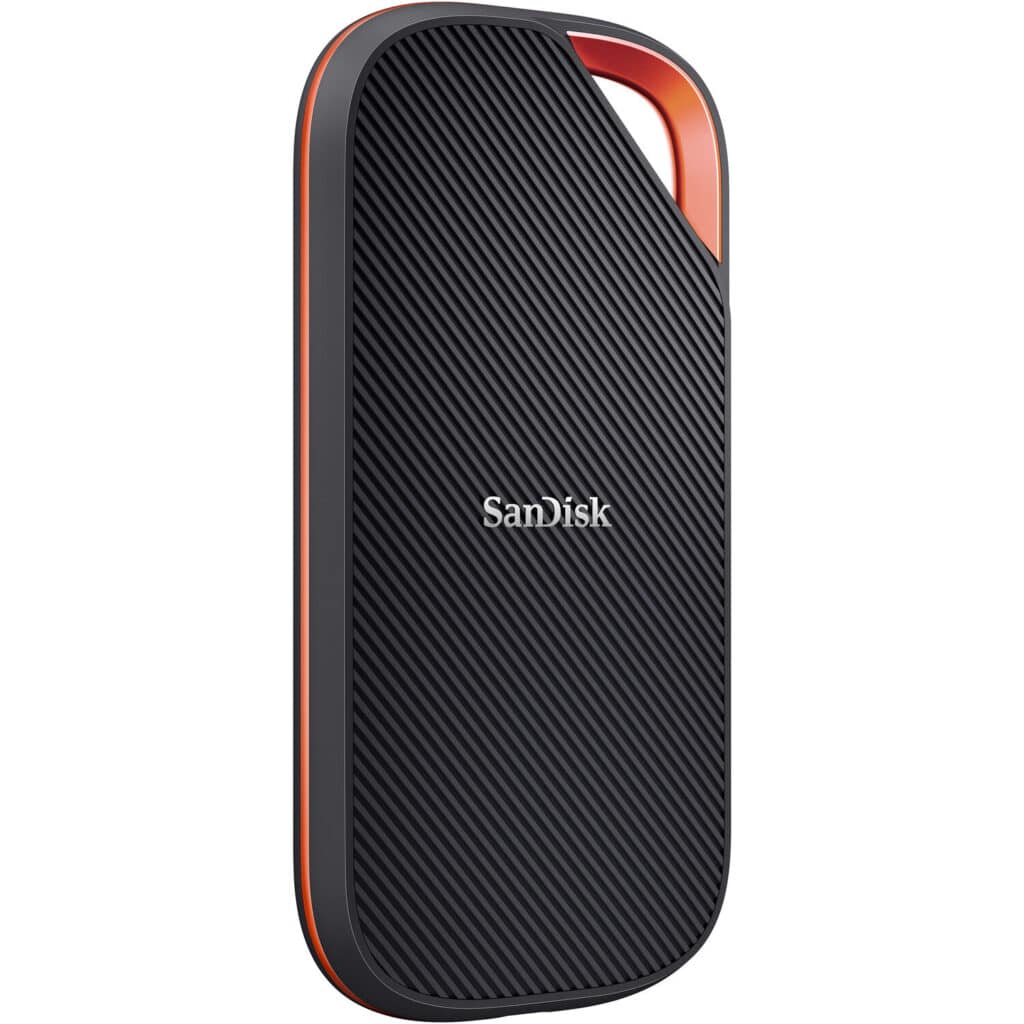
With the Sony a7R VI churning out massive high-megapixel raw images and shooting data-heavy 8K video, you will definitely want to look into picking up a fast and dependable travel hard drive to manage that data in the field. My absolute favorite travel drive is the SanDisk 4TB Extreme PRO USB4 Portable SSD, which comes in 2TB and 4TB options.
Why do I trust this drive? It is not only tiny and incredibly rugged, but it is also blazing fast. I carry two of the 4TB models on nearly all of my photography trips, and I regularly get read speeds around 3500 MB/s and write speeds of 3400 MB/s when pairing them with my MacBook Pro. When you’re backing up terabytes of landscape or wildlife footage after a long day of shooting, that kind of speed is a lifesaver
What Questions Do You Have?
As I mentioned at the start of this guide, I am happy to try to answer any questions you have about setting up your Sony a7R VI directly. Did I miss something that should be added to this guide? Did you need more clarification on something? Let me know in the comments below!